Chapter 2: Get Tmux Running
In the previous chapter, we looked at the problem tmux solves and why persistent terminal sessions are useful, especially when working over SSH.
Now it's time to actually use tmux.
In this chapter, we'll install tmux on your system, verify that everything is working, start your first tmux session, and understand what you see when tmux starts.
We won't configure anything yet. For now, the goal is simple:
Get tmux running and get comfortable inside your first session.
Once that works, we'll start learning how to control tmux in the next chapter.
Installing Tmux
The good news is that tmux is available through the package manager on most Linux distributions, so installation is usually just one command.
On Ubuntu or Debian-based systems, run:
sudo apt update
sudo apt install tmux
The first command refreshes your package information, and the second installs tmux.
On Arch:
sudo pacman -S tmuxIf you're using another distribution, use the command for your system from the examples above. Verify the Installation before starting tmux:
tmux -V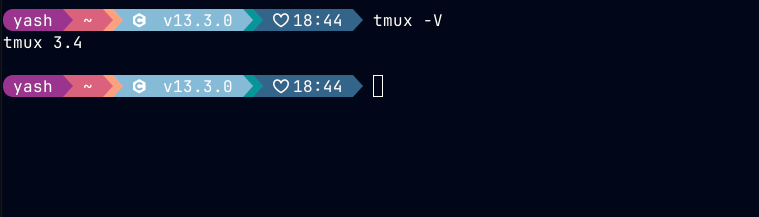
Start Tmux
Now comes the fun part. Type tmux in your terminal and that's it, you have just started your first tmux session.
At first glance, almost nothing may seem different. Your shell still works normally, and you can still run Linux commands just like before.
But look at the bottom of your terminal. You should now see a tmux status bar. A typical tmux screen looks roughly like this:
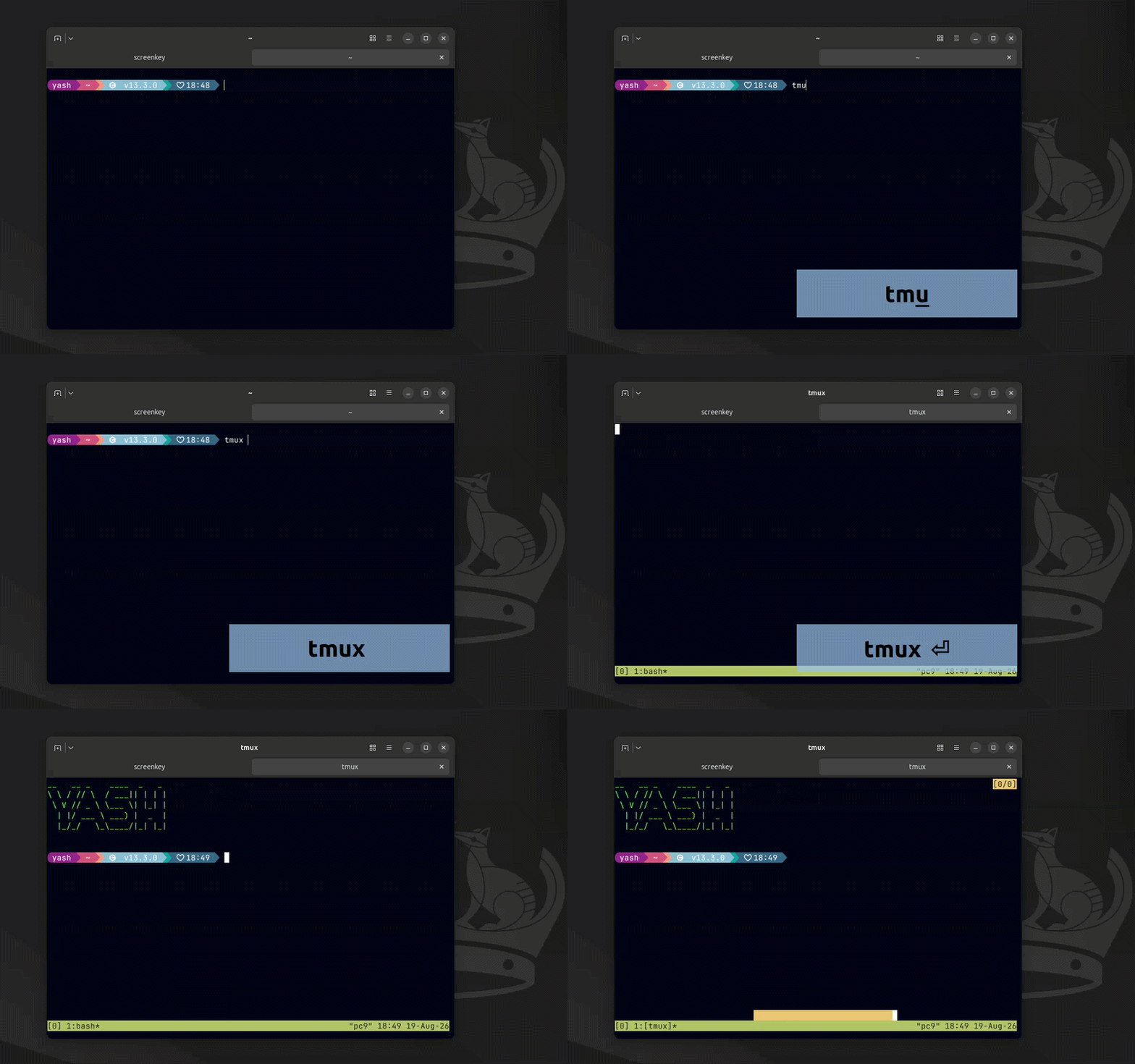
Let's break down the status bar without going too deep yet. You may see something similar to:
[0] 1:bash*The 1 represents the first window. The bash part tells you the shell running inside that window. The * marks the active window.
The Linux commands behave exactly as they normally would. Tmux isn't replacing your shell or changing how Linux commands work. It is managing the terminal environment around your shell.
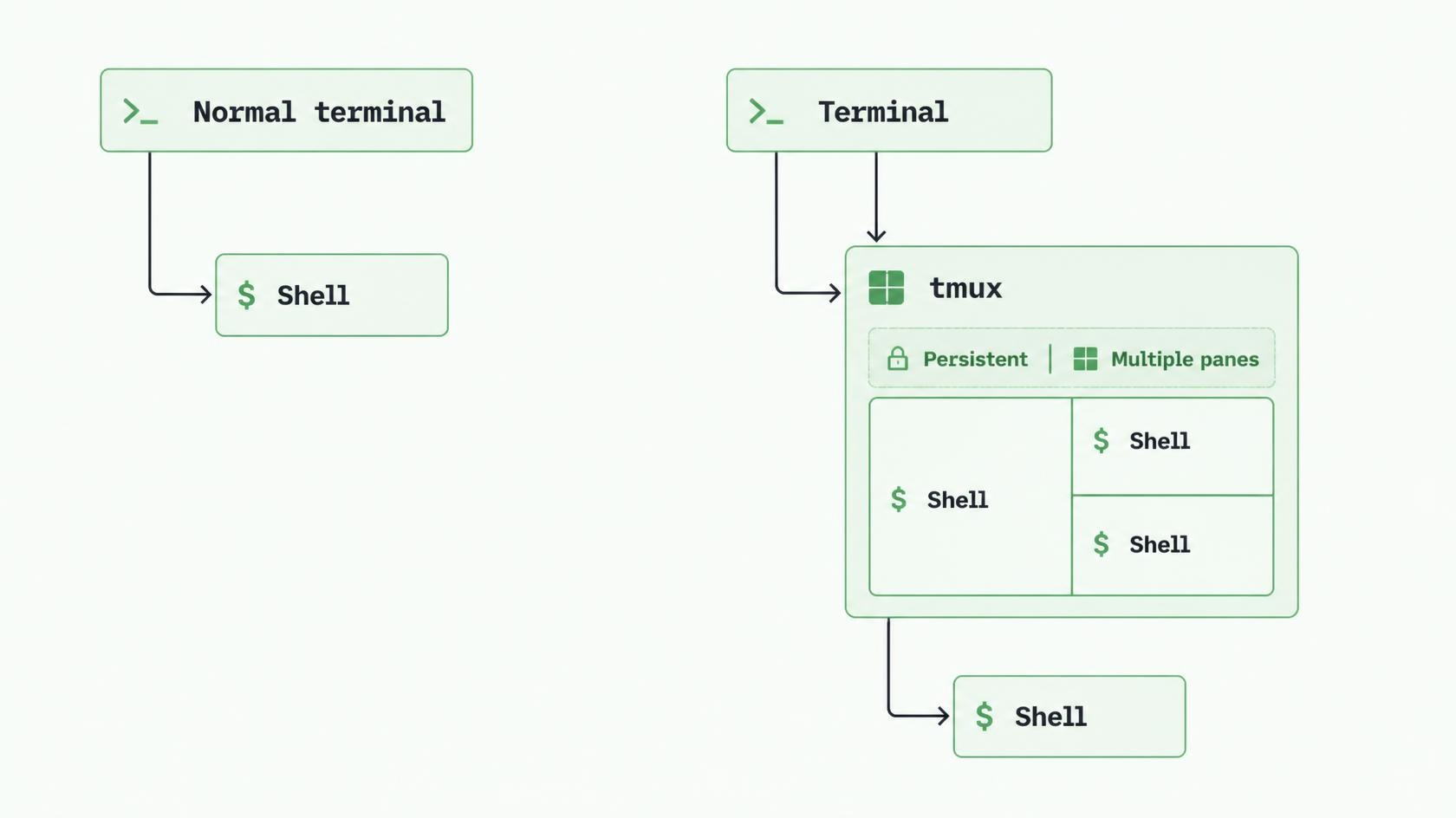
Type exit and press Enter. The tmux status bar disappears, and you return to your normal terminal. Later, you'll learn another operation called detach.
So far, we've only started tmux and observed what it looks like. But you may already be wondering how do I actually control tmux? That's what we'll answer next.
In the next chapter, we'll learn the tmux prefix key - the small but important concept that lets you send commands to tmux without accidentally sending them to your shell.
Once you understand the prefix key, the rest of tmux starts to feel much more predictable.