

For years, my default setup for Linux demos was simple. Spin up a virtual machine, configure the environment, take a snapshot, and hope nothing breaks during the presentation.
In fact, my old demo setup was a collection of virtual machines I'd accumulated over the years. One for Docker demos, another for Kubernetes workshops, and a third one, a Debian box for shell scripting sessions. Each one sat on my SSD, consuming gigabytes of space and demanding occasional updates just to stay usable.
The breaking point came during a Kubernetes workshop I was running remotely. Screen sharing was already choppy because OBS, Chrome, and the VM were all fighting over the same CPU. Then the VM froze mid-demo during a kubectl walkthrough. The audience waited in silence. I got it working again, but the rhythm of the session never recovered.
That evening, I started looking for something better. I found Webtop, and it quietly replaced most of that VM setup.
What Webtop Actually Is
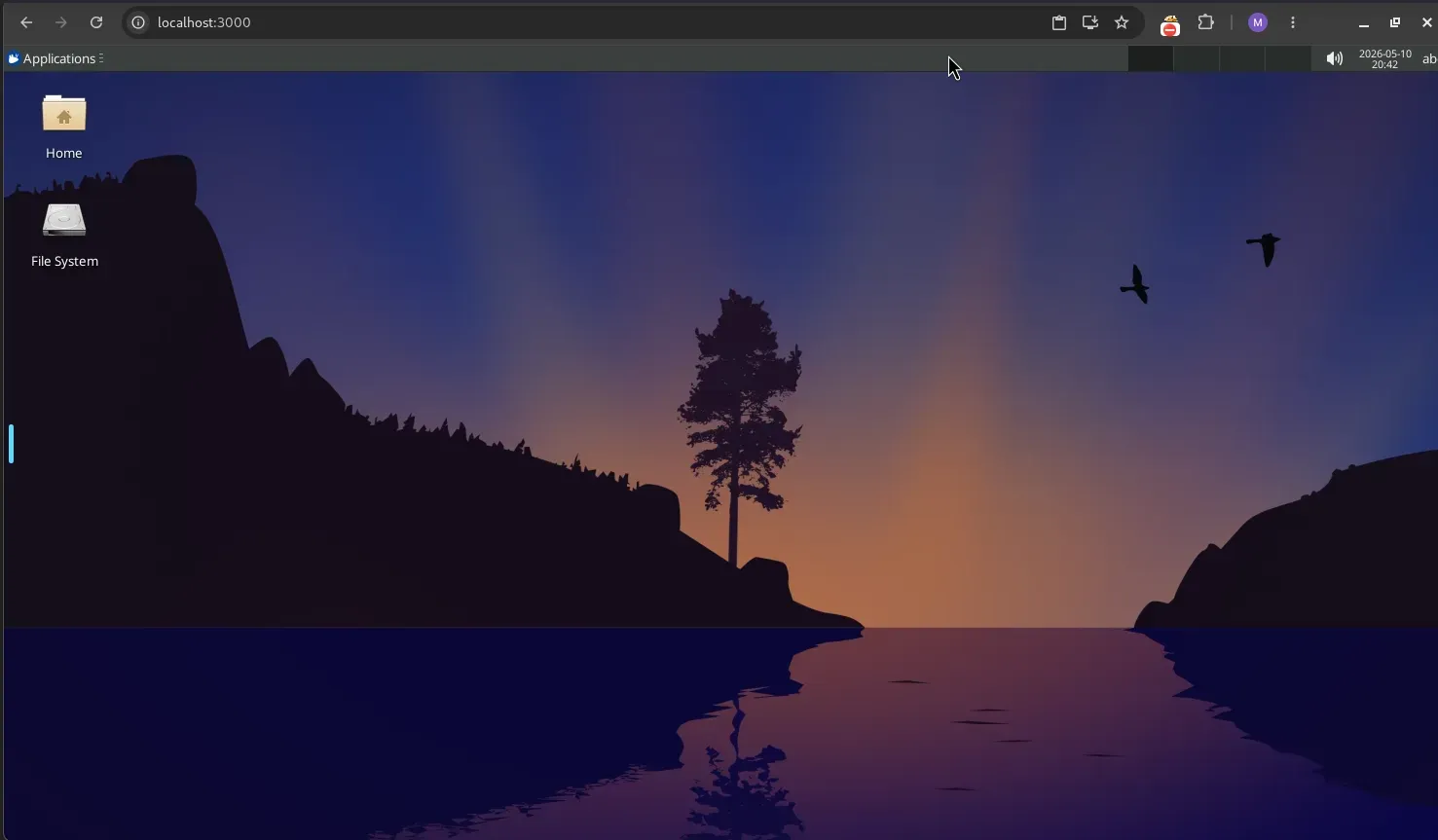
Webtop is a Linux desktop environment packaged inside a Docker container and accessible entirely through a browser. You start the container, open a browser tab pointing to port 3000, and a full Linux desktop appears.
LinuxServer.io maintains this project. The same group provides container images for Jellyfin, Nextcloud, and dozens of other self-hosted tools.
What surprised me when I first launched it was how complete the experience felt. You get a real desktop environment, with the option to choose from XFCE, KDE, MATE, or others, depending on the image, with a terminal, file manager, and the ability to install packages normally through apt, dnf, or whatever the base distro uses. It behaves like a lightweight remote workstation that happens to live in your browser.
Getting It Running
The quickest path is Docker Compose or Podman Compose. Here's the configuration I started with:
services:
  webtop:
    image: lscr.io/linuxserver/webtop:ubuntu-xfce
    container_name: webtop
    security_opt:
      - seccomp:unconfined
    environment:
      - PUID=1000
      - PGID=1000
      - TZ=Asia/Kolkata
    volumes:
      - ./config:/config
    ports:
      - 3000:3000
    shm_size: "1gb"
    restart: unless-stopped
Install WebTop Using Docker Compose
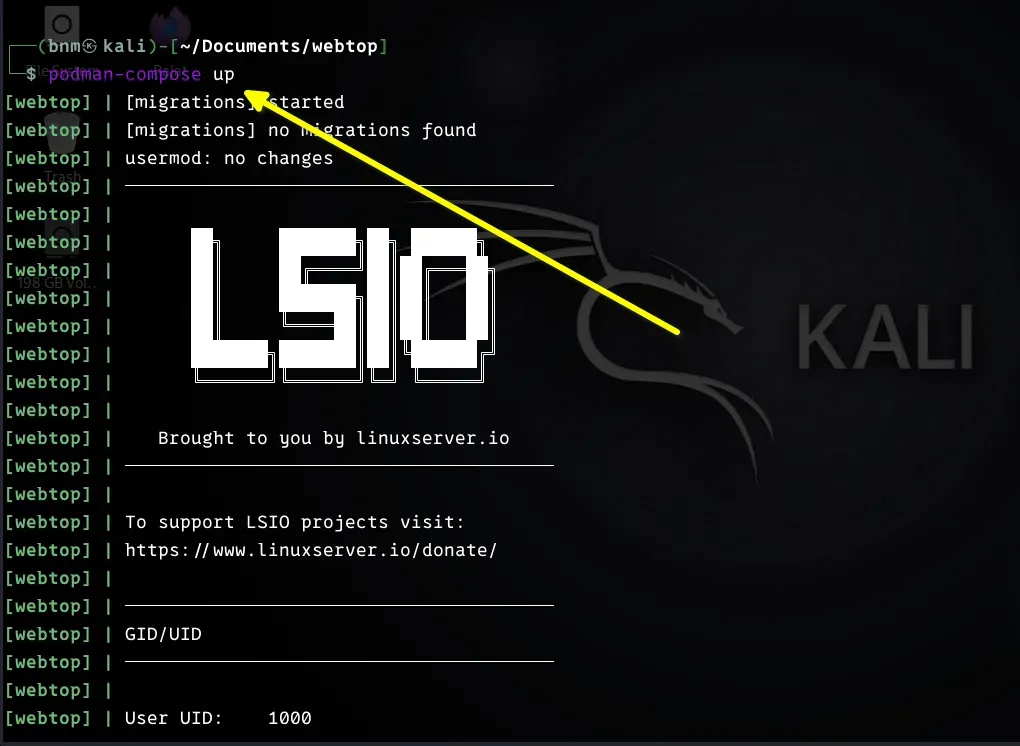
Running docker compose up -d and then navigating to http://[SERVER-IP]:3000, or http://localhost:3000 genuinely all it takes. The first boot took maybe 10 seconds before the desktop was usable.
Choosing the Right Image
Webtop supports multiple distributions and desktop environments. The available combinations include Ubuntu, Debian, Fedora, Alpine, and Arch, each paired with desktop options like XFCE, KDE, and MATE. You can find all related tags on the project's GitHub page.
From my practical experience, XFCE consistently performs best for demos and workshops. It's lighter on resources, and the responsiveness during screen sharing is noticeably better than KDE. KDE is visually polished and worth running if you have headroom, but when your machine is also running OBS, a browser, and a video call simultaneously, the extra weight shows.
Alpine is worth knowing about if you need something extremely minimal. Its image is tiny and starts almost instantly, but package availability is limited compared to Ubuntu or Debian. For most demo scenarios, ubuntu-xfce hits the right balance of familiarity, package ecosystem, and performance.
Why This Works Better for Demos Than VMs
Recovery feels dramatically simpler. If I break something during a session, and with live demos, this happens. Restoring a VM means hunting for the right snapshot, waiting for it to load, and hoping the snapshot captured the right state. With Webtop, recovery looks like this:
docker rm -f webtop
docker compose up -d
That's it. A fresh environment in seconds.
Resource usage is another area where the difference is noticeable. A traditional Ubuntu VM with 8 GB allocated holds that memory whether it's being used or not. Containers are far more cooperative with the host system. After moving most of my demo environments to Webtop, I noticed the laptop fan spinning less during presentations and screen sharing becoming smoother.
Building Reproducible Demo Environments
One thing I missed initially about VMs was the snapshot workflow. It's the ability to freeze a perfectly configured state and return to it. Webtop doesn't work that way, but the Docker approach is actually cleaner once you adjust your thinking.
Instead of snapshots, I build custom images. Here's an example Dockerfile for a Kubernetes demo environment:
FROM lscr.io/linuxserver/webtop:ubuntu-xfce

RUN apt-get update && apt-get install -y \
    docker.io \
    kubectl \
    helm \
    neovim \
    tmux \
    htop \
    git
Building that with docker build -t demo-webtop . produces an image I can launch anywhere, including on my homelab server, a VPS, a colleague's machine, and get an identical environment every time.
There are no multi-gigabyte VM disk files to transfer. The image is versioned, shareable, and rebuildable from scratch if needed. For a Kubernetes workshop I ran recently, I published the image so participants could run their own copy locally, which would have been considerably more complicated to coordinate with traditional VM images.
Accessing It Remotely
Browser-based access turned out to be more valuable than I expected. I can reach my Webtop environments from any device with a browser. That portability genuinely changed how I work while traveling.
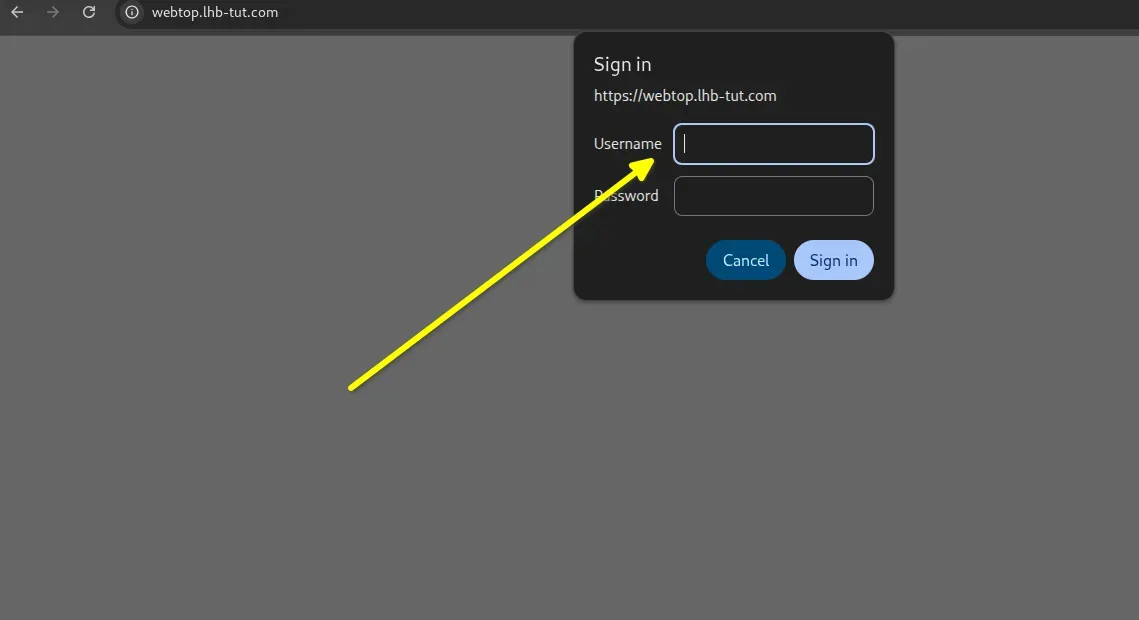
For remote access, I put Webtop behind a reverse proxy with HTTPS and authentication. Running it directly to the internet without any protection is a bad idea. You'd be serving an unauthenticated Linux desktop to the world. Here is an example configuration for Caddy:
webtop.lhb-tut.com {
    basicauth {
        bndev $2a$14$ebc7C6dlwFafmtZmfQ4vKe2ToQsTe6nWbV3k3ky6HAwLQr76u1l8m
    }

    reverse_proxy webtop:3000
}
My current setup uses Tailscale for network-level access control and Caddy for HTTPS termination.
Traefik and Cloudflare Tunnels are both solid alternatives, depending on your existing infrastructure. The key principle is the same regardless of tooling: don't expose port 3000 publicly without something in front of it.
What It Doesn't Handle Well
Webtop isn't a universal replacement for VMs, and overselling it would be dishonest. There are categories of work where I still reach for a traditional hypervisor without hesitation.
Kernel development and anything requiring full systemd Support needs a real VM. Container isolation isn't equivalent to hardware virtualization, and some low-level work simply requires full-stack virtualization and nested virtualization.
Low-level networking labs where you need to demonstrate VLAN behavior, DHCP servers, or raw packet analysis at the hardware interface level are also better suited to VMs, because container networking abstracts away exactly the things you're trying to show. Similarly, malware analysis and security sandboxing, where strong isolation is the whole point, shouldn't be done in a container environment.
GPU-accelerated workloads, video editing, and anything that genuinely needs graphics hardware won't be served well by Webtop. The rendering pipeline is inherently software-based, and the limitations are obvious in GPU-heavy applications. For terminal work, admin demos, and development environments, this is rarely relevant, but it's worth knowing upfront.
Practical Situations Where It Shines
Training sessions where participants need identical environments are where Webtop provides the most obvious value. Instead of distributing VM images and debugging hypervisor incompatibilities across fifteen different laptop configurations, participants open a browser tab. That's a meaningful reduction in setup overhead and the inevitable "it doesn't work on my machine" troubleshooting.
The disposable workstation use case is one I didn't anticipate valuing, but I use it regularly. Sometimes I need a clean Linux environment to test a script, verify a package installation, or try something I don't want running on my main machine. Spinning up a Webtop container, doing the work, and removing it takes a minute. The equivalent with VMs took considerably longer and left behind disk state to clean up.
Final Thoughts
I went into Webtop expecting curiosity. What I found was something that genuinely improved a recurring frustration in my workflow. The demo environment problem, maintaining multiple VMs, managing snapshots, and dealing with hypervisor overhead, completely went away.
The tradeoff with VMs isn't that containers are strictly superior. The point is that for the specific problem of running Linux environments for demos, workshops, and quick testing, the browser-based container approach solves the actual pain points without introducing new ones.
If you're maintaining a collection of demo VMs and spending time managing snapshots and debugging hypervisor issues, it's worth an hour to spin up Webtop and see how it feels. The barrier to trying it is low enough that the experiment costs almost nothing.