My Downloads folder is a crime scene. My home directo
Thousands of files with names like IMG_2048.jpg, Copy_of_final_FINAL_v3.pdf, and untitled(2).docx accumulated over years of telling myself I'd sort it out later. I never did.
I tried manual sorting. I tried renaming scripts. Nothing stuck because the real problem isn't laziness, it's that I don't know what half the files actually are without opening them first.
AI File Sorter takes a different approach. Instead of applying fixed rules, it reads your files, actually looks at images using a visual LLM, extracts text from documents, reads audio/video metadata and then suggests what each file is and where it should go. You review the suggestions before anything moves. Nothing happens without your approval.
With over 1,000 stars on GitHub and 16 releases since launch, this isn't an abandoned proof-of-concept. It's a cross-platform desktop app actively being developed, and version 1.8.0 just shipped with meaningful improvements to the visual model and local learning.
What AI File Sorter Actually Does
Let me be precise about this, because "AI file organizer" can mean very different things.
AI File Sorter does three related but distinct things:
Categorization - It analyzes each file (by name, extension, content, and folder context) and assigns it a category and optional subcategory. "Photography", "Work Documents", "Music", "Screenshots" - then creates the folders and moves files into them. You pick the categories or let the model suggest them freely.
Rename suggestions - For images, it uses a visual LLM to actually look at the picture and suggest a descriptive filename. IMG_2048.jpg might become sunset_over_lake.jpg. For documents, it reads the text content and proposes a cleaner name. For audio/video, it reads the embedded metadata tags and turns them into a consistent library-style name like 2024_artist_album_title.mp3.
Review before action - This one matters. None of the above actually happens until you see the suggestions in a review table, approve what you want, edit anything you don't like, and click confirm. Nothing is irreversible without your sign-off.
Getting It Running on Linux
I tested this on Ubuntu 24.04. The prebuilt .deb package from https://filesorter.app/
First, install the runtime prerequisites:
sudo apt update && sudo apt install -y \
  libqt6widgets6 libcurl4 libjsoncpp25 libfmt9 libopenblas0-pthread \
  libvulkan1 mesa-vulkan-drivers patchelf
Then download the latest released version deb file form https://filesorter.app/download/ and then install it:
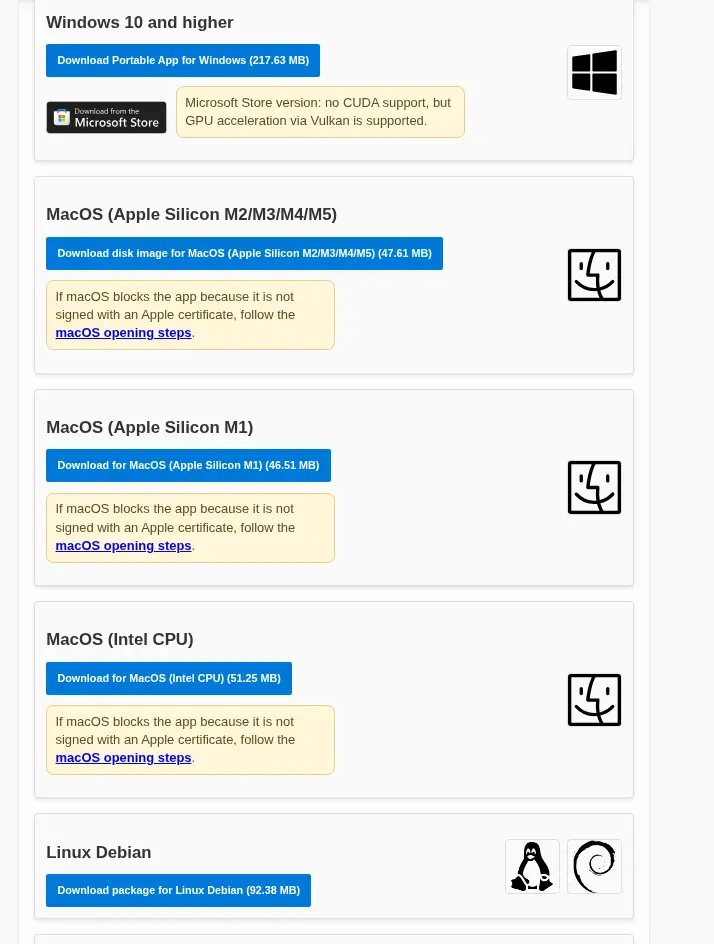
After that install the package:
sudo apt install ./aifilesorter_*.deb
Once installed, launch it from your application menu or run:
aifilesorter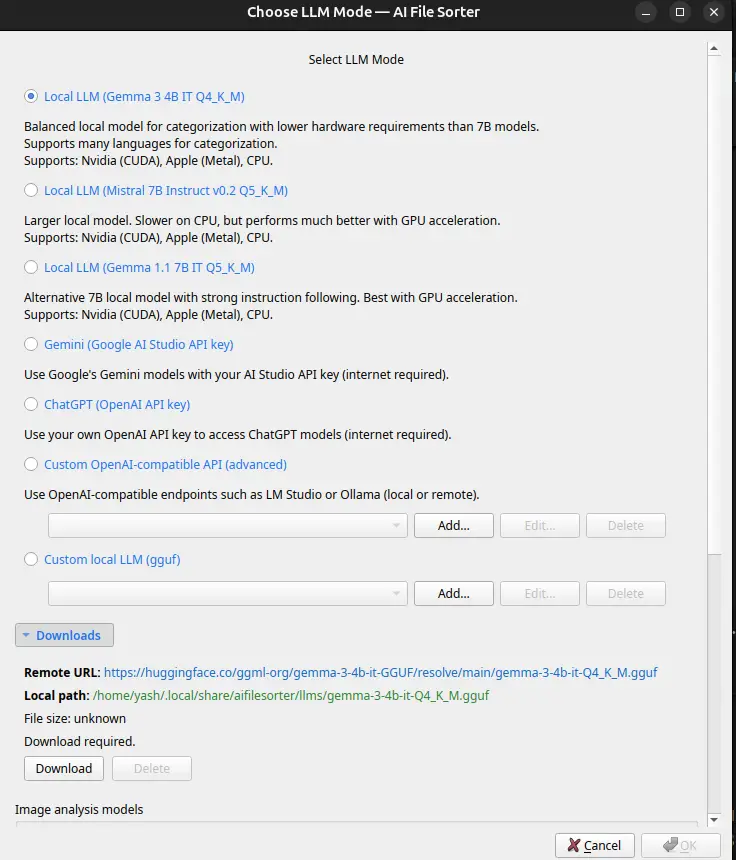
Choosing Your LLM Backend
This is the first real decision you make, and it shapes the whole experience. AI File Sorter supports several options:
Local models (no internet required): Gemma 3 4B IT, the new default for both text and visual analysis. Downloads once via the in-app Select LLM dialog. Gemma 1.1 7B, a solid local text-only choice for categorization. Mistral 7B, another built-in option with broader category language support. Your own GGUF, any compatible model you already have can be registered
Remote models (API key required): - ChatGPT, your own OpenAI API key, any model (gpt-4o-mini, gpt-4.1, etc.). Gemini, your own Google AI Studio key (gemini-2.5-flash, gemini-2.5-pro, etc.). Custom OpenAI-compatible endpoint, LM Studio, Ollama, or any local server you're already running
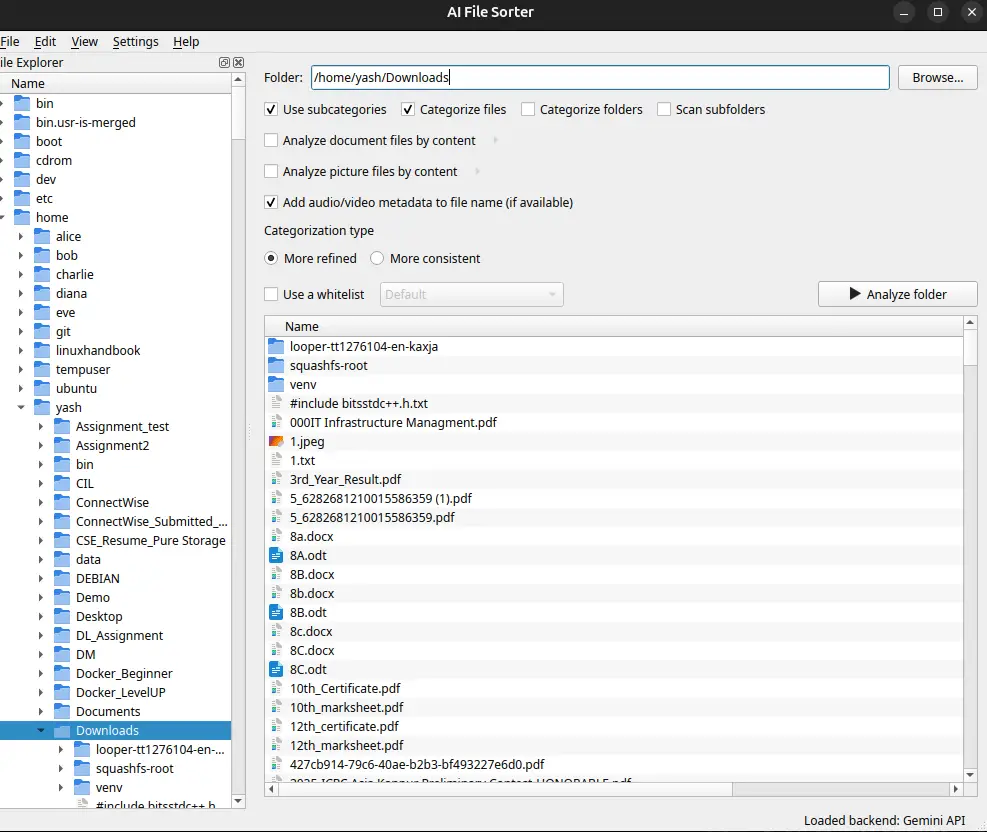
After that there is option to analyse the folder which starts the analysis and one by one parses the files from that folder and categorises it as follows:
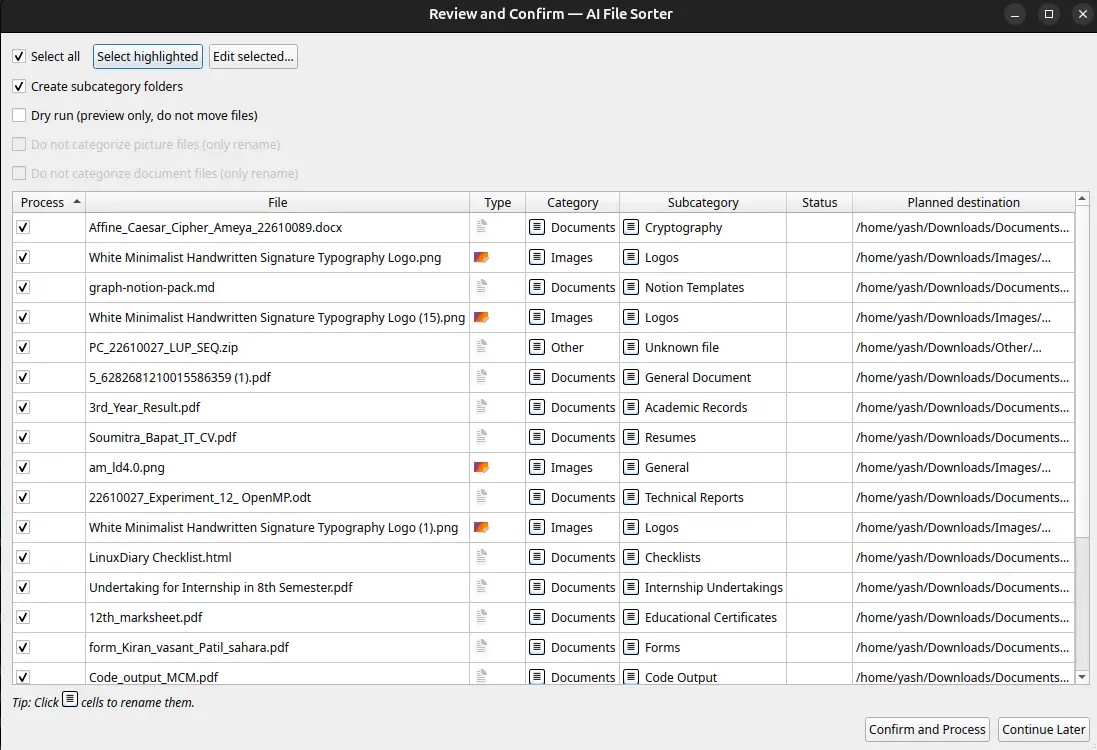
A few things I noticed in the review: An old screenshot was correctly categorized as "Screenshots/Desktop UI" rather than as a generic "Image" and the images are structured under the folder as per the content and not just by name of the files.
It asks for your permission to proceed and turn the given randomly stuffed files into categorised, well-structured files. Now, after accepting the changes, you will be able to see the structured files in your Downloads folder:
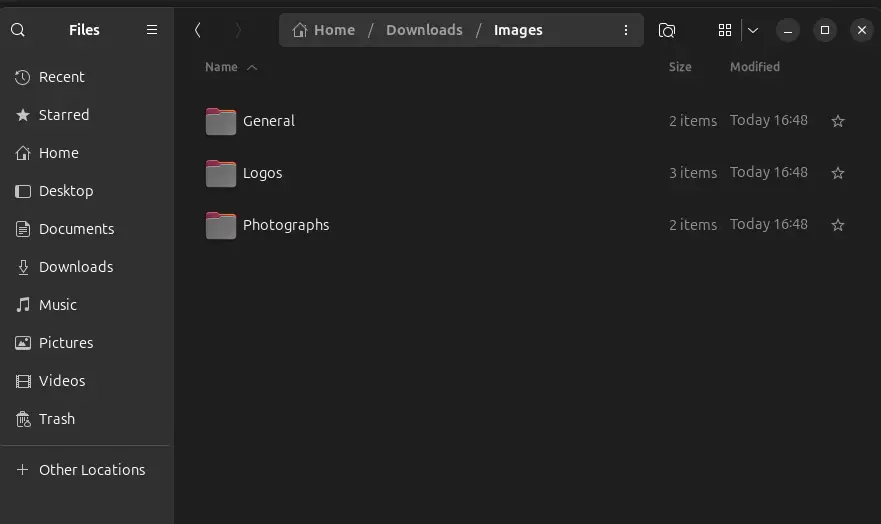
In the Downloads, there are multiple folders created, like Images: which contains different folders like General, Logos and Photographs which are created with the help of categorization of aifilesorter.
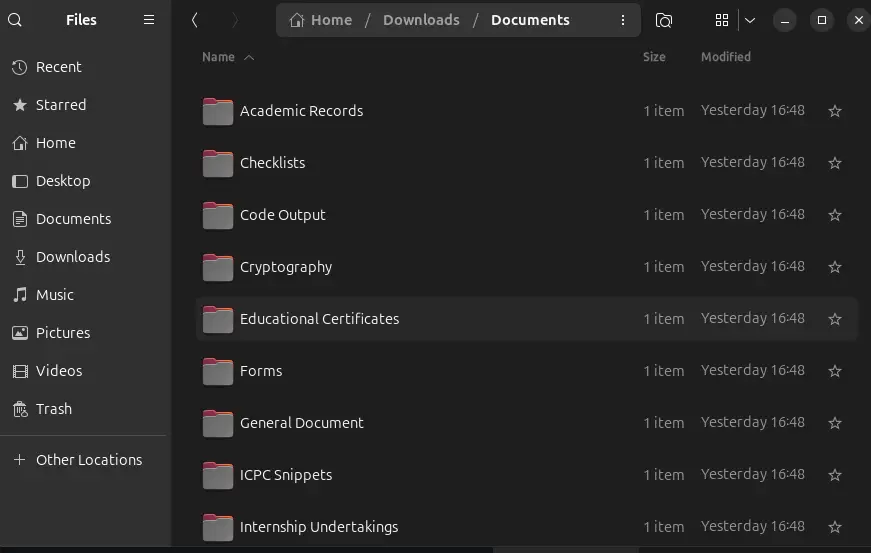
Documents: which contain different documents categorized after the analysis by aifilesorter. The rename suggestions aren't always perfect. Some generic outdoor shots got overly generic names
Document Analysis: Reading the File, Not Just the Name
Document analysis uses the same LLM (text mode, no mmproj needed) to extract text from supported file types and generate a summary and filename suggestion. Supported formats include:
Plain text: .txt, .md, .rtf, .csv, .json, .yaml, .log, .html
PDF: built-in PDFium extractor (no pdftotext dependency needed)
Office formats: .docx, .xlsx, .pptx, .odt, .ods, .odp
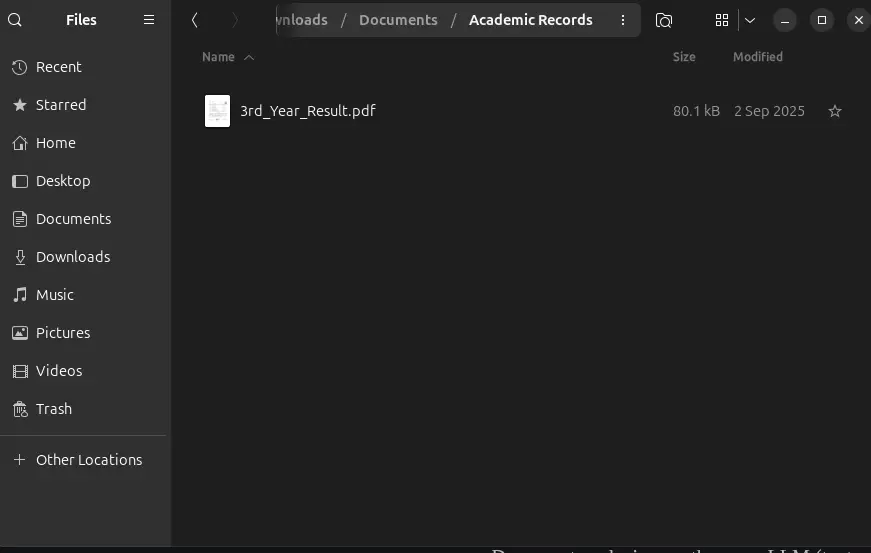
For my test files, a .pdf result certificate got the Academic_record.pdf based on its opening paragraph. A .odt export from a bank statement was categorized as "Finance" correctly. An old HTML file from a downloaded web page got correctly identified as a web capture rather than a document.
GPU Acceleration: Vulkan, CUDA, and CPU Fallback
The app supports GPU acceleration via CUDA (NVIDIA) and Vulkan (AMD, Intel, NVIDIA). On Linux, the launcher script auto-detects available backends and prefers CUDA over Vulkan, falling back to CPU if neither is detected.
You can check and force backends with flags:
# Force CPU only
aifilesorter --cuda=off --vulkan=off

# Force Vulkan
aifilesorter --vulkan=on --cuda=off
Category Whitelists and Consistency Controls
One thing I appreciated after my first run: you can constrain what categories the model can pick. Under Settings → Manage category whitelists…, you create named lists of allowed categories.
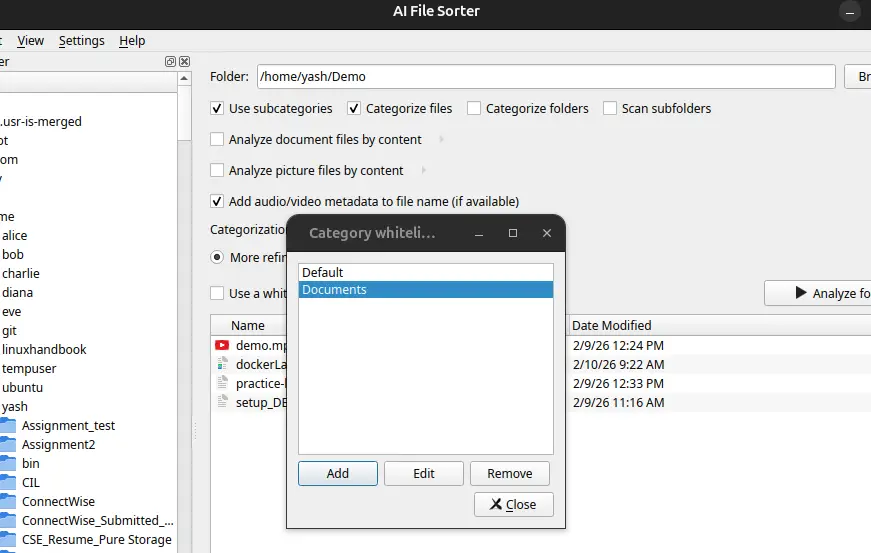
On a re-run of my Downloads folder with a whitelist set to ["Work", "Personal", "Finance", "Software", "Media", "Archive"], the suggestions became noticeably more consistent. Files weren't spread across thirty micro-categories; they clustered into the buckets I actually wanted.
The docs recommend keeping whitelists to 15–20 entries so they don't overflow smaller local model context windows. For a tightly defined use case (organizing a project folder, sorting a media library), whitelists are the right tool.
Pair whitelists with "More Consistent" categorization mode for the strongest uniformity across a batch.
What Works Well
The review-first workflow is the right design. Nothing moves until you approve it. This sounds obvious, but a lot of "automatic" organizers just move your files and hope for the best. The review table with inline editing gives you real control.
Visual analysis on images is genuinely useful. Calling a local 4B model to look at actual pixel content and suggest a descriptive name is the thing that separates this app from any rename-by-rules script. It won't always be perfect, but it's directionally right far more often than filename heuristics.
It runs entirely offline. No data leaves your machine when using local models. Images, filenames, document text, all processed locally. For people sorting sensitive files, this matters.
The 1.8.0 screenshot-awareness is a real improvement. UI screenshots no longer get misclassified as generic photos. The app adds specific prompt guidance for dashboards, forms, mockups, and terminal captures.
The undo feature works. Edit → Undo last run reverses the moves on a best-effort basis. Combined with dry-run mode, the safety net is solid for cautious users.
What to Be Aware Of
Analysis time scales with folder size and model. Processing a 500-file folder with visual analysis on every image takes meaningful time on CPU. Plan for it, don't run this right before you need your machine for something else.
Legacy Office formats (.doc, .xls, .ppt) are not supported. Only the modern Office XML formats (.docx, .xlsx, .pptx) and OpenDocument equivalents are handled. Old binary formats need converting first.
The visual model needs two GGUF files. The main model and the mmproj projector. If you download one and forget the other, image analysis is silently disabled. The app will prompt you to open the Select LLM dialog, but it's easy to miss if you're not looking.
Rename suggestions on images aren't always specific. A generic outdoor photo might get a generic descriptive name. The model does its best with what it can see, but "mountain_landscape.jpg" is only marginally better than "IMG_2048.jpg" if you have fifty of them. The categorization accuracy is stronger than the rename precision.
Conclusion
AI File Sorter is doing something meaningfully different from rename scripts and rules-based organizers. Reading actual image content with a visual LLM, extracting document text, reading audio metadata and then letting you review everything before a single file moves, is the right design for a tool that touches your files.
The local-first approach is a genuine differentiator. My images, documents, and filenames stayed on my machine throughout. No API key, no cloud, no data leaving my hard drive.
The 1.8.0 improvements to the visual model (Gemma 3 4B IT as default, better screenshot detection, local learning from your approved reviews) make this a noticeably better version than what shipped a few months ago. It's not a finished, polished SaaS product; it's an actively developed open-source desktop app with rough edges, but for the specific problem of "I need to make sense of this chaotic folder of files," it works.
I am loving to use local AI. It started with using AI for knowledgebase and now for file sorting. I got to keep exploring 😄