I have thousands of notes. Obsidian vaults, random Markdown files, half-finished research documents, meeting notes from three years ago. And for the longest time, they just sat there, searchable by filename, searchable by keyword, but never actually understood.
Then one evening I thought, What if I could just ask my notes a question?
You might be thinking the ChatGPT already does that, but it does not have access to your local workspace. You need to upload all the files you want to discover, not a cloud service that makes me wonder what happens to my data.
Instead, I thought of using just a small AI model, completely running on my own machine. I thought that it could handle these situations, which could read my notes and answer questions about them.
I tried it. It worked. And I have not stopped using it since. No GPU required, no monthly subscription, no data leaving my machine.
The problem with the huge pile notes (and how AI fixes it)
Here is the honest truth: most knowledge management systems fail not at storing information, but at retrieving it. You spend time writing the note. You tag it. You organize it. And then, three weeks later, you cannot find it because you cannot remember what you called it or which folder you put it in.
Traditional search is keyword-based. It finds notes that contain the word "containerization", but it cannot answer "how do I deploy a container in a restricted environment?" by synthesizing your notes on Docker, your notes on firewalls, and that one Markdown file you wrote during a workshop.
That synthesis is exactly what a local AI model can do.
The technique is called RAG (Retrieval-Augmented Generation). The AI does not memorize your notes. Instead, it reads them at query time, pulls the most relevant chunks, and uses them as context to generate an answer.
Think of it as giving the AI your notes as a reference book every time you ask a question.
What I used in this setup
A fully local setup with three components:
- Ollama: Runs LLM models locally on your CPU (or GPU if you have one)
- A lightweight embedding model: Converts notes into searchable vectors
- AnythingLLM (or Open WebUI): UI that connects your notes to the model
Everything runs on the local machine. The notes never leave the computer. The model does not even need an internet connection once it is downloaded.
Choosing the right model
This is the part most guides get wrong. They recommend a 7B parameter model. You try to run it on your laptop, and it takes 90 seconds to answer a simple question.
For a knowledge base assistant that runs comfortably on a CPU, even a mid-range one, the sweet spot is Phi-3 Mini (3.8B parameters from Microsoft) or Gemma 2B (from Google). Both are surprisingly capable for question-answering tasks, and they run well with 8 GB of RAM.
You can also refer to this article for information about models running on CPU.
My recommendation: phi3:mini, it is fast, accurate, and was specifically fine-tuned for instruction-following tasks like Q&A. It is the model I use for my own notes.
Part 1: Setting up Ollama
Ollama is the engine that lets you run LLMs locally. It is a single binary, and the installation is one command.
Step 1: Install Ollama
curl -fsSL https://ollama.com/install.sh | sh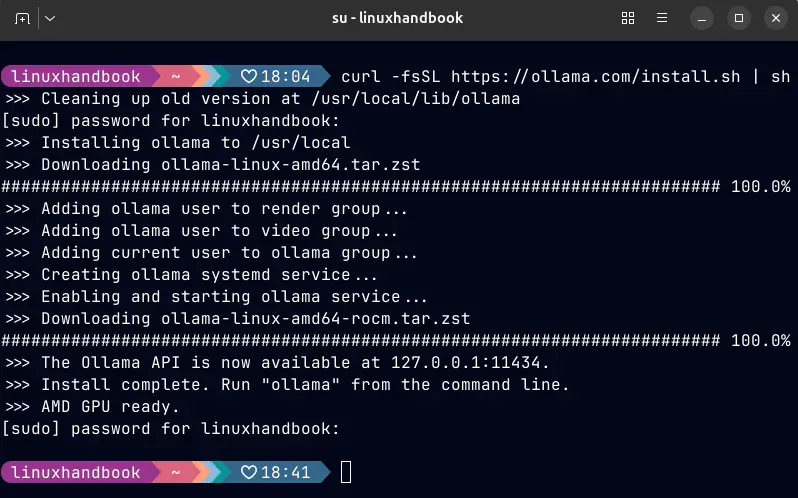
Once installed, verify it is running:
ollama --versionOllama starts a background service automatically. You can check its status:
systemctl status ollama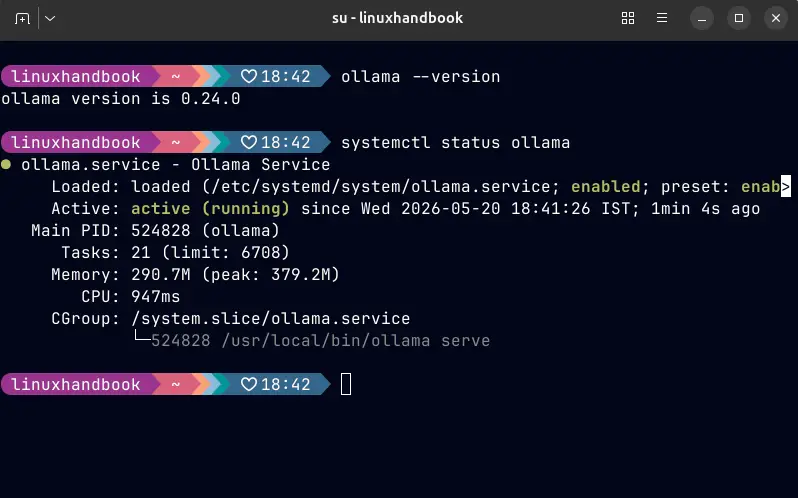
Step 2: Pull the model
Now download the model. For the CPU-friendly, low-resource setup I recommend:
ollama pull phi3:miniThis will download about 2.3 GB. Grab a coffee. If you have more RAM available (16 GB+) and want slightly better answers, you can also try:
ollama pull gemma2:2b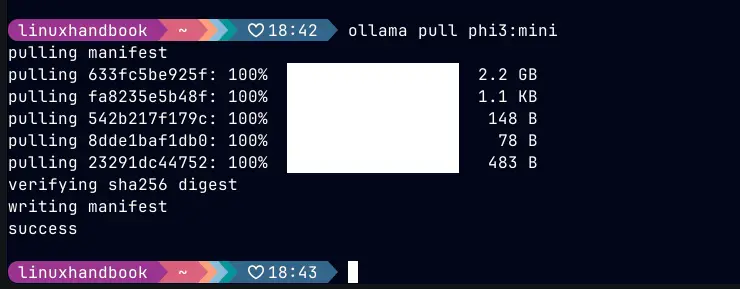
To verify the model is installed and working, test it immediately:
ollama run phi3:mini "Explain what the ITIM subject is all about."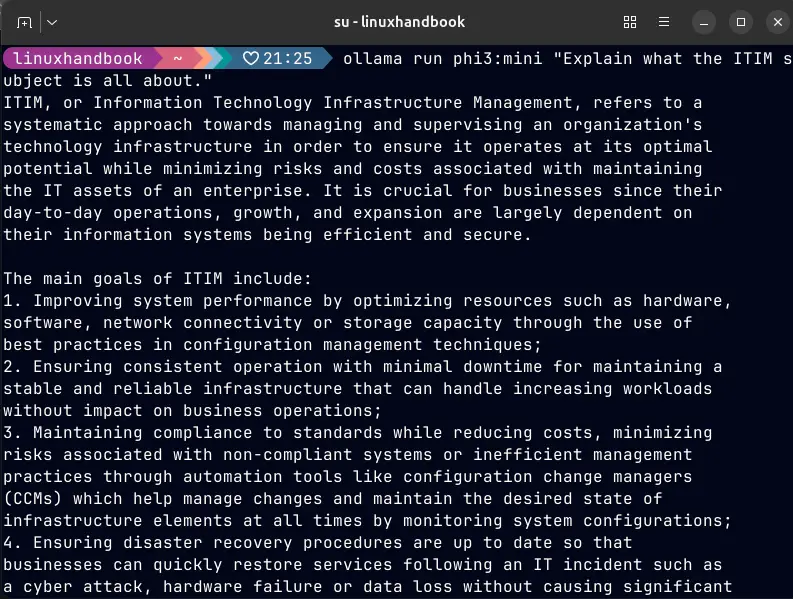
If you see a coherent response, the model is working. We can move on.
Part 2: Setting up AnythingLLM as the notes interface
AnythingLLM is a self-hosted, open-source application that lets you upload documents, point it at a folder, and query them through a clean chat interface. It handles the chunking, embedding, and retrieval pipeline so you do not have to set up a vector database yourself.
Step 1: Install AnythingLLM via Docker
docker pull mintplexlabs/anythingllmCreate a directory to store AnythingLLM's data (your note indexes will live here):
mkdir -p ~/.anythingllmNow run it:
docker run -d \
  --network=host \
  --cap-add SYS_ADMIN \
  -v $HOME/.anythingllm:/app/server/storage \
  -e STORAGE_DIR="/app/server/storage" \
  --name anythingllm \
  mintplexlabs/anythingllm
Verify the container is running:
docker ps | grep anythingllm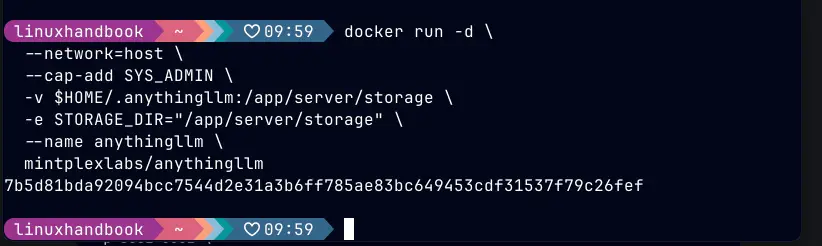
Now open your browser and navigate to: http://localhost:3001
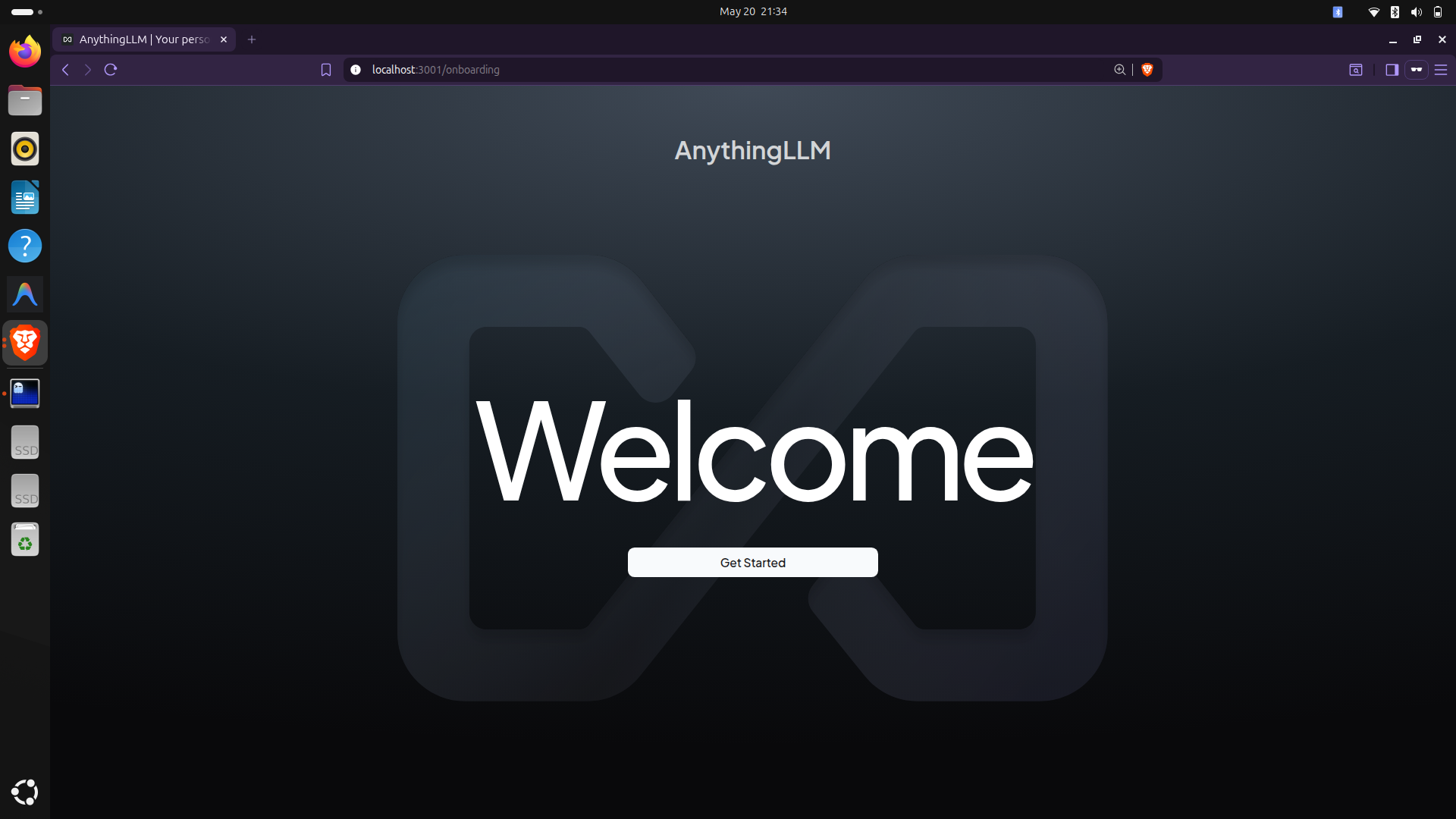
You will see the AnythingLLM setup wizard.
Step 2: Connecting AnythingLLM to the local Ollama model
During setup, AnythingLLM will ask you to choose an LLM provider. Select Ollama from the list.
- Ollama Base URL: http://localhost:11434
- Model: Select
phi3:minifrom the dropdown (it will auto-detect your installed models)
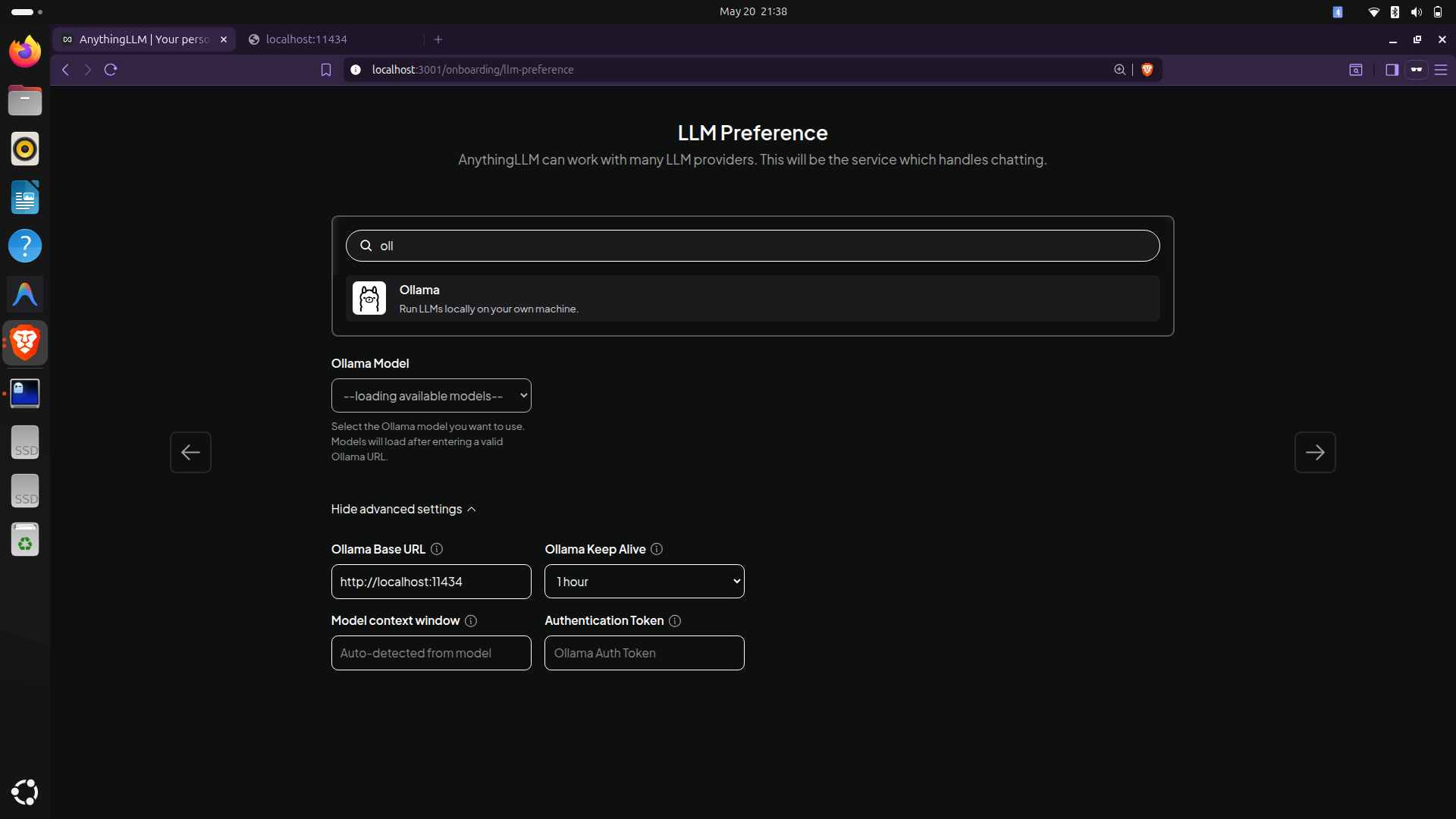
For the embedding model, which converts your notes into searchable vectors, stay within Ollama and choose:
ollama pull nomic-embed-text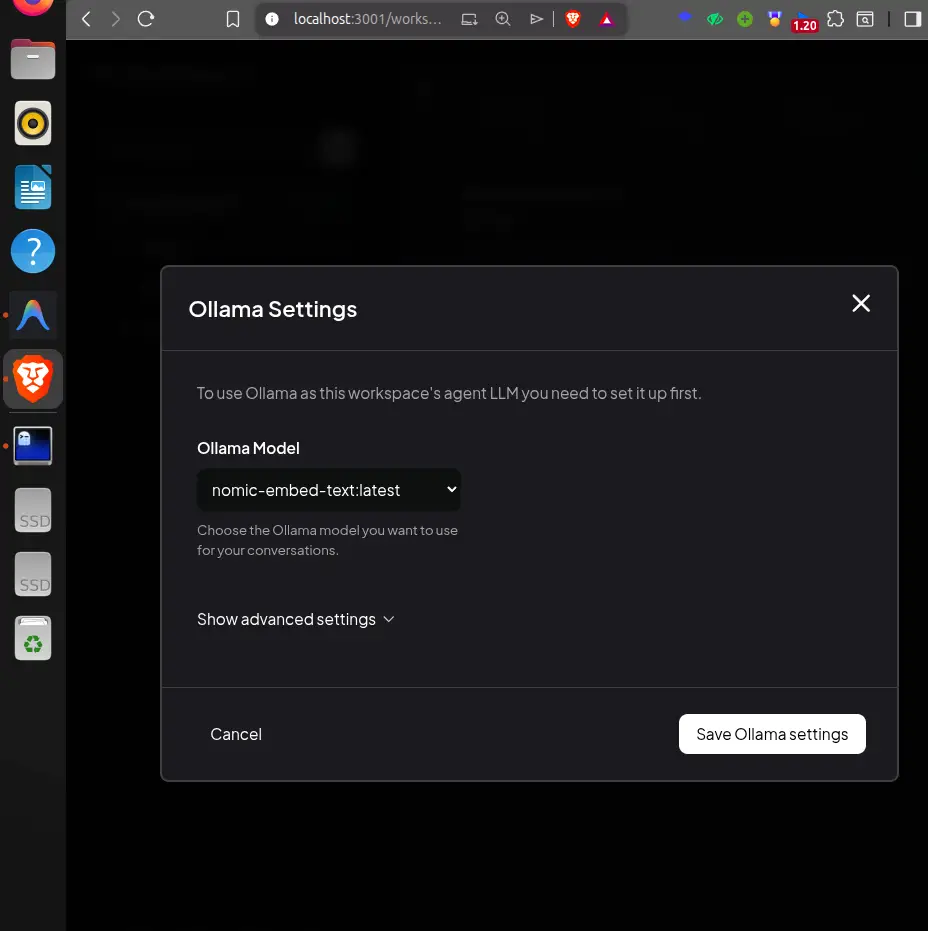
nomic-embed-text is tiny (274 MB), fast, and produces excellent embeddings for English-language text. It is purpose-built for document retrieval, exactly what we need.
Part 3: Importing the notes
Let's move to connect knowledgebase with AI.
In AnythingLLM, a workspace is a scoped knowledge base. Think of it like a project folder; you can have one workspace for your work notes, one for personal research, one for a specific book you are reading.
- Click New Workspace and give it a name (e.g., "My Notes")
- Click the Upload Documents button
- Drag and drop your Markdown files, PDFs, or text files into the upload area
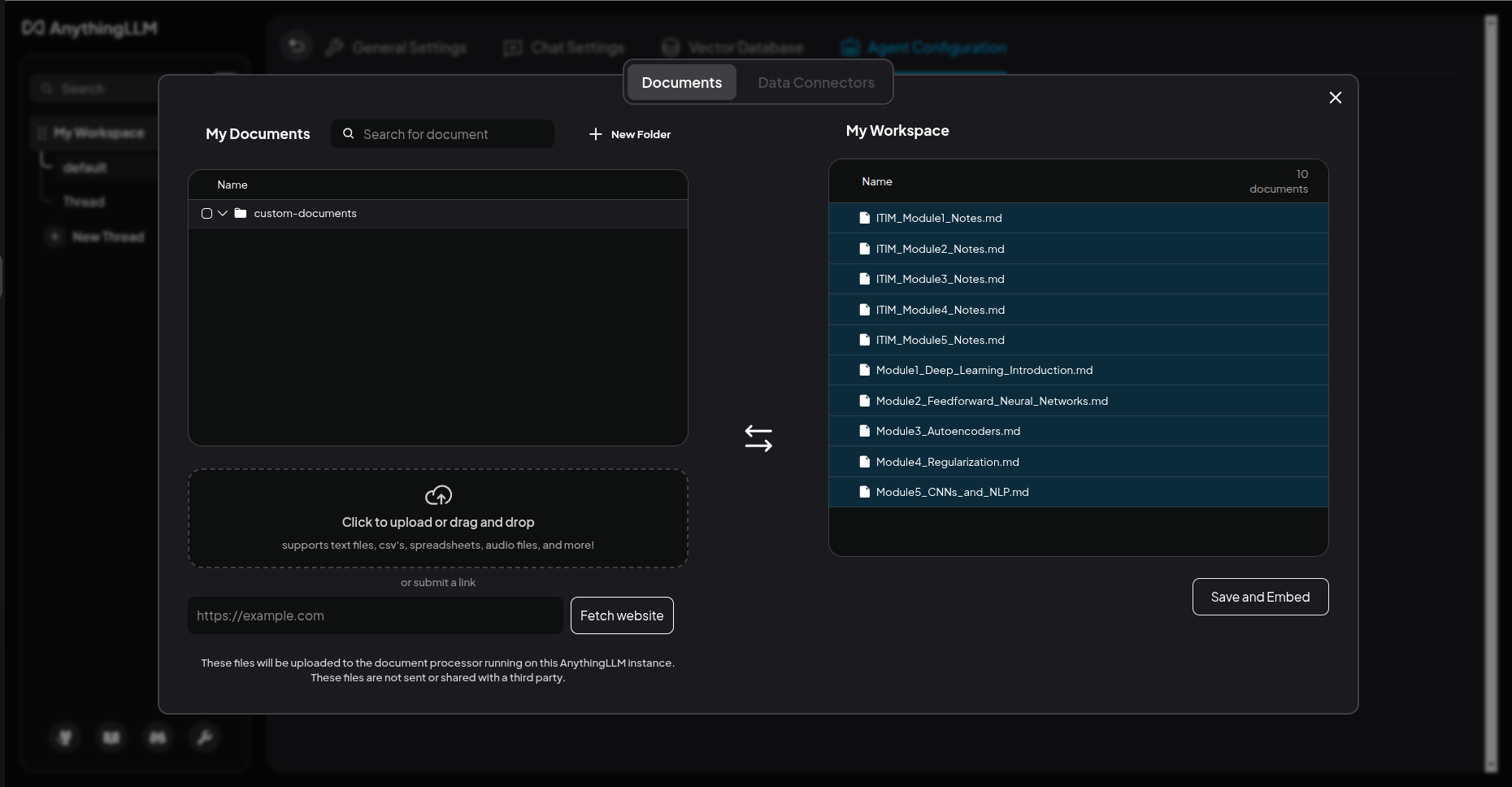
AnythingLLM will split your notes into chunks (typically 500–1000 tokens each) then generate an embedding vector for each chunk using nomic-embed-text and then store everything in a local vector database (LanceDB, stored in ~/.anythingllm).
This process takes a minute or two, depending on how many notes you have.
Part 4: Querying the notes
Now is the time to make the most of the notes by using AI to question it.
Now the satisfying part. Click on your workspace, type a question in the chat box, and press Enter. To truly see the power of local AI, ask something that ChatGPT could never possibly know. For example, if you uploaded your home server notes:
According to my server migration notes, why did I decide to switch from Nginx Proxy Manager to Traefik, and what IP address is my Pi-hole running on?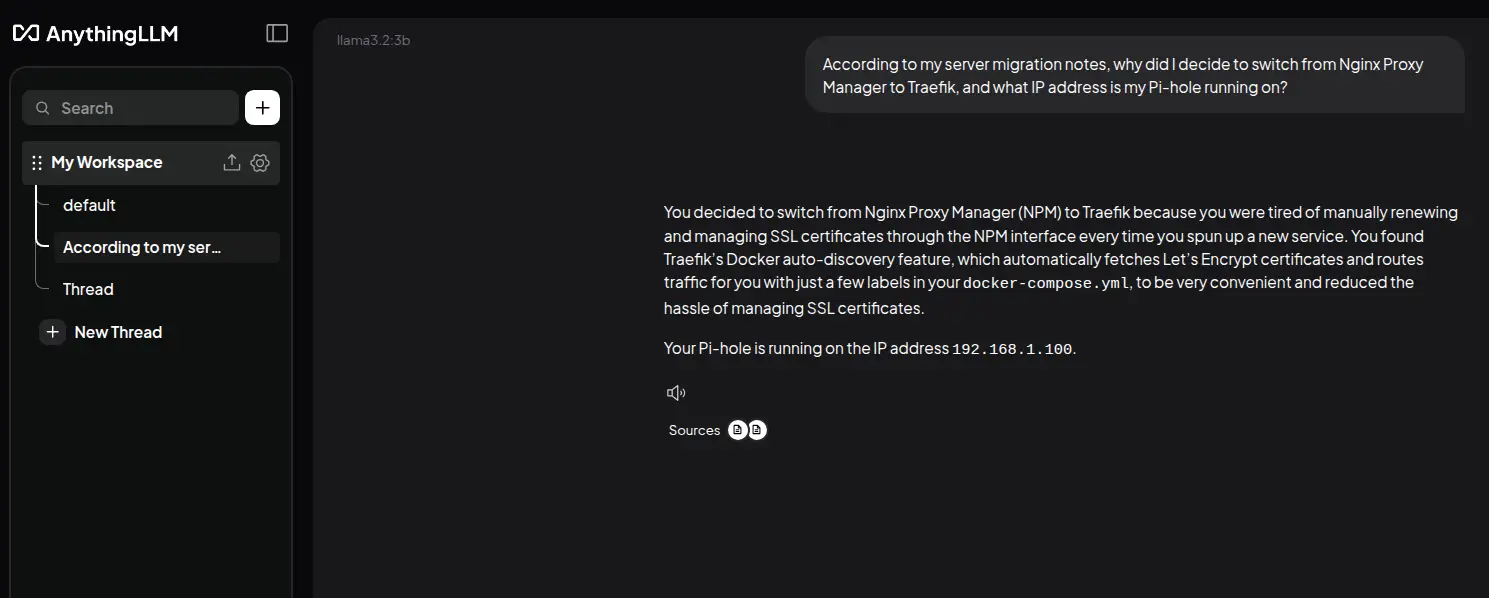
Notice that AnythingLLM shows you which notes it used to generate the answer. This is the RAG process in action; ChatGPT can tell you what Traefik is, but only your local AI knows that you switched to it because you were tired of managing SSL certificates manually, and that your Pi-hole is at 192.168.1.100.
Try a few more highly personalized queries:
What is the Wi-Fi password for the guest network at my parents' house, and where is the router hidden?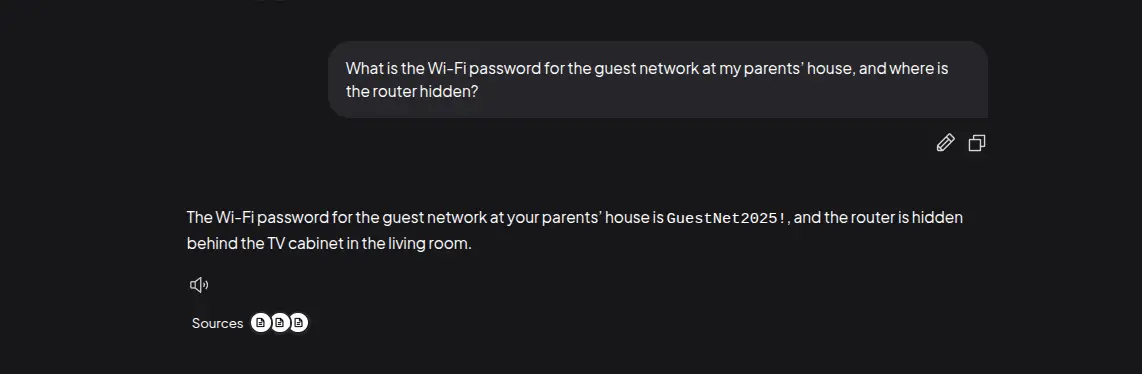
When are my parents' birthdays this year, and what exactly did I decide to buy for my brother to fix his noisy keyboard?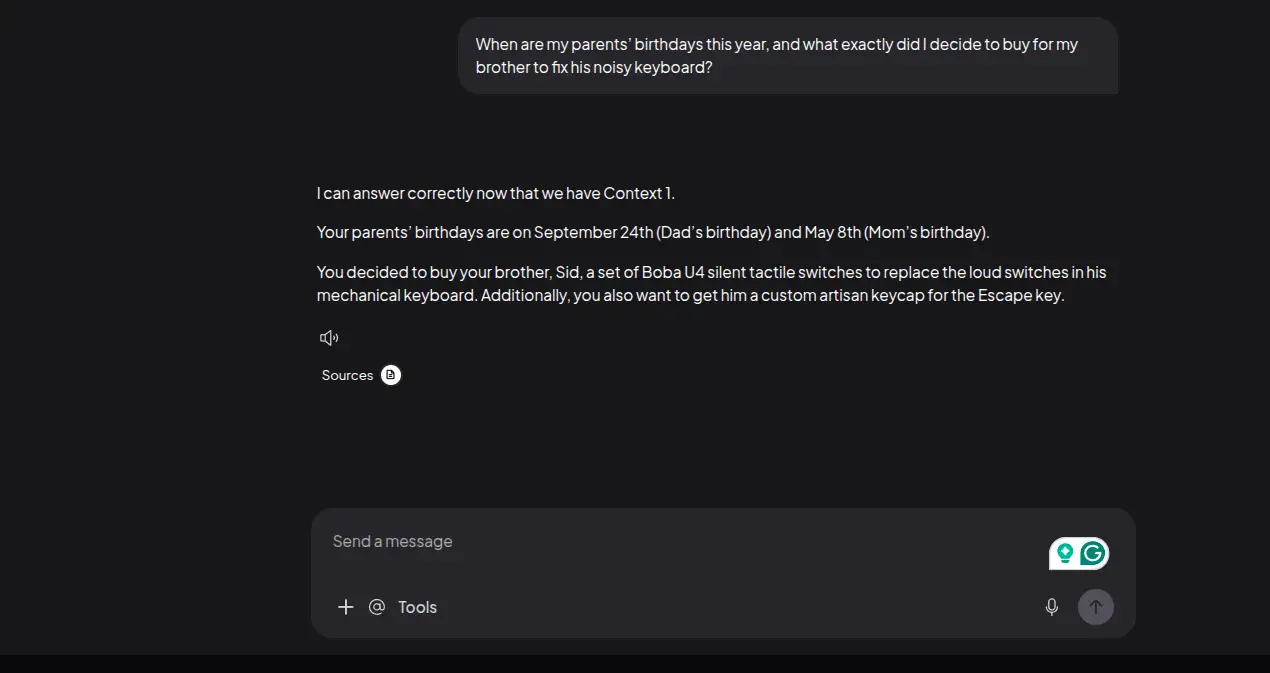
Each answer is grounded in your notes. The model is not making things up from its training data; it is synthesizing from what you wrote, which means the answers are accurate to your actual knowledge and context.
💡 Keeping things running (optional)
If you want AnythingLLM to start automatically with your system:
docker update --restart unless-stopped anythingllm
And Ollama is already managed as a systemd service, so it will start on boot automatically.
To update the model later if a newer version is released:
ollama pull phi3:mini
Ollama handles versioning for you.
My experience (so far)
I have been using this setup for a few months now. Here is what changed for me:
Before: I would search my notes, find five partial answers in different files, open each one, manually cross-reference them, and then write a synthesis myself.
After: I ask a question. In 5–8 seconds, I get a synthesized answer with the source notes cited. I open the sources to verify. Done.
The model is not perfect - Phi3:mini will occasionally miss nuance or misread a technical term from a note. But for a free, offline, CPU-only setup, it is genuinely impressive.
What it is excellent at:
- Summarizing notes on a topic
- Finding connections between notes you forgot existed
- Drafting a starting point for new writing based on your existing research
- Answering "what did I write about X" questions instantly
What to watch out for:
- Very long PDFs (>50 pages) may need to be split before uploading
- Code blocks in Markdown sometimes confuse the chunking
- Plain prose notes work best
- The model will occasionally "hallucinate" if your notes are thin on a topic; always verify
The entire stack is free, open-source, and runs completely offline. Once set up, it requires zero maintenance and adds nothing to your monthly cloud bill.
Conclusion
The popular mental model of AI is "Cloud service that reads your data". This does not have to be the case and for personal notes, it arguably should not be.
A small, open model running locally on your laptop is good enough for synthesizing your own knowledge base. It will not beat GPT-4 at coding challenges or creative writing. But for the task of "help me navigate and synthesize the notes I already wrote", it does the job well.
Your notes are already doing half the work. A local AI just helps you finish the other half.