There's a moment every Linux user eventually hits, you need to access something on a remote machine, but it's not exposed to the internet. Maybe it's a database running on port 5432, a local web app on port 3000, or a service hidden behind a firewall. The "obvious" solution is to punch a hole in the firewall and expose it. The *right* solution is SSH tunneling.
I started using SSH tunnels out of necessity. I had a PostgreSQL database running on a remote server, and the sysadmin (correctly) refused to open port 5432 to the internet. Someone in the team mentioned that I could just "tunnel through SSH" to access it. I had no idea what that meant. Twenty minutes of reading later, I had it working and I've been using SSH tunnels regularly ever since for everything from accessing remote services to getting around restrictive networks.
I'll walk through what SSH tunneling actually is, how each type works, how I set them up, and importantly, what the risks are and how to stay on the right side of them.
What is SSH Tunneling?
SSH (Secure Shell) is usually thought of as a way to get a remote terminal. But SSH also has the ability to forward ports; it can take network traffic on one port and route it through the encrypted SSH connection to emerge somewhere else entirely.
That's SSH tunneling in a sentence: using an SSH connection as a secure pipe to route other traffic.
The traffic inside that pipe is encrypted by SSH, which means it gets the same protection as your terminal session. A service that has no encryption of its own, an old database, a plain HTTP admin panel, a Redis instance, suddenly gets full TLS-grade protection just because you're reaching it through SSH.
There are three types of SSH tunnels. Understanding which one solves your problem is most of the battle:
Local forwarding: -L tunnel forwards a port on your machine to somewhere the remote server can reach.
Remote forwarding: -R tunnel forwards a port on the remote server to something on your machine.
Dynamic forwarding: SOCKS proxy, -D tunnel turns the SSH connection into a proxy that routes any traffic through the remote.
Let's go through each one the way I actually use them.
Local Port Forwarding: Accessing Remote Services Locally
This is the one I use most. Local forwarding lets me open a port on my laptop and have traffic on that port come out on the remote server, as if I'm connecting from the server itself.
My exact use case: I needed to connect my local database client (DBeaver) to a PostgreSQL instance running on a remote server. Port 5432 was not open to the internet. SSH port 22 was.
ssh -L 5433:localhost:5432 [email protected]
Breaking this down: -L tells SSH we're doing local forwarding, 5433 is the port I'm opening on my machine, localhost:5432 is where the traffic should go from the remote server's perspective, [email protected] is the SSH server I'm tunneling through.
After running this, I opened DBeaver, pointed it at localhost:5433, and it connected to the PostgreSQL instance on the remote server, over an encrypted channel, as if the database were running locally.
The tunnel is active for as long as the SSH session stays open. When you exit, the tunnel closes. If you don't need an interactive shell, just the tunnel - add -N to suppress it:
ssh -N -L 5433:localhost:5432 [email protected]And if you want it to run in the background:
ssh -N -f -L 5433:localhost:5432 [email protected]-f sends the process to the background after authenticating. The tunnel stays open without occupying your terminal.
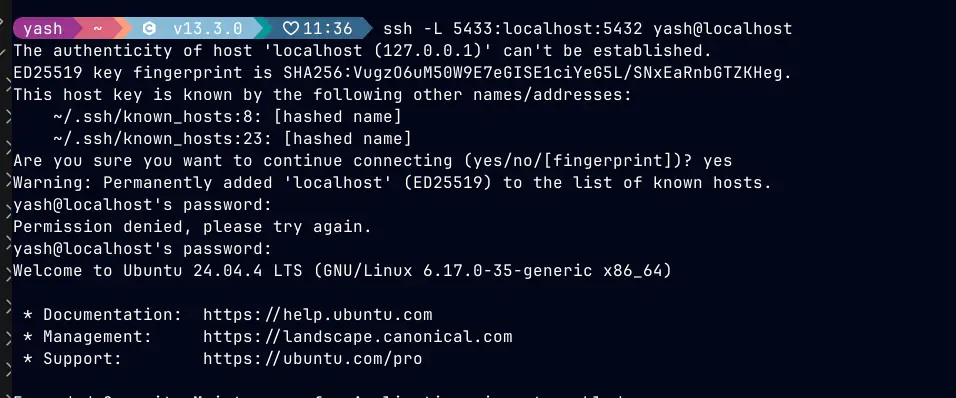
Here, I have used a Docker PostgreSQL container to show the SSH connection to the remote server.
Remote Port Forwarding: Exposing Your Local Machine to the World
Remote forwarding is local forwarding in reverse. Instead of bringing a remote service to me, I'm pushing something on my machine out to a remote server.
My use case for this: I was developing a webhook receiver locally. The service I needed to receive webhooks from (a payment processor) needed a public URL to send to. My development machine is behind NAT, with no public IP. I had a cheap VPS with a public IP. Remote forwarding solved it.
ssh -R 8080:localhost:3000 [email protected]Here, -R for remote forwarding, 8080 is the port that opens on the remote server, localhost:3000 is where traffic on that remote port gets forwarded, back to my machine, port 3000.
After running this, anyone hitting my-vps.example.com:8080 would have their request tunneled back to port 3000 on my laptop. My local dev server was now reachable from the internet, through an encrypted SSH connection. For the example I have setup the container for the vps as:
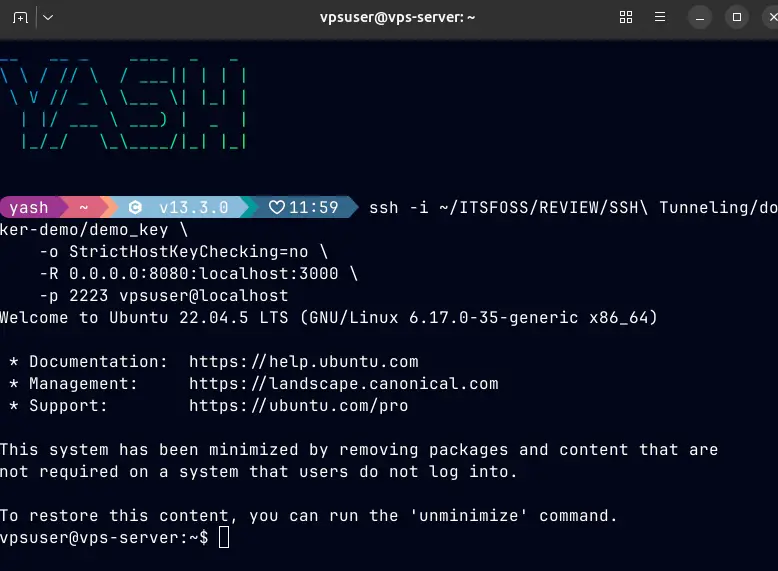
The VPS container is running for reverse tunneling for the requests that are coming.
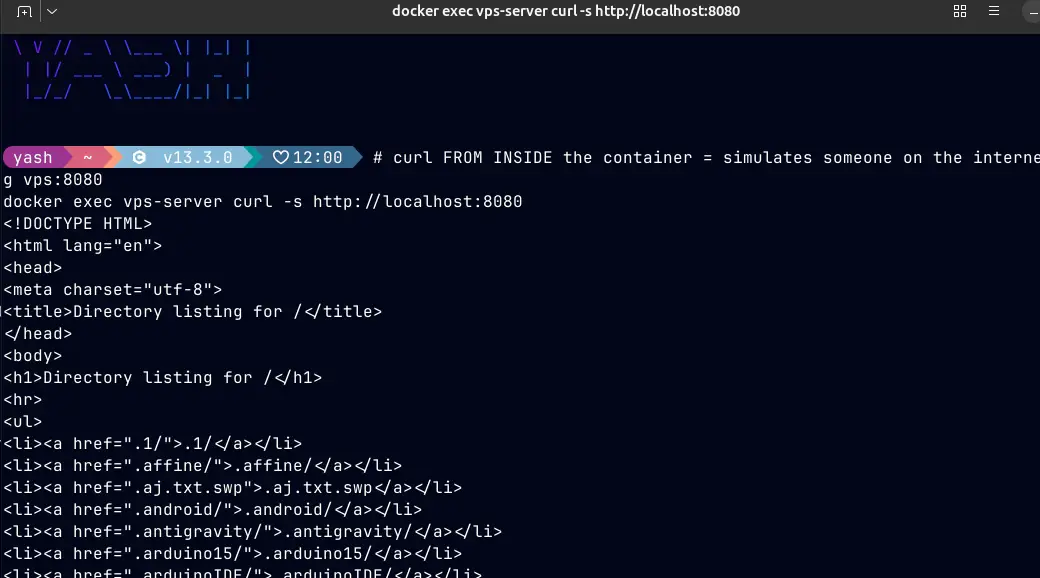
curl from inside the container simulates the external request to the vps:8080 endpoint.
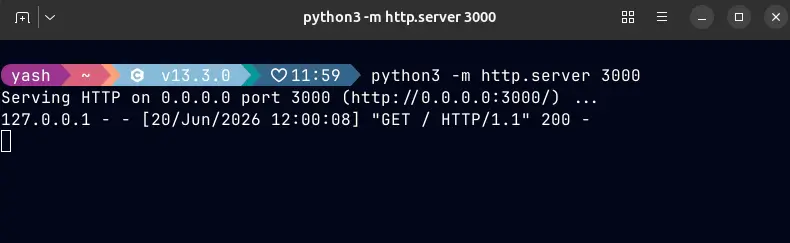
Python server verifying and logging the connected request from the internet that comes to the VPS and then to the localhost:3000
When to use this: Remote forwarding is incredibly useful for quick webhook testing, sharing a local demo with a client, or giving someone remote access to something on your internal network without setting up a VPN.
Dynamic Port Forwarding: SSH as a SOCKS Proxy
Dynamic forwarding is the most flexible of the three. Instead of forwarding a specific port to a specific destination, it creates a SOCKS proxy on your machine. Any application that supports SOCKS proxies can route all its traffic through your SSH connection and it will appear as if that traffic is coming from the remote server.
Command that can be used:
ssh -D 1080 -N [email protected]This opens a SOCKS5 proxy on localhost:1080 on my machine. Any traffic I route through that proxy goes through the SSH tunnel and exits from remote-server.example.com.
I have used it as:
ssh -f -D 1080 -N \
  -i ~/ITSFOSS/REVIEW/SSH\ Tunneling/docker-demo/demo_key \
  -p 2223 -o StrictHostKeyChecking=no \
  vpsuser@localhost
ss -tlnp | grep 1080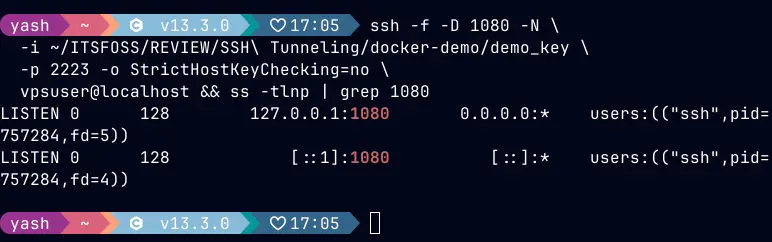
Then I can setup the network proxy through the network settings as:
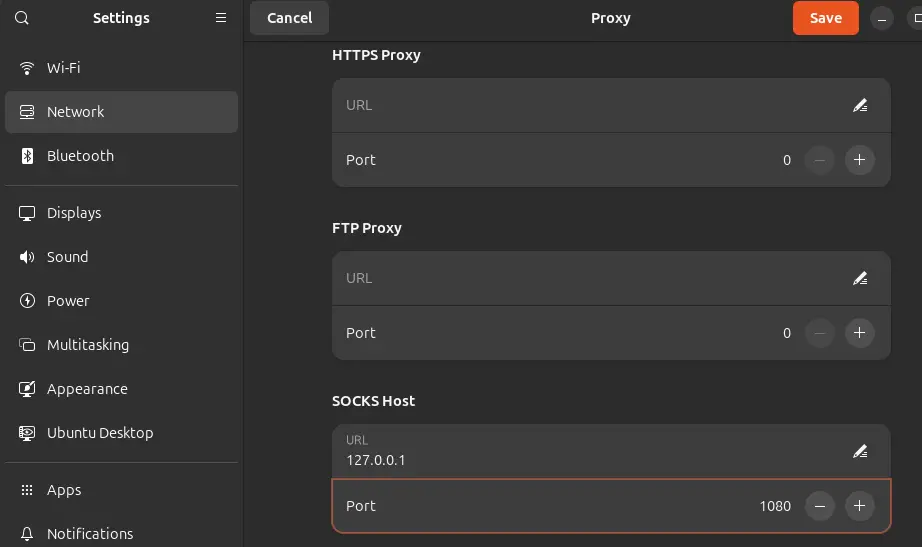
Then, you need to set up the SOCKS proxy through the network settings.
When to use this: When you are in a coffee shop with WiFi and want to encrypt all your browsing, you need to access something that's only reachable from a specific server (e.g., an internal admin panel that only allows connections from the VPS's IP), or you want to test how your website looks from the perspective of another geographic location.
Making Tunnels Persistent
Running long ssh -L ... commands every time is annoying. I put my common tunnels in ~/.ssh/config so I can activate them with a short alias:
Host db-tunnel
    HostName remote-server.example.com
    User yash
    LocalForward 5433 localhost:5432
    ServerAliveInterval 60
    ServerAliveCountMax 3

Host socks-proxy
    HostName my-vps.example.com
    User yash
    DynamicForward 1080
    ServerAliveInterval 60
    ServerAliveCountMax 3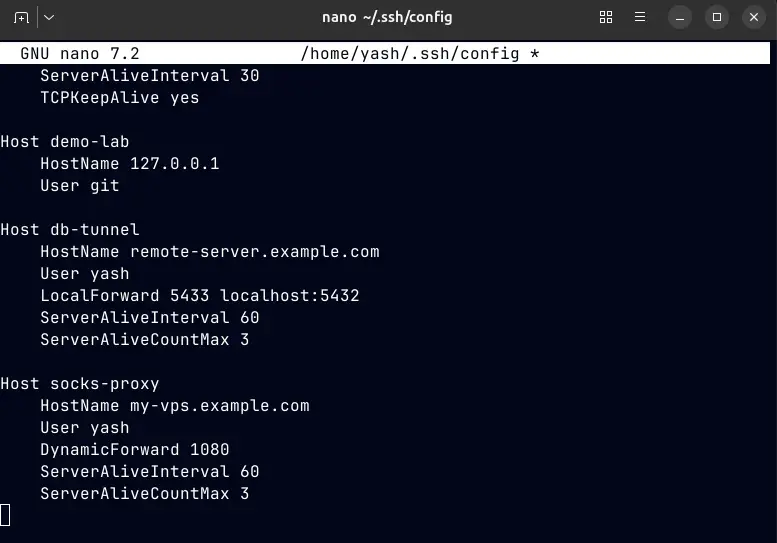
Now activating the database tunnel is just:
ssh -N db-tunnelAnd the SOCKS proxy:
ssh -N socks-proxyThe Risks And How to Handle Them
SSH tunneling is powerful, and like most powerful tools, it can cause problems if misused or misconfigured. This is the part most tutorials skip.
Risk 1: Unauthorized Tunnel Creation
The flip side of remote forwarding (-R) is that if someone has SSH access to your server, they can open tunnels out of it, potentially bypassing your network security controls. An attacker with a compromised SSH key could use your server as a relay to reach systems inside your network.
Mitigation: Restrict what SSH users can do. In /etc/ssh/sshd_config:
# Disable port forwarding for all users by default
AllowTcpForwarding no
GatewayPorts no

# Then allow it only for specific trusted users:
Match User deploy-user
    AllowTcpForwarding local
Use SSH keys (not passwords), enforce key-based auth only, and audit your ~/.ssh/authorized_keys files regularly.
Risk 2: Tunnel Misuse on Corporate/Managed Networks
Dynamic SSH tunneling (-D) is a common technique for bypassing network monitoring and content filters. On a corporate or university network, using a SOCKS proxy to route traffic through an external server may violate acceptable use policies, even if you have a legitimate reason.
I use it when I'm on untrusted public WiFi to protect my own traffic, which is reasonable. Using it to bypass your employer's security controls on company equipment is a different matter; read your acceptable use policy, and don't be surprised if your IT team can see that you're making an encrypted SSH connection to an external server even if they can't see inside it.
Risk 3: Exposing Tunnels Beyond Localhost
When you run -L 5433:localhost:5432, by default the tunnel binds to 127.0.0.1 on your machine, only you can use it. But if you bind it to 0.0.0.0, anyone on your local network (or beyond) can use that forwarded port to reach the remote service.
# DANGEROUS — binds to all interfaces
ssh -L 0.0.0.0:5433:localhost:5432 [email protected]
Unless you specifically need to share a tunnel with other people on your network, always let the tunnel bind to 127.0.0.1 (the default). You can explicitly enforce this:
# Safe — explicitly binds to loopback only
ssh -L 127.0.0.1:5433:localhost:5432 [email protected]
Risk 4: Keeping SSH Keys Secure
All of this relies on the security of your SSH keys. If your private key is stolen, your tunnels and everything behind them are compromised.
My key hygiene: Use ssh-keygen -t ed25519 for new keys, as Ed25519 keys are smaller, faster, and considered stronger than RSA-4096 for most use cases, always set a passphrase on private keys, use ssh-agent to avoid retyping the passphrase constantly while keeping the key protected at rest, never share private keys or put them in version control.
# Generate a new Ed25519 key with a passphrase
ssh-keygen -t ed25519 -C "yash@workstation" -f ~/.ssh/id_ed25519_tunnel

# Add it to ssh-agent so you don't retype the passphrase every session
ssh-add ~/.ssh/id_ed25519_tunnel
```
A Quick Reference: When to Use Which Tunnel
| Situation | Tunnel type | Command pattern |
|---|---|---|
| Access a remote database or service locally | Local -L |
ssh -L localport:host:remoteport user@server |
| Share a local dev server with the internet | Remote -R |
ssh -R remoteport:localhost:localport user@server |
| Encrypt all browsing on untrusted WiFi | Dynamic -D |
ssh -D 1080 -N user@server |
Wrapping Up
What I like about SSH tunneling is that it solves real problems without adding infrastructure. No VPN server to configure, no WireGuard keypairs to exchange, no nginx proxy rules to write. The SSH connection you already use for server access can also carry your database traffic, your webhook traffic, or your browsing traffic, all encrypted, all without opening extra firewall ports.
Local forwarding (-L) is the one I reach for most often, any time I need to access a service on a remote machine from a local client. Remote forwarding (-R) is what I use when I need to do the reverse: expose something local to the internet temporarily. Dynamic forwarding (-D) is the occasional privacy tool for when I'm not on a network I trust.
The risks are real but manageable: keep port forwarding locked down on your SSH servers, bind tunnels to localhost unless you have a specific reason not to, and treat your SSH keys with the same care you'd give a password.
The setup is one command. The maintenance is minimal. The usefulness compounds the more remote infrastructure you work with.