I manage my project boards in Fizzy, Basecamp's clean, opinionated kanban tool, and I got tired of the same ritual: open the browser, navigate to the board, drag a card, close the tab, back to work, repeat. The board lives in one app, my actual work lives somewhere else, and that context switching chips away at focus more than I'd like to admit. So I decided to fix it. Here's what I did.
What I built
Before going through this, I need you to know what Fizzy CLI and ZeroClaw is:
Fizzy CLI fixes half of that problem. It's an official command-line tool that lets you create cards, post comments, search your board, and manage attachments entirely from the terminal, no browser required. The other half of the problem gets solved by ZeroClaw.
ZeroClaw is an open-source agent runtime written in Rust, a single binary you install and configure. It connects to 30+ channels (Telegram, Discord, Matrix, email, or just your CLI), and is genuinely provider-agnostic: it talks to Anthropic, OpenAI, Gemini, Ollama, Groq, and about twenty other LLM backends, all from the same TOML config file. Everything runs on your machine, with your keys. This guide walks you through installing Fizzy CLI, authenticating it, and wiring it up to a running NanoClaw agent so you have end-to-end control of your boards from the terminal and from any messaging app.
Once you wire Fizzy into ZeroClaw as a shell tool, you can message your agent "add a card titled fix the auth bug to my backlog" and it just does it - from your phone, from Telegram, from wherever you happen to be.
I ended up installing Fizzy CLI, authenticating it, and wiring it to a ZeroClaw agent, and in this post I'm walking through exactly what I did, including the parts that didn't go smoothly.
What I used
- A Linux machine - I ran this on Ubuntu 22.04 LTS; Arch and Fedora should work fine too
- An active Fizzy account with at least one board created
- A Fizzy personal access token - get it from Profile → API Tokens in the Fizzy web UI
- One of: a free Gemini API key from Google AI Studio, or Ollama running locally with a model pulled (e.g.,
ollama pull qwen2.5:7b)
Installing Fizzy CLI
The fastest path on Linux is the official install script - it detected my architecture, pulled the right binary, and verified checksums automatically. I just ran:
curl -fsSL https://raw.githubusercontent.com/basecamp/fizzy-cli/master/scripts/install.sh | bash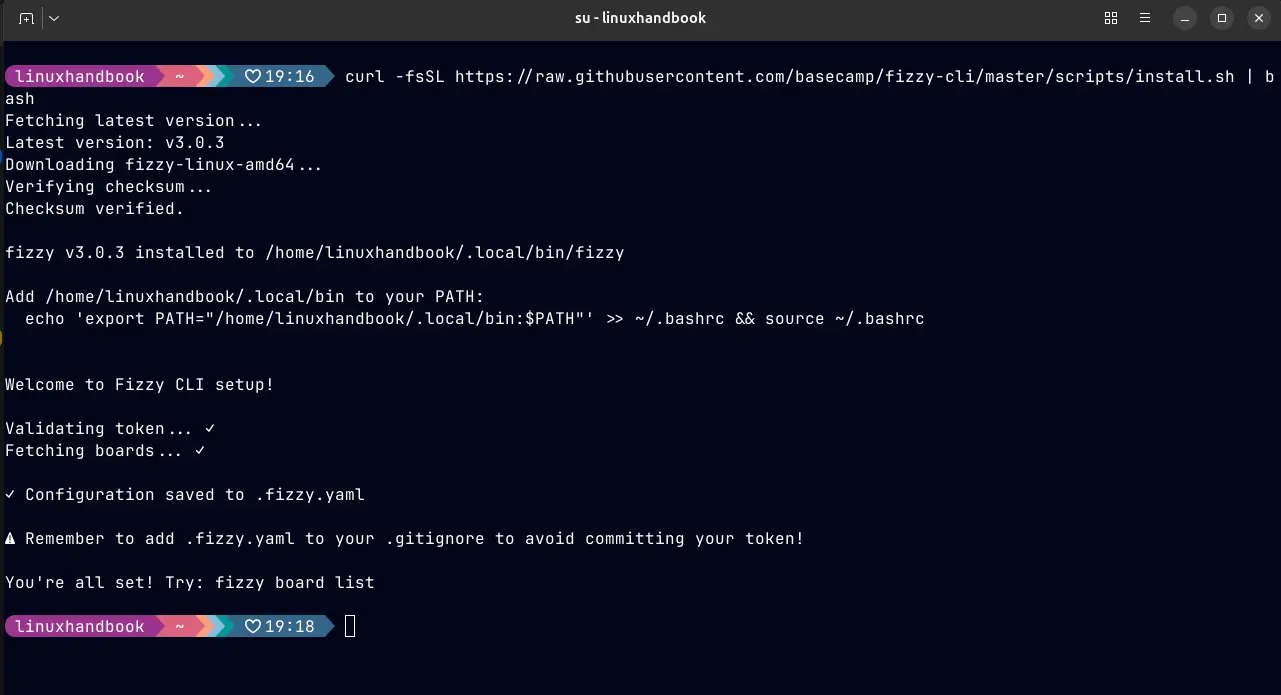
Complete the installation process, it will prompt for the PAT, generate it from your personal fizzy profile and enter it when prompted.
If you're on Arch Linux or Omarchy, it's available in the AUR:
yay -S fizzy-cli
Once the installer finishes, confirm the binary is on your PATH:
fizzy --version
You should see the version string printed cleanly. If your shell says command not found, the binary likely landed in ~/.local/bin - make sure that's in your PATH.
export PATH="/home/USERNAME/.local/bin:$PATH"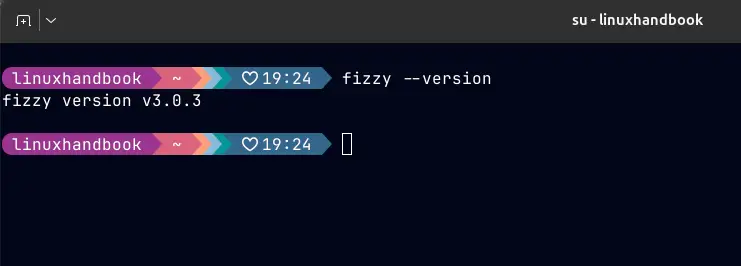
Exploring the Basic Commands
First I ran this to confirm my identity and grab my account slug:
fizzy identity show
It will show all the identity information along with your slug id , use that id and run the following command:
fizzy board list --account "slug id"
Here is a list of boards with their names. As I have more accounts, I need to mention the account ID for commands.
Try more commands like:
# List cards on your default board
fizzy card list

# View details of a specific card
fizzy card show 2

# Search across your board
fizzy search "authentication bug"

# Add a comment to a card
fizzy comment create --card 42 --body "Reproduced on staging."
It will display the cards, a specific card, searching across the board, etc.
Also, if you use jq the output will be in formatted so that you can clearly make sense of the results.
fizzy card list --account "id" | jq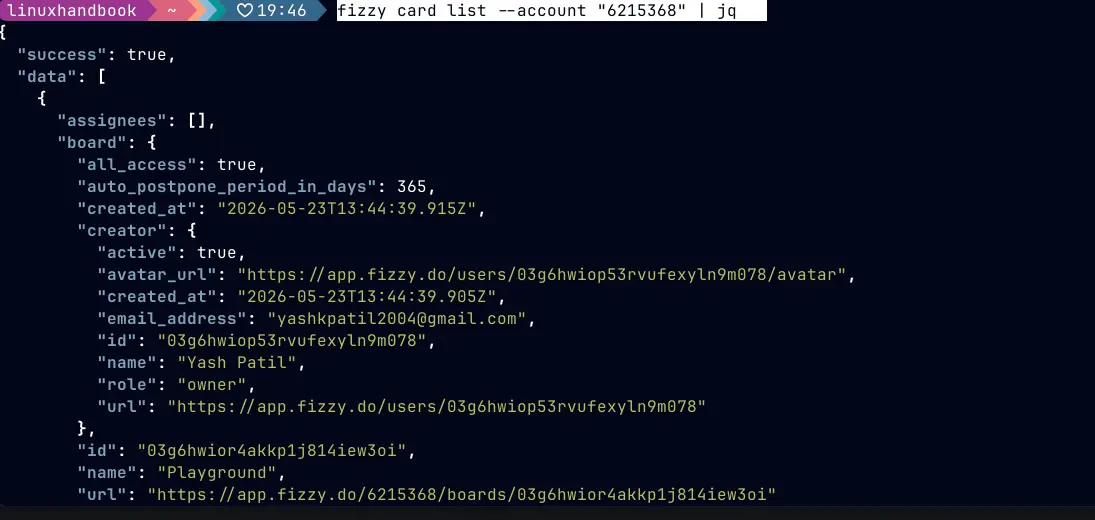
Installing ZeroClaw
ZeroClaw ships as a single Rust binary. When the install script asked me whether I wanted a prebuilt binary or a source build, I went with prebuilt - it was done in seconds:
curl -fsSL https://raw.githubusercontent.com/zeroclaw-labs/zeroclaw/master/install.sh | bashWhen it finishes, confirm it's available:
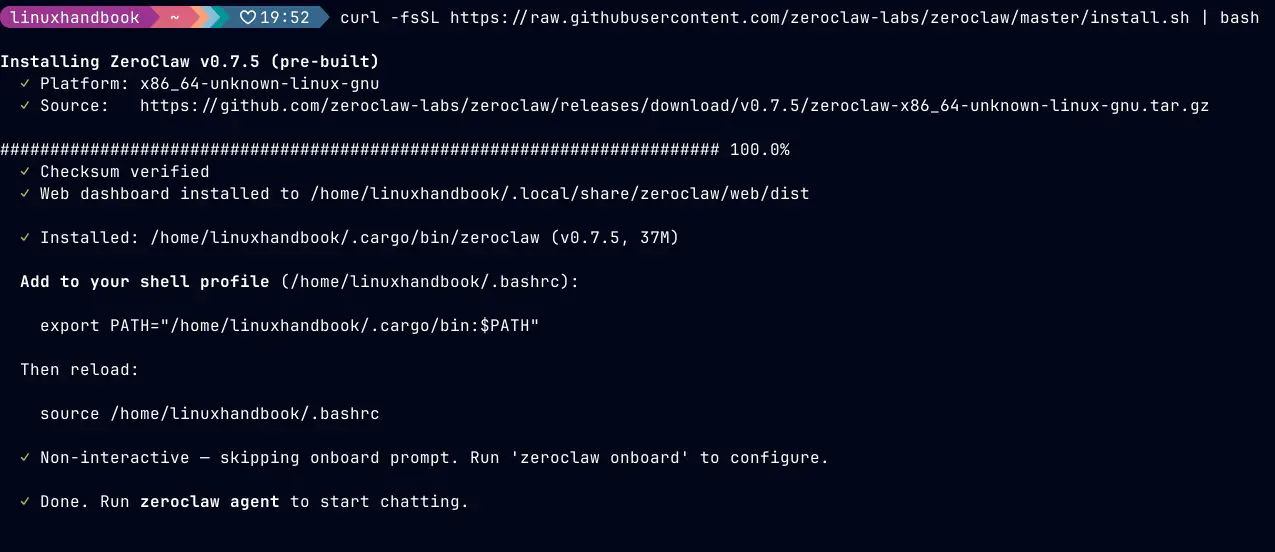
When it finishes, confirm it's available:
zeroclaw --version
ZeroClaw has no runtime dependencies. No Docker, no Node.js, no Python. The binary is self-contained.
Running the Onboarding Wizard
ZeroClaw's config lives at ~/.zeroclaw/config.toml. Running the onboarding wizard creates it for you:
zeroclaw onboardThe wizard walked me through four things:
- LLM provider - which model backend to use
- API key or endpoint - your credentials for that provider
- At least one channel - the built-in
clichannel works for now; you can add Telegram or Discord later - Agent alias - a name for your agent entry in the config
For the LLM provider step, enter gemini and paste your Google AI Studio API key when prompted. If you're using Ollama locally, choose ollama instead, the wizard will ask for your model name (e.g., qwen2.5:7b) and leave the endpoint at the default http://localhost:11434.
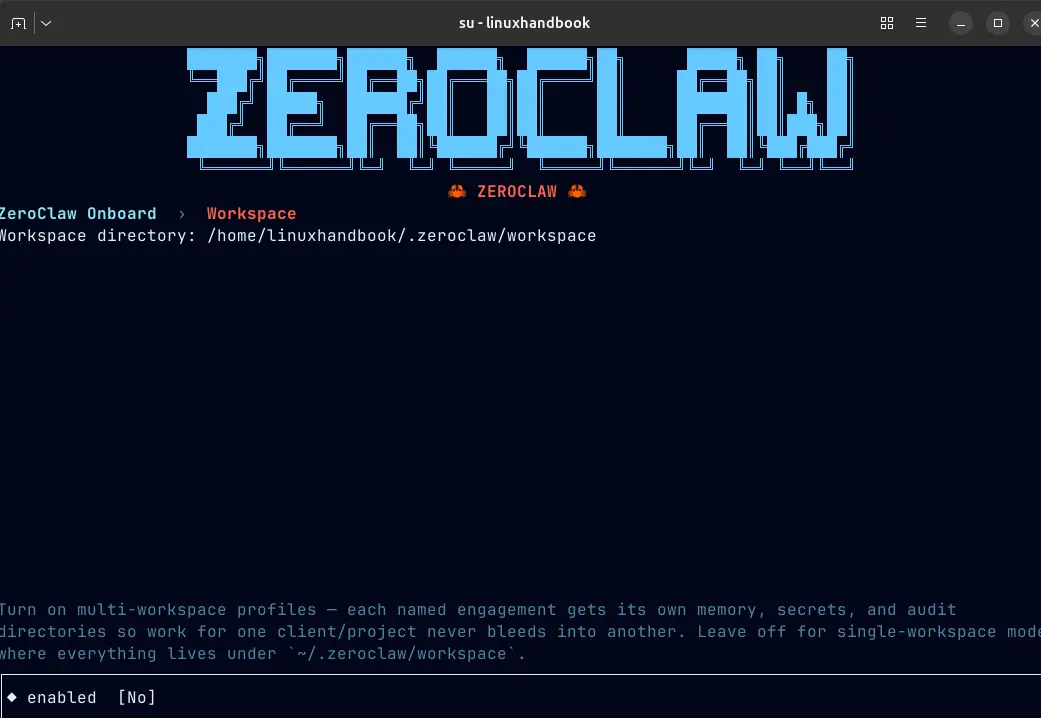
There is vast support for various channels:
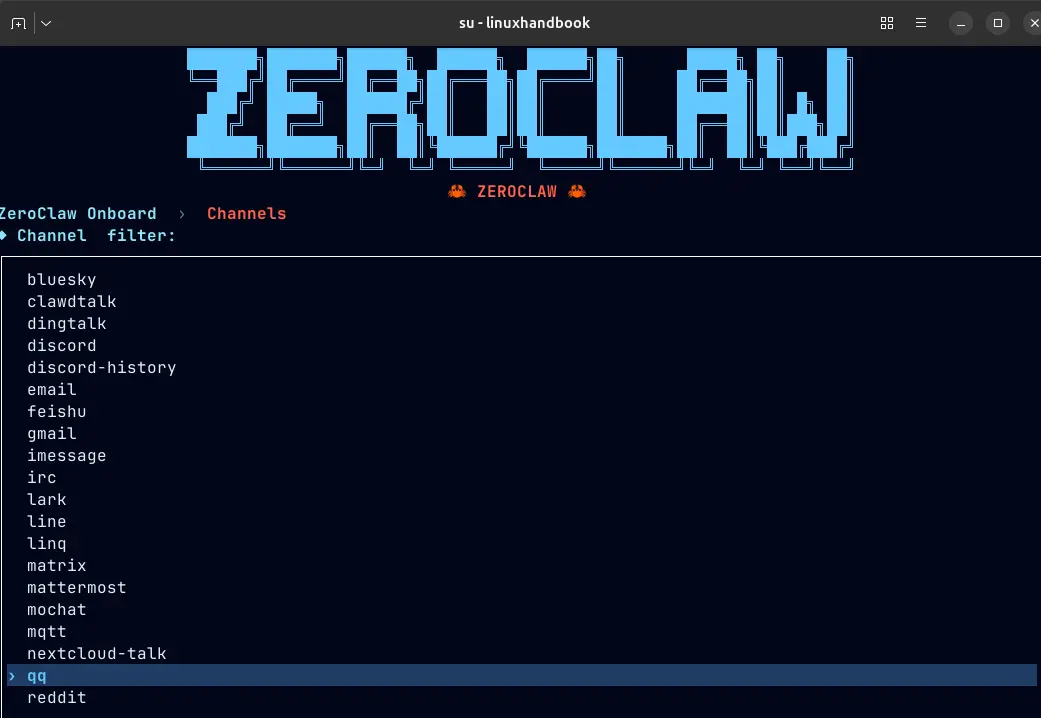
Then there will be an option to select a memory backend, select the appropriate one as per your need:
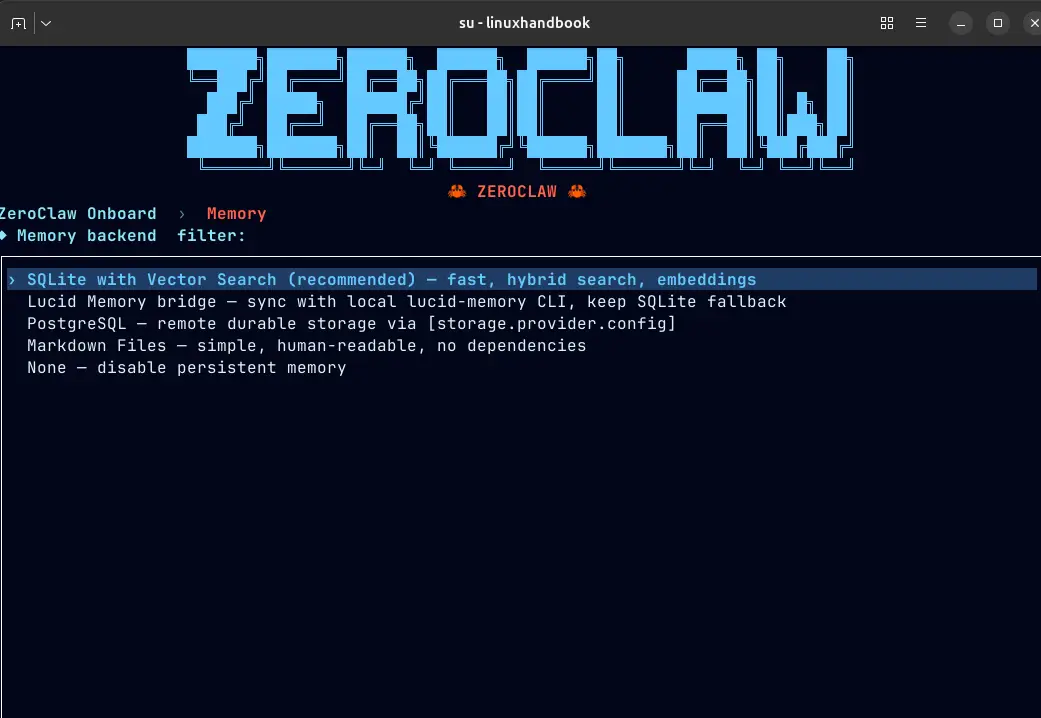
the model_provider field on your agent is the only place you specify which LLM to use in your ~/.zeroclaw/config.toml . Swapping from Gemini to Ollama to Groq is a one-line change.
Registering Fizzy as a Shell Tool
ZeroClaw's shell tool lets the agent run any command on your machine. To give it access to fizzy, add a tool entry to your config and give the agent permission to use it:
Add "fizzy" at commands in config, it will look like this:
allowed_commands = [
    "git",
    "npm",
    "cargo",
    "ls",
    "cat",
    "grep",
    "find",
    "echo",
    "pwd",
    "wc",
    "head",
    "tail",
    "date",
    "df",
    "du",
    "uname",
    "uptime",
    "hostname",
    "python",
    "python3",
    "pip",
    "node",
    "free",
    "fizzy"
]
One thing that caught me off guard: Fizzy has to be explicitly listed in allowed_commands or ZeroClaw's security layer blocks it, even if you've defined the tool entry. I learned this the hard way after getting a "Command not allowed by security policy" error.
Then add the new entry in the config:
[tools.shell.fizzy]
description = "Manage Fizzy kanban boards via the Fizzy CLI"
command     = "fizzy"
allowed_args = ["board", "card", "comment", "search", "commands"]

[agents.assistant]
model_provider = "gemini-cli"
risk_profile   = "supervised"
tools          = ["shell.fizzy"]
Follow the similar steps for ollama setup too.
Check once the parameters as per your model are selected. Whichever path you followed, the wizard ends with a quick live chat to confirm your agent is working. You'll see a prompt like:
Confirming the Agent Responds
Whichever path you followed, Gemini or Ollama, start the agent to confirm everything is working:
zeroclaw agent
You should get a CLI chat prompt. Type a test message:
Hello, are you there?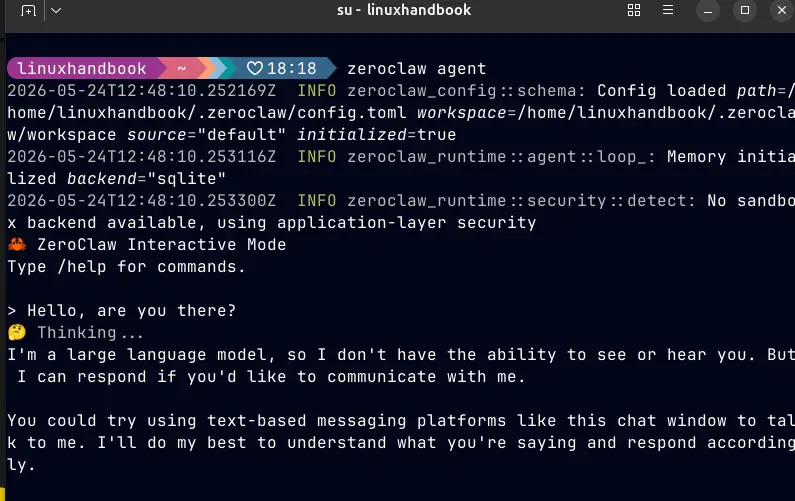
If it responds, you're done. If you are using a local LLM and see an error like model requires more system memory than is available, your chosen model is too large for the free RAM currently available. Fix it by pulling the 1B model instead and updating your config:
ollama pull llama3.2:1b
# Then edit ~/.zeroclaw/config.toml and set: model = "llama3.2:1b"
If it responds, your LLM backend is wired up correctly. Total setup time is about five minutes. Once the agent responds, you're ready to wire in Fizzy.
Verifying the Fizzy Integration
I asked the agent something simple to confirm the wiring:
Use the fizzy shell tool to run: fizzy card listZeroClaw called fizzy card list, parsed the JSON output, and summarized my cards in natural language. In supervised mode it asked for approval first - I pressed Y, and it worked.
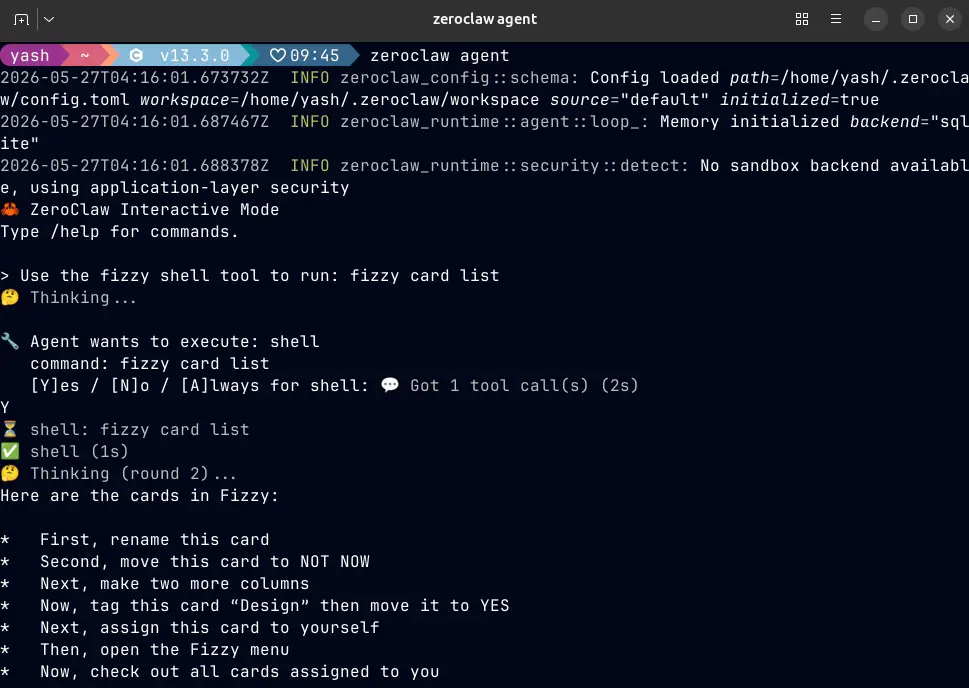
One tip I'd pass on: be explicit in your prompt. "List the cards on my board" can confuse the agent into doing a web search instead. Saying "use the fizzy shell tool to run..." removes the ambiguity entirely.
From there, you can do things like:
Create a card titled "Review auth middleware" on my board.
Add a comment to first card saying I'll look at this after the release.
Search for anything related to "database migration".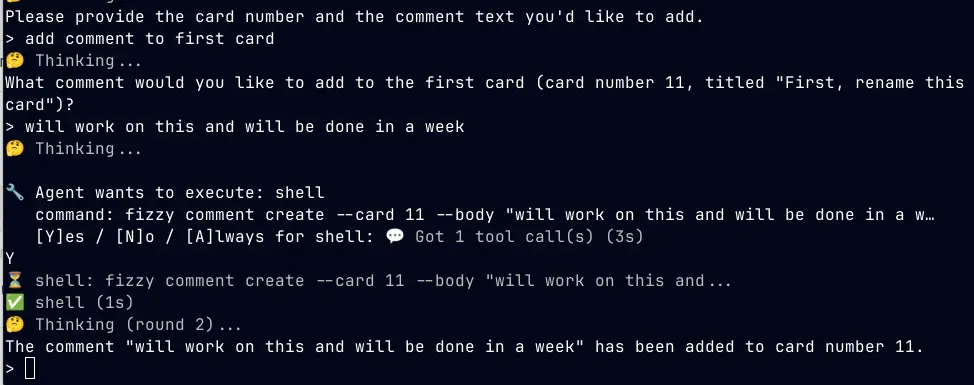
What to Explore Next
We have covered how to setup and get started with Fizzy CLI with ZeroClaw agent, but you can explore more things like:
Per-repo board context: Create a .fizzy.yaml in any project directory with a board field. When you're inside that directory, fizzy card list will default to that project's board automatically, no flags needed.
Swap the model: If Gemini starts hitting rate limits or you want to try something faster, add a second provider entry and change the model_provider alias on your agent.
Add a second agent: ZeroClaw supports multiple [agents.*] entries pointing at different providers. You could run a lightweight Ollama model for quick card operations and route heavier reasoning tasks to Gemini, all from the same ZeroClaw instance.
Wrapping Up
What I like most about this setup is the flexibility. ZeroClaw doesn't care which LLM I use. I started with Ollama locally, hit tool-calling limitations with smaller models, and switched to Gemini's free tier without touching anything except two lines in the config.
The context switching problem is what motivated all of this, and I think this setup genuinely solves it. Having Fizzy in the terminal is one improvement. It took me an afternoon to get everything right. The time it saves should compound from here.
Do visit the repos and try it yourself!