

While keeping logs is vital for troubleshooting, the journal logs can grow into a multi-gigabyte monster if left unchecked.
That's why journalctl command has vacuum option to help you clean the logs like you use a vacuum cleaner to clean your house.
Here is a quick breakdown of the most common ways to clear systemd journal logs:
| journalctl option | What it does | Example |
|---|---|---|
| --disk-usage | Shows current log size | journalctl --disk-usage |
| --vacuum-size | Reduces logs to a specific size | sudo journalctl --vacuum-size=500m |
| --vacuum-time | Keeps logs for a specific duration | sudo journalctl --vacuum-time=30d |
| --vacuum-files | Keeps a specific number of log files | sudo journalctl --vacuum-files=10 |
First, check how much disk space you're losing to journal logs
Before cleaning, you should see exactly how much space the journal is hogging. The journalctl command can show the current disk usage of journal logs using the --disk-usage option.
Run this in your terminal:
journalctl --disk-usage
If that number is over 500MB and you aren't currently debugging a major system issue, it’s probably time for a "vacuum."
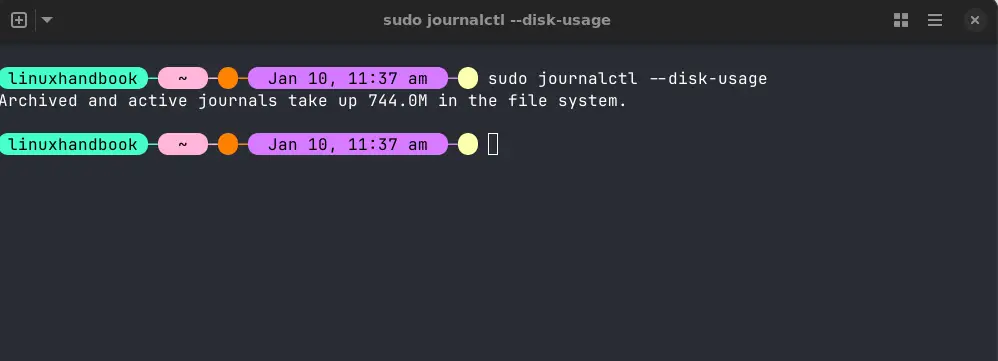
The term "vacuum" in journalctl is just a fancy way of saying "delete old logs until we meet a certain criteria." You have three main ways to do this.
1. Cleaning by size (--vacuum-size)
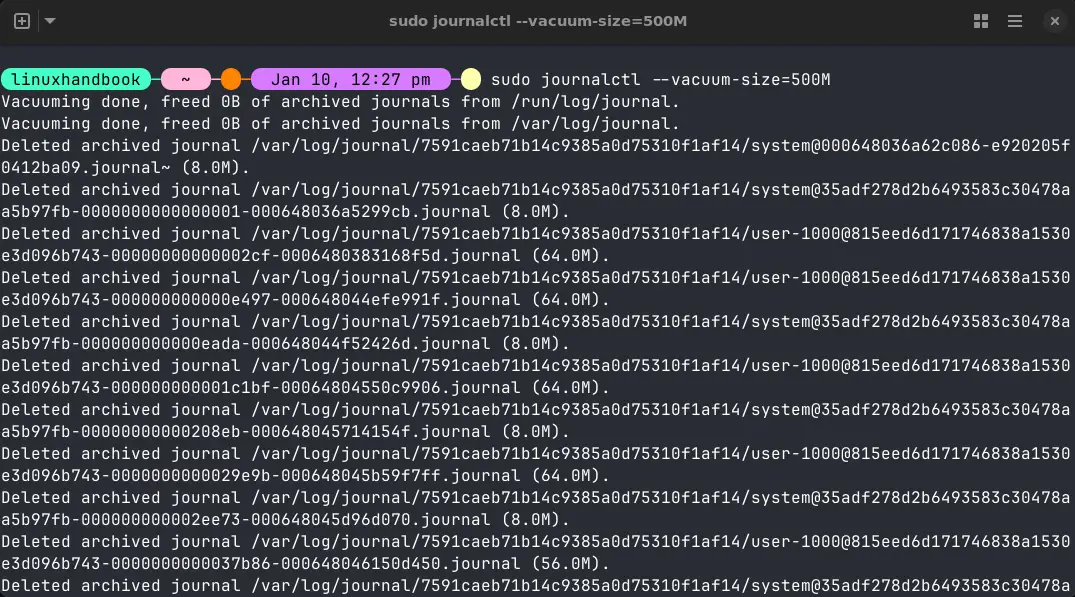
This is the most common method. If you want to tell your system, "I only want to keep 500MB of logs, delete everything older than that," you use the size flag.
sudo journalctl --vacuum-size=500M
It’s great for servers or small SSDs where disk space is at a premium. It ensures your logs never grow past a specific rate you've allocated on your hard drive.
sudo journalctl --rotate before vacuuming to ensure recent logs are eligible for deletion.2. Cleaning by time (--vacuum-time)
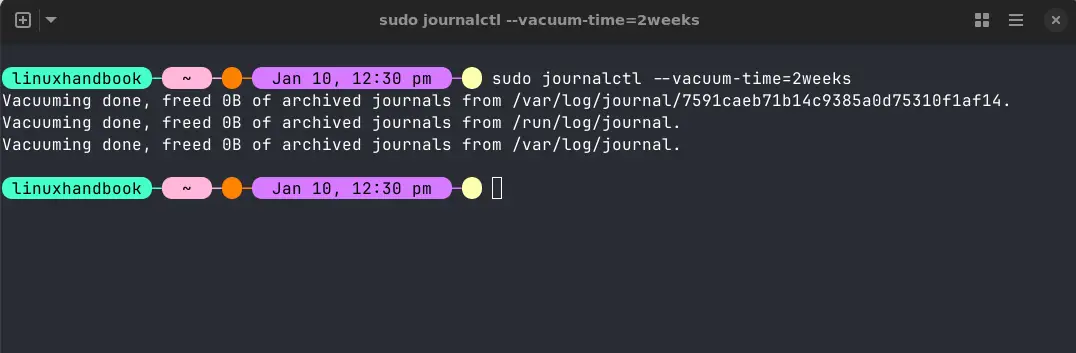
Sometimes, the size doesn't matter as much as the history. If you only care about what happened in the last two weeks, you can vacuum by time.
sudo journalctl --vacuum-time=2weeks
You can use days, weeks, months, or even years. For example, Running journalctl --vacuum-time=30d will clear logs older than a month.
This is perfect for compliance or anyone who knows that any bug older than a month is no longer relevant to their current project.
3. Cleaning by file count (--vacuum-files)
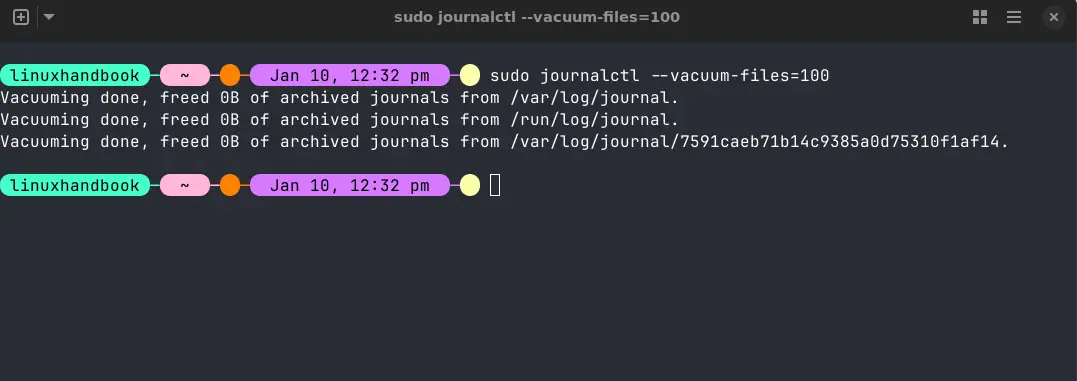
The journal stores data in several smaller files when the active log file crosses a certain size threshold defined by SystemMaxFileSize. This is a built-in log rotate feature in journalctl.
You can tell Linux to only keep a specific number of these files.
sudo journalctl --vacuum-files=100
This is a bit more "old school" and less commonly used than size or time, but it’s helpful if you want to keep the file system index small.
journalctl --vacuum-size=500M --vacuum-time=30d will clear archived log files that are either bigger than 500MB or older than 30 days.Automating the log cleaning
Cleaning your logs once is great, but we often forget to check our disk usage until we get a "Disk Space Low" warning. If you’d rather spend your time on more interesting projects, you can automate the vacuuming process.
There are two main ways to do this: the "Old School" way (Cron) and the "Systemd" way.
Method 1: Classic cron jobs
Cron is the classic Linux task scheduler. It’s perfect for a simple "run this once a week" instruction.
To set this up, edit your root user's crontab:
sudo crontab -e
Scroll to the bottom and add this line:
0 2 * * 0 /usr/bin/journalctl --vacuum-time=30d
What does this actually do?
- 0 2 * * 0: This is cron-speak for "At 02:00 AM, every Sunday."
- /usr/bin/journalctl --vacuum-time=30d: This tells the system to find the journal tool and delete anything older than a month.
Method 2: Native systemd feature (recommended)
While Cron is great, the "native" way to control the journal is actually inside the journald.conf file itself. This is often better because it’s reactive, it cleans based on size limits rather than just waiting for a specific day of the week.
You can check the current config with:
systemd-analyze cat-config systemd/journald.confYou may have to create the /etc/systemd/journald.conf file as the original file exists in /usr/lib/systemd/journald.conf and you should avoid modifying it.
- Open the config file:
sudo nano /etc/systemd/journald.conf - Look for the
[Journal]section and findSystemMaxUse=. - Set it to your preferred limit:
SystemMaxUse=500M. - Restart the service to apply the change:
sudo systemctl restart systemd-journald.
By setting this, you don't even need a timer. As soon as the journal hits 501MB, the system will automatically toss out the oldest logs to make room for new ones.
Conclusion
journalctl --vacuum is beneficial for reclaiming disk space, managing log retention policies, and maintaining optimal system performance. Knowing how to control journal logs ensures that disk space is never unexpectedly consumed.
By combining time, size, and file-count methods, you can customize log retention to suit your system’s needs. Automating the process ensures your logs stay under control without any manual intervention.