Once you're running more than 3-4 containers, you'll run into the same questions: Which container is eating my RAM? Why did this crash at 3 am? My images are 800 MB and I have no idea why.
Here's the thing. Docker is an ecosystem and there exist tools that can help you deal with Docker containers and images more effectively.
For past couple of years, I have tried many such tools. I have used them across real scenarios and dev setups that usually involve monitoring tools, TUIs, log viewers, image analyzers, and more; and narrowed it down to the ones that actually solve real problems, which enhances the total experience of your Docker.
These tools exist specifically to answer those questions and I'll tell you exactly which situations each one is built for.
Short on time? See the details in the table below: Here's a quick overview before the full breakdowns.
Comparison Table
| Tool | Best For | Interface | Auto-Action | Our Pick |
|---|---|---|---|---|
| Lazydocker | Terminal power users | TUI | ✅ restart/rebuild | 🏆 Top Pick |
| Oxker | Speed + zero deps | TUI | ✅ start/stop/exec | Best lean TUI |
| Dockge | Compose stack management | Web UI | ✅ stack up/down | Best Compose UI |
| Dozzle | Live log viewing | Web UI | ❌ | Best log viewer |
| Dive | Image layer analysis | TUI | ❌ | Best image debugger |
| Dockhand | Security-first Docker management | Web UI | ✅ safe-pull scan | Best security pick |
| Kompose | Compose → Kubernetes migration | CLI | ✅ convert | Best for K8s movers |
| Docker Slim | Image size optimization | CLI | ✅ builds slim image | Best image shrinker |
| Docker Autoheal | Self-healing containers | Labels | ✅ restart | Best reliability pick |
| Cup | Image update awareness | TUI + Web | ❌ notify only | Best rate-limit safe |
| ctop | Real-time resource monitoring | TUI | ❌ | 🏆 Editor's Pick |
Now let's go through each one.
Lazydocker - All-in-one terminal UI for Docker management
Lazydocker is a keyboard-driven terminal UI that brings containers, logs, stats, images, and volumes into a single split-panel view - making it the most practical way to manage Docker entirely from the terminal without memorizing dozens of commands.
Who it's best for: Developers and homelabbers who live in the terminal and want a single interface to replace docker ps, docker logs, docker stats, and docker exec all at once.
Quick Setup:
# Homebrew (Linux or macOS):
brew install lazydocker

# Or via Go:
go install github.com/jesseduffield/lazydocker@latest

# No install needed — run via Docker:
docker run --rm -it \
  -v /var/run/docker.sock:/var/run/docker.sock \
  lazyteam/lazydocker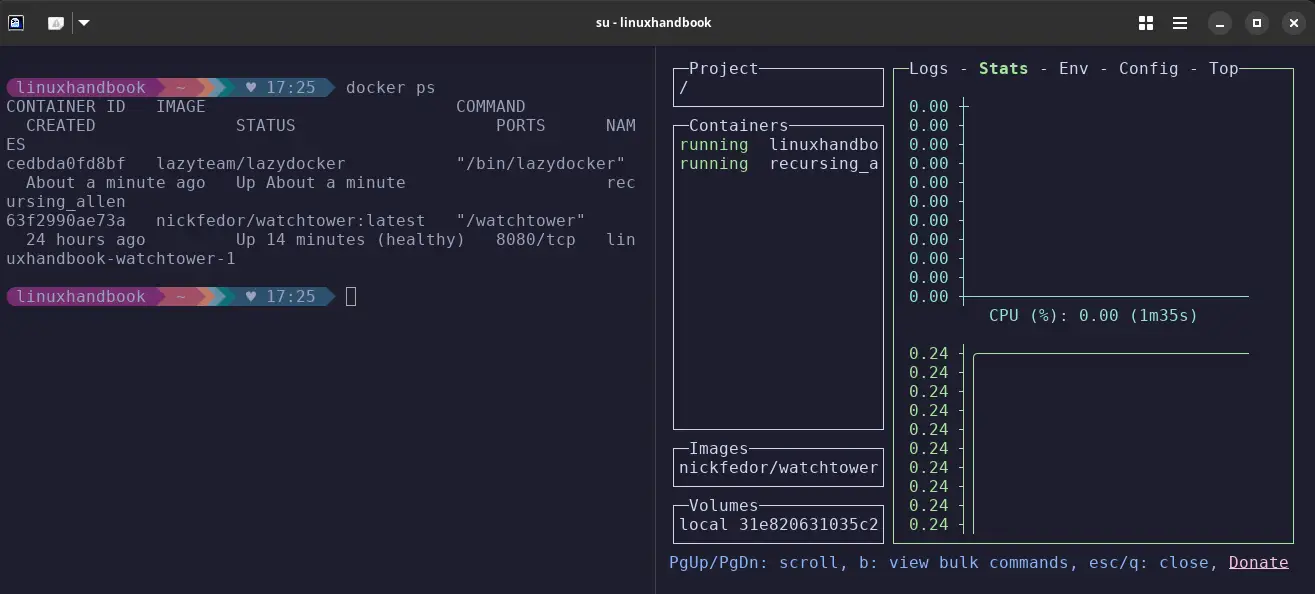
You can see on the left side, there is a normal Docker ps command and on the right side, there is lazydocker runnning showing all running containers, images, volumes, also logs, stats, config, CPU usage, etc.
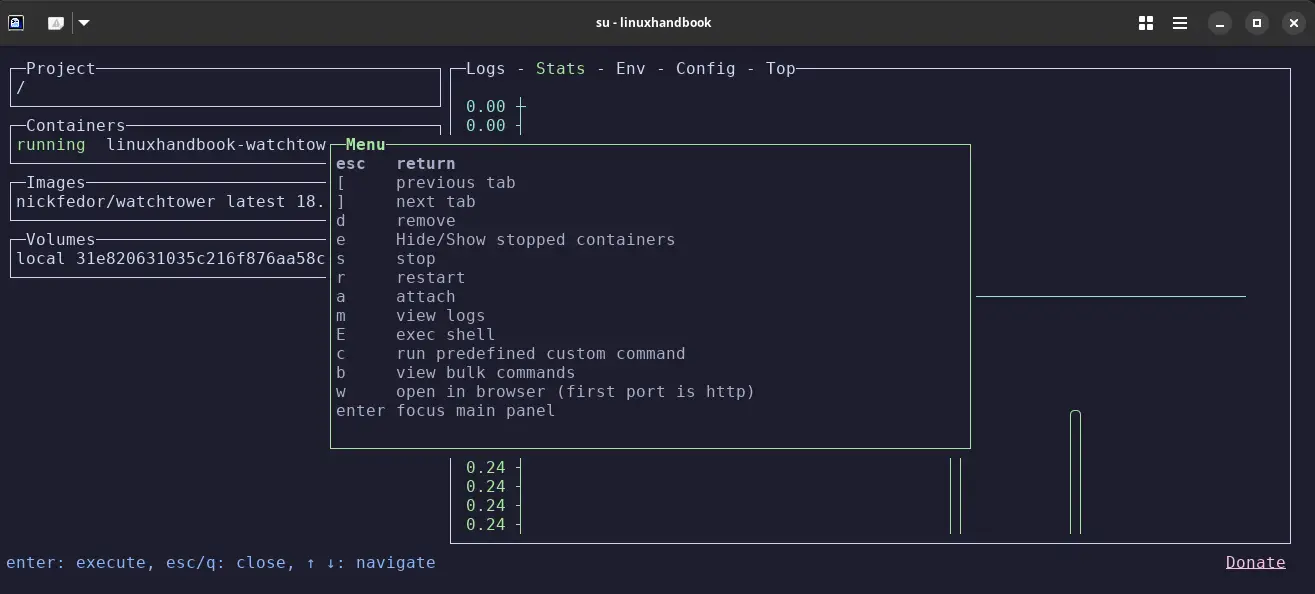
It has many more commands to perform as shown below: you can see them by typing x in the terminal.
- Real-time CPU/memory graphs per container
- Compose-aware - groups services instead of a flat container list- Restart, exec, remove, rebuild
- all without leaving the TUI- Extremely polished for a terminal tool
- Keyboard navigation learning curve: takes about 10-15 minutes to feel comfortable
- No multi-host support - manages one Docker daemon at a time
Verdict: The safe default for anyone who prefers the terminal. Install it once, and you'll stop missing raw Docker commands within 20 minutes.
Oxker - Lightweight TUI for speed and zero dependencies
Oxker is a Docker container TUI written in Rust that delivers a multi-panel interface including a live container list, log streaming, and resource stats, in a single binary with no runtime dependencies whatsoever.
Who it's best for: Terminal users who want Lazydocker-style visibility but with a leaner footprint - no Go runtime, no Node.js, nothing. Also great for Rust fans and anyone in constrained environments.
Quick Setup:
# Cargo:
cargo install oxker

# Homebrew:
brew install oxker

# Zero-install via Docker (read-only socket):
docker run --rm -it \
  -v /var/run/docker.sock:/var/run/docker.sock:ro \
  ghcr.io/mrjackwills/oxker

# Arch Linux AUR:
paru -S oxker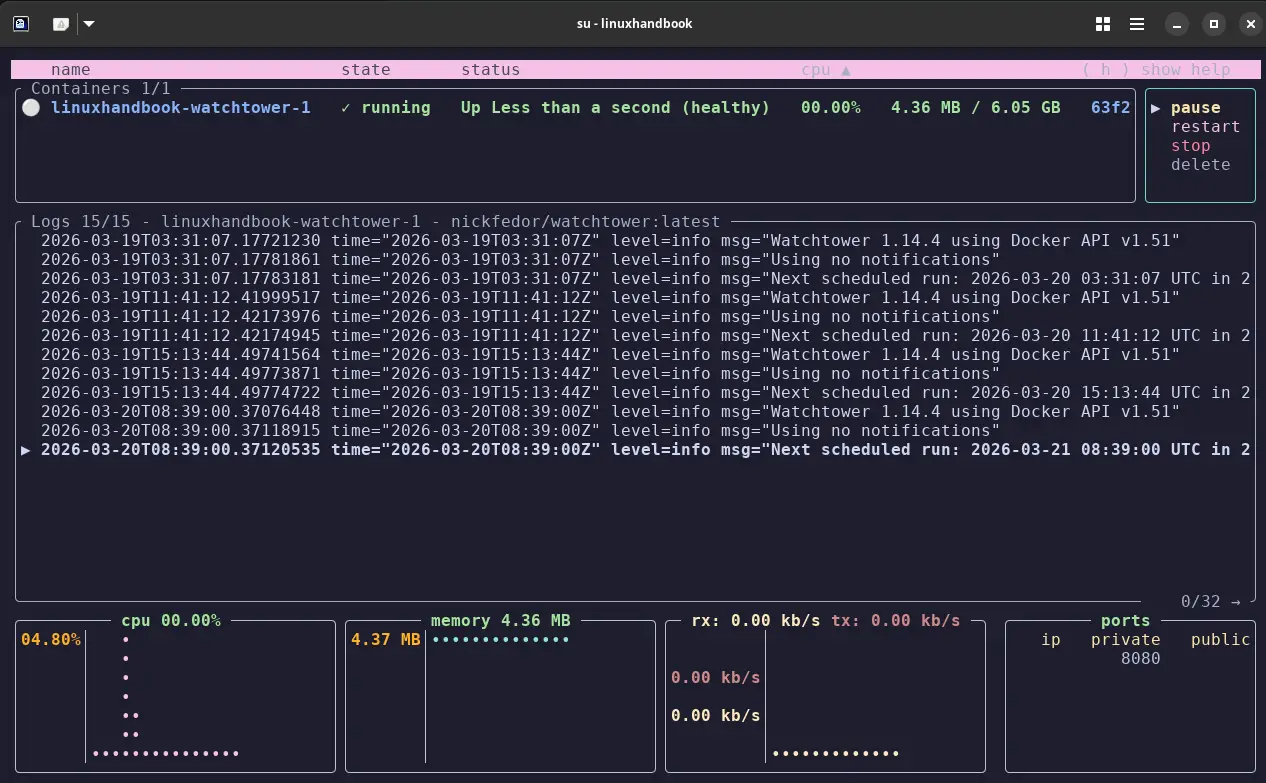
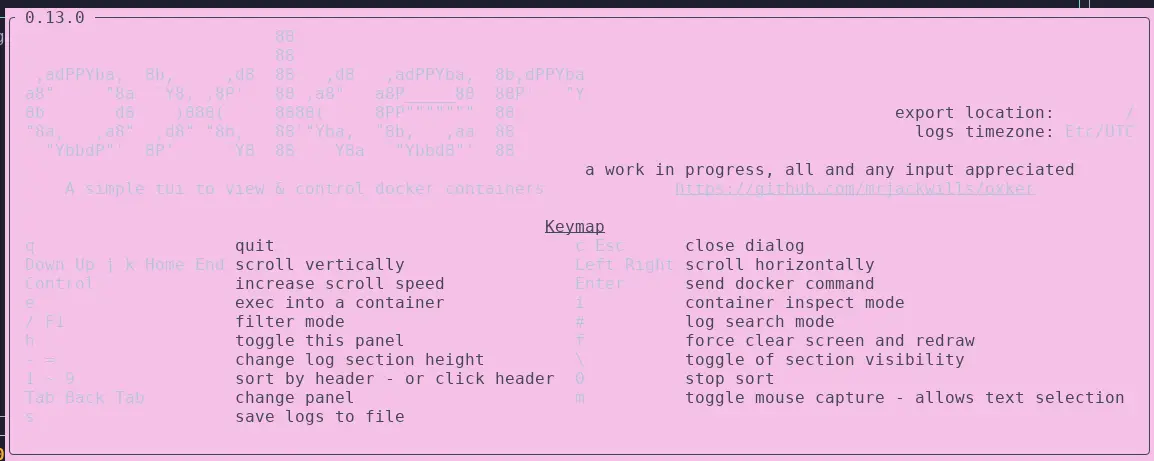
After running the commands, you can see a beautiful TUI running showing containers, CPU, Memory, Ports and you can see the helpful commands to run inside, using h If you need to execute, you can use e after selecting the container, use q to quit from the current session.
- Single Rust binary having truly zero dependencies
- Multi-panel layout including container list + logs + resource stats
- Compose-aware (shows which project a container belongs to)
- Can run with read-only socket mount for extra safety
- ~1.5k GitHub stars; smaller community, fewer tutorials if you get stuck
- Strictly container-focused - no image or volume management
- Cargo install requires Rust toolchain (use Docker method to skip this)
Verdict: Way better than its star count suggests. If you want a leaner, faster alternative to Lazydocker with zero dependencies, give Oxker 5 minutes; you might just switch.
Dockge - Web UI for Docker Compose stack management
Dockge is a self-hosted web UI built specifically for Docker Compose stack management, letting you create, edit, start, stop, and monitor compose stacks through a clean browser interface, while keeping your compose.yaml files exactly where they are on disk.
Who it's best for: Homelab users and solo developers who manage multiple compose stacks and want a visual interface for them without switching to a heavy all-in-one tool like Portainer.
Quick Setup:
# Create directories that store your stacks and stores Dockge's stack
mkdir -p /opt/stacks /opt/dockge
cd /opt/dockge

# Download the compose.yaml
curl https://raw.githubusercontent.com/louislam/dockge/master/compose.yaml --output compose.yaml

# Start the server
docker compose up -d

# If you are using docker-compose V1 or Podman
# docker-compose up -d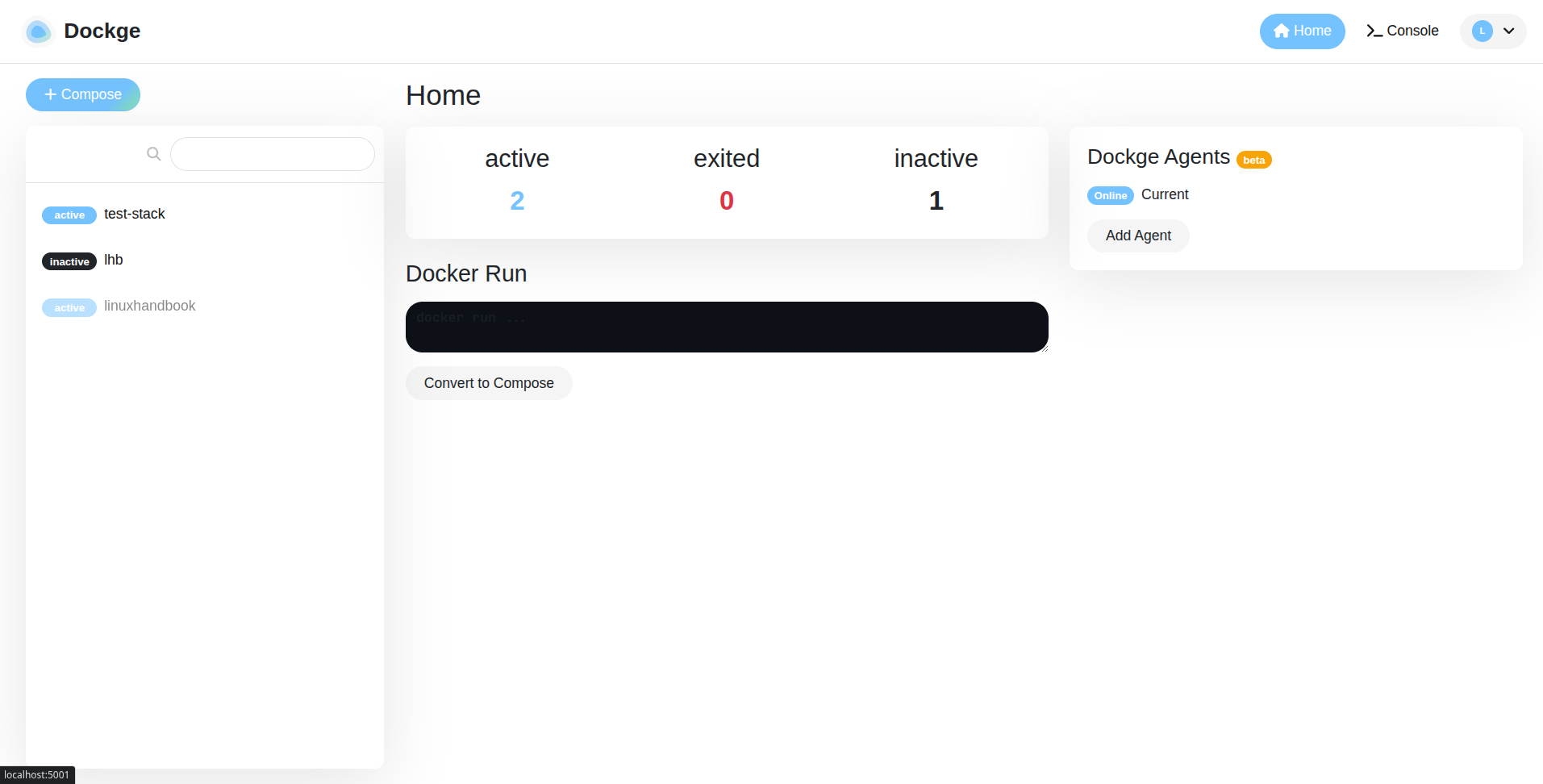
After running commads you'll have a Dashboard UI on the web at customised, where you can see the stack, compose and also you can deploy your own customised stack by defining the containers and env variables, networks, ports, etc.
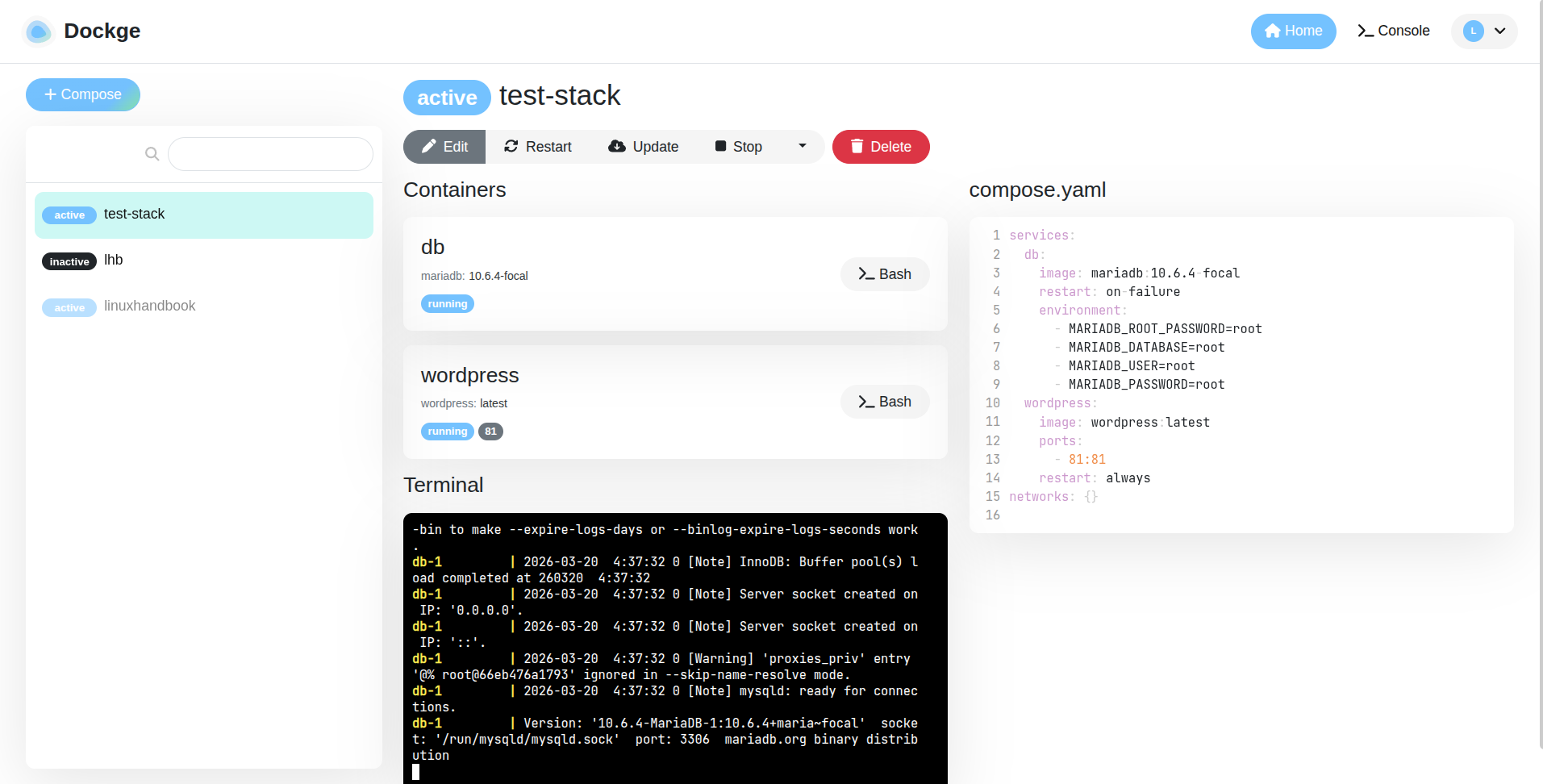
Dockge has a built-in docker run to compose.yaml converter. Paste in a run command from Docker Hub and get a formatted compose file out. This alone saves 10 minutes every time.
- Beautiful, reactive UI, feels modern and fast
- File-based storage, no database lock-in, your files stay portable
- Live terminal output when bringing stacks up/down
- Built-in
docker run → compose.yaml converter- Compose-only, standalone containers are invisible to it
- Single-user design, no role-based access control
- Not suitable for team environments needing multi-user permissions
- No Kubernetes support
Verdict: The best Compose stack UI for homelab setups, period. If you're already using compose-based setups, this replaces the docker compose up -d + vim loop entirely.
Dozzle - Web-based real-time container log viewer
Dozzle is a lightweight, self-hosted web application that streams Docker container logs directly to your browser in real time - zero storage, zero persistence, just live log output from your containers, accessible from any device on your network.
Who it's best for: Anyone who regularly SSHs into servers just to check container logs - especially useful for teams where non-SSH users need log visibility, or for checking logs from a phone or tablet.
Quick Setup:
# Pull image
docker pull amir20/dozzle:latest

# Run the container
docker run --name dozzle -d --volume=/var/run/docker.sock:/var/run/docker.sock -p 8082:8080 amir20/dozzle:latest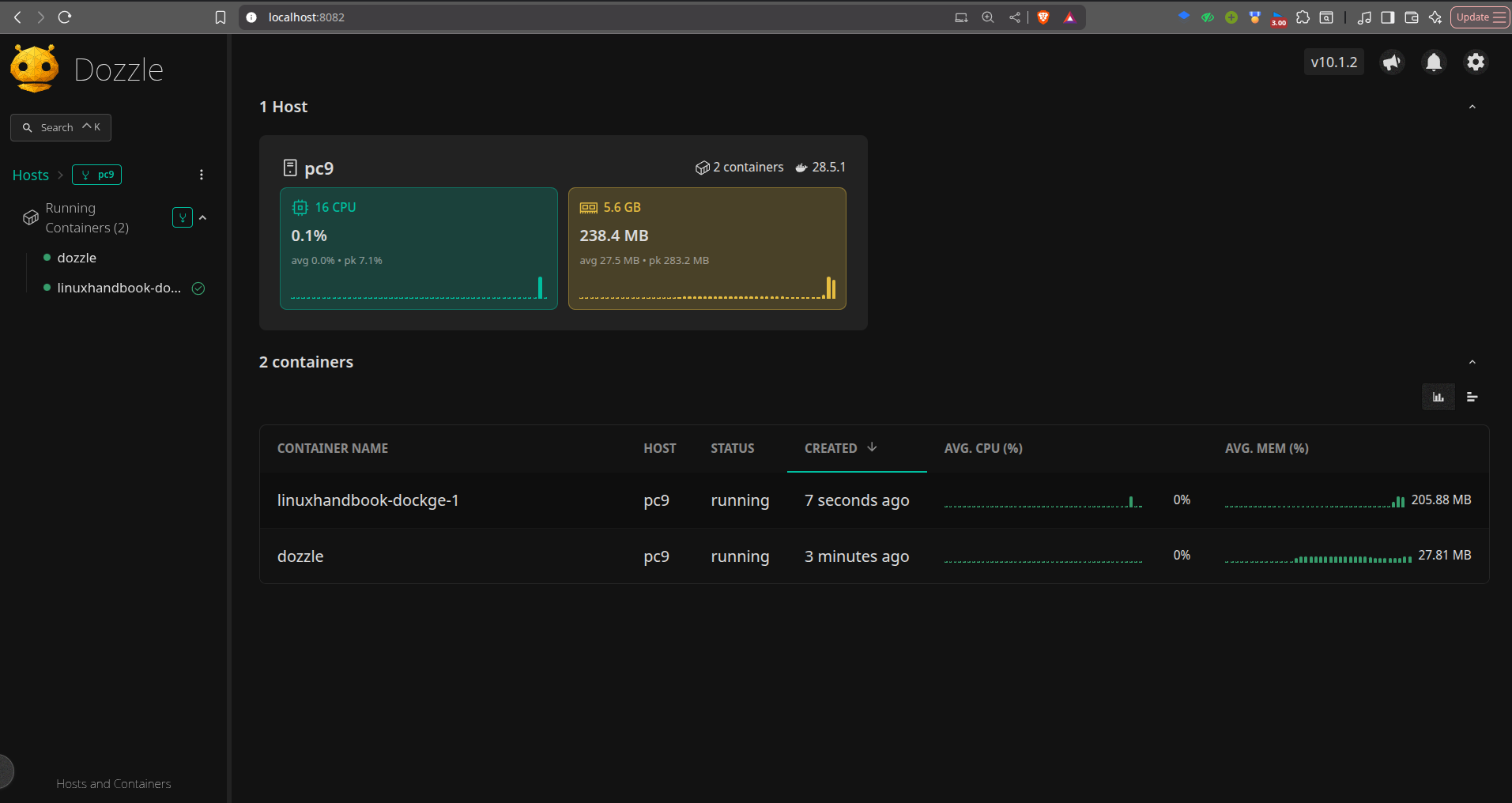
This one is one of the most elegant UI for browsers I have ever used and ever seen. You see a minimalist, simple and elegant presentation of your stack, containers, the CPU and memory usage for each stack.
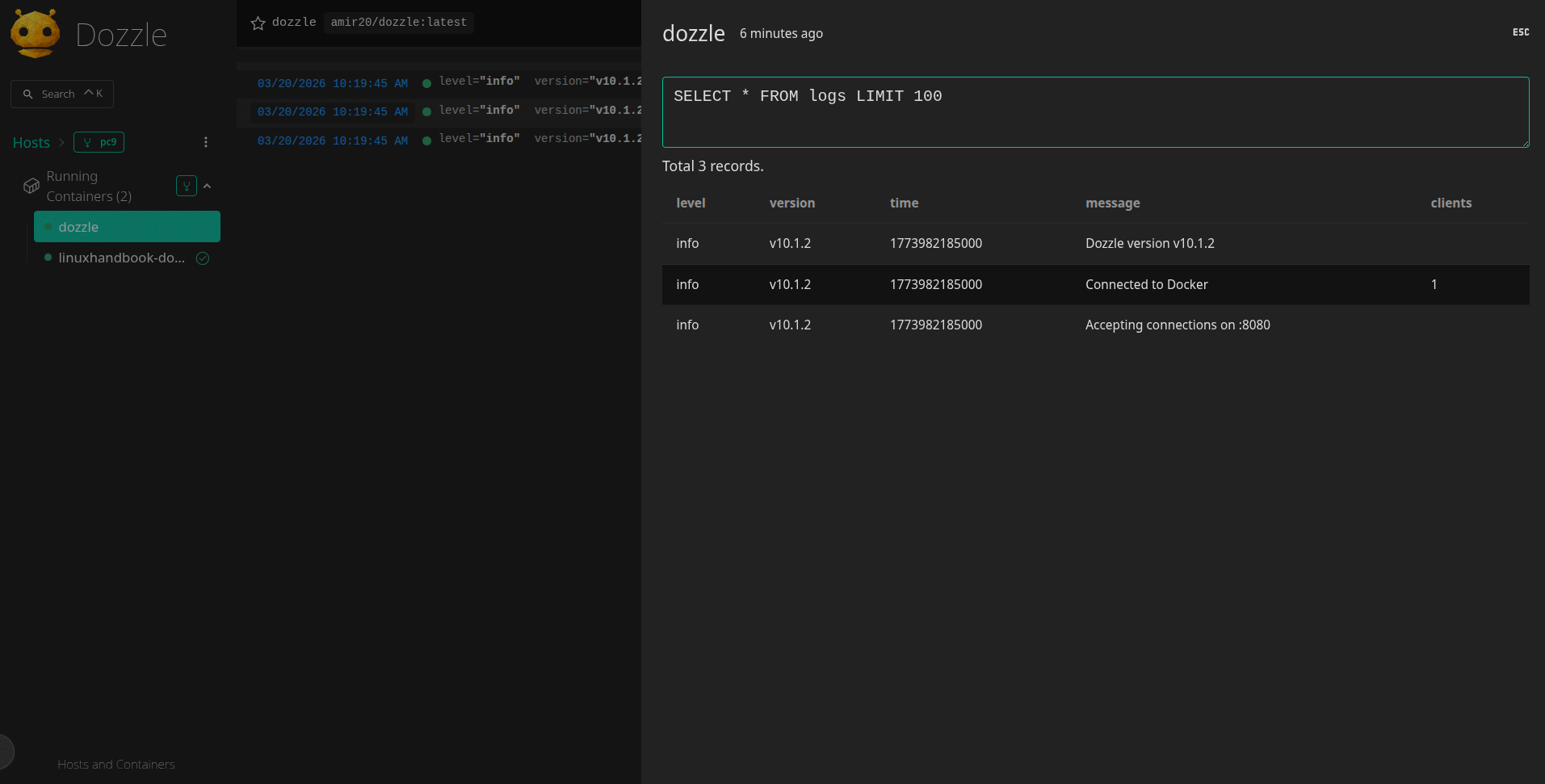
You also get the SQL analytics for your stack, so you can search and retrieve from your database.
- Zero storage footprint means purely streaming, nothing written to disk
- Multi-stream view so that you can watch several containers side by side
- Keyword search and highlighting in live streams
- Multi-host support via agent mode
- No log persistence; can't look back at logs from before Dozzle was running
- No alerting, shows logs but doesn't act on them
- Basic auth only; not suitable for teams needing fine-grained access
Verdict: One of the most immediately useful tools on this entire list. Bookmark it, use it from your phone at midnight when something breaks, never SSH in just for logs again.
Dive - For analyzing Docker image content
Dive is an interactive terminal tool that lets you explore every layer of a Docker image, showing exactly which files each RUN, COPY, or ADD instruction added, modified, or deleted, so you can see precisely why your images are larger than they should be.
Who it's best for: Developers who suspect their images are bloated but don't know where the size is coming from and anyone who wants to find and eliminate wasted space before shipping to production or a registry.
Quick Setup:
# Set parameter
DIVE_VERSION=$(curl -sL "https://api.github.com/repos/wagoodman/dive/releases/latest" | grep '"tag_name":' | sed -E 's/.*"v([^"]+)".*/\1/')

# Download
curl -fOL "https://github.com/wagoodman/dive/releases/download/v${DIVE_VERSION}/dive_${DIVE_VERSION}_linux_amd64.deb"

# Install
sudo apt install ./dive_${DIVE_VERSION}_linux_amd64.deb
Then, after installation, you have to run the command:
dive <image name>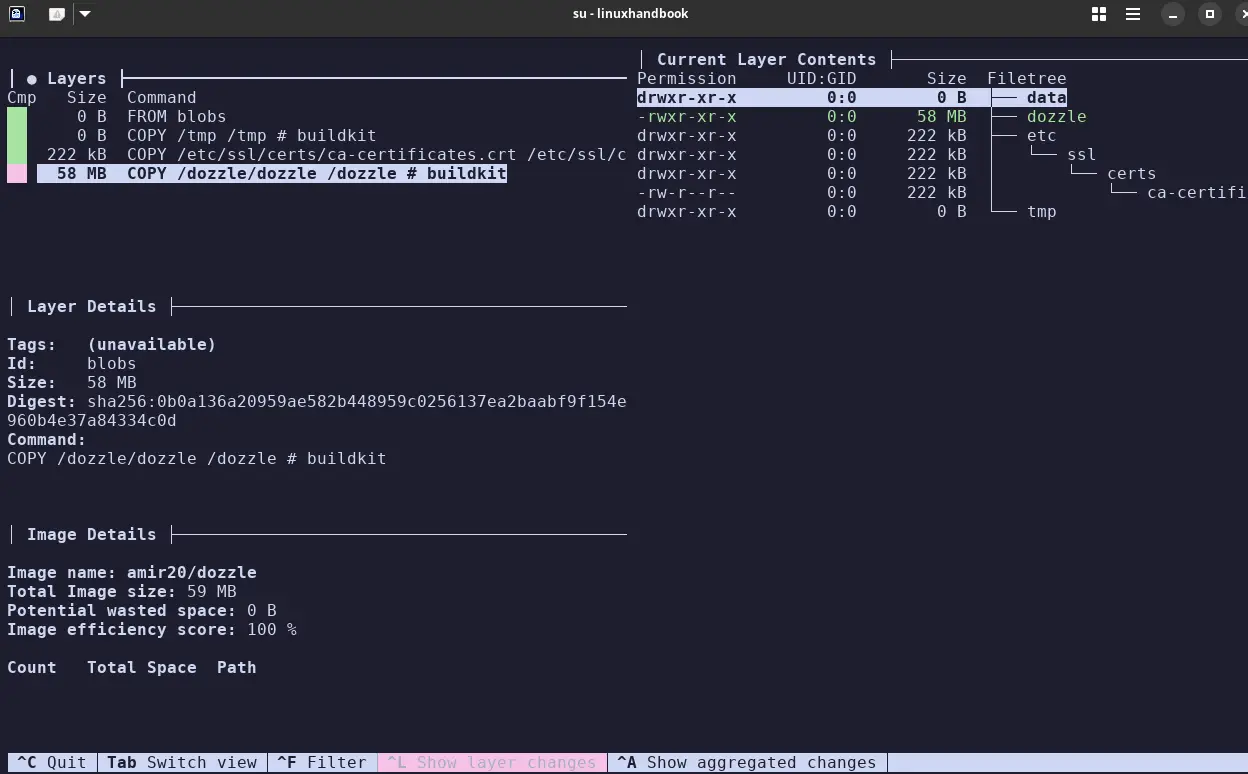
You will see the layers of the image, the layer contents, the layer details and Image details, along with the permissions and the file structure it holds.
- Layer-by-layer visualization of exactly what's eating your image size
- Works against any image, local, registry, or built with Buildx
- CI mode for automated image efficiency checks
- 53k+ GitHub stars, one of the most trusted tools in the Docker ecosystem
- Shows you the problem, doesn't fix it, that's up to you
- Can be slow on images over 1GB while processing all layers
- Interactive TUI only, no automated reports or scheduled runs
- You need the image locally to analyze it
Verdict: Run this on any image you've built yourself. I promise you'll find something to trim. It's now a standard step in my build process.
Dockhand - Docker web UI with built-in security scanning
Dockhand is a self-hosted Docker management web UI that scans images for vulnerabilities before deploying them, using a "safe-pull" approach where new image versions are scanned in a temporary tag and only promoted if they pass your configured CVE thresholds.
Who it's best for: Teams and individuals who want a Docker web UI that actively prevents vulnerable images from reaching their servers, especially those who need SSO authentication without paying for Portainer Business.
Quick Setup:
docker run -d \
  --name dockhand \
  --restart unless-stopped \
  -p 3000:3000 \
  -v /var/run/docker.sock:/var/run/docker.sock \
  -v dockhand_data:/app/data \
  fnsys/dockhand:latest
Just run this one single command and your dockhand is running on localhost:3000
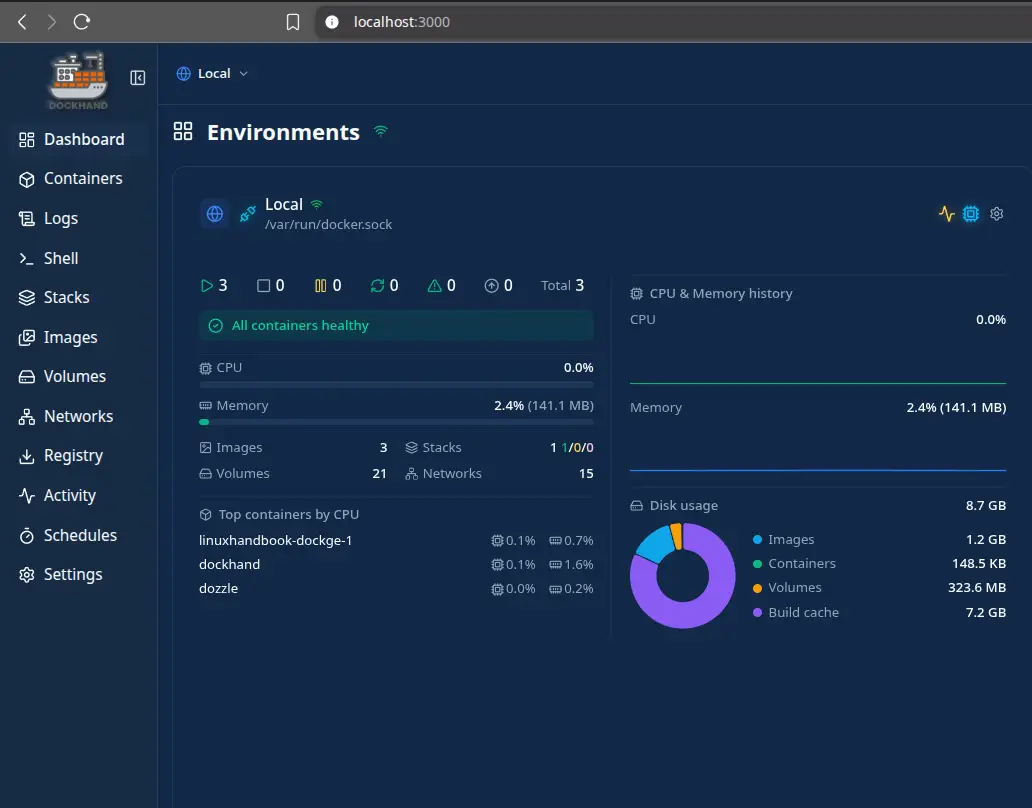
You need to add an environment first by giving the Public IP first then you can see all your images, containers, stacks, etc.
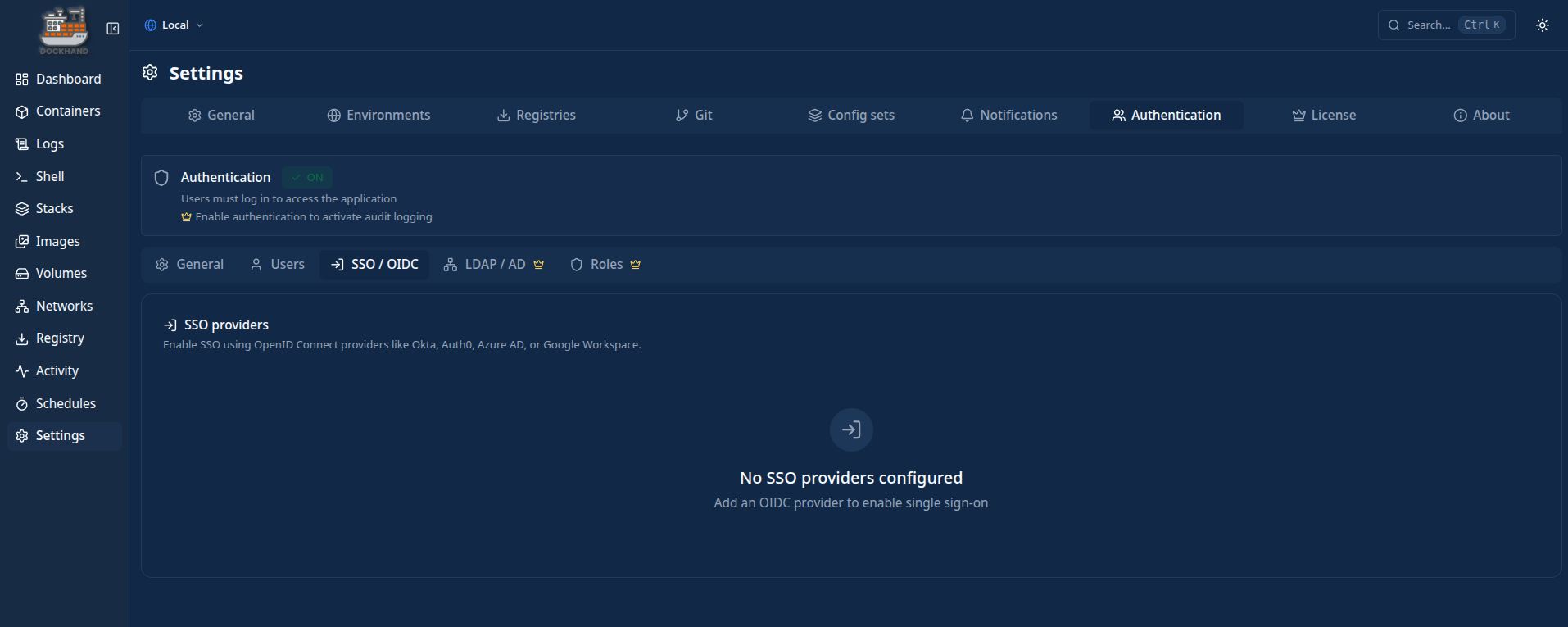
It supports Google, Azure AD, Okta, Keycloak and Auth0 for authentication. Portainer charges for this in their Business tier. Dockh
and includes it in the free tier.
- Scans images before they run, catches CVEs before they reach your server
- Free OIDC/SSO support: Google, Azure AD, Okta, Keycloak, Auth0- Git-based stack deployment for proper GitOps workflows
- Base image hardened with Wolfi packages (minimal CVE surface)
- BSL 1.1 license, source is viewable but not OSI-certified; converts to Apache 2.0 in 2029
- Heavier than minimal UIs like Dockge
- RBAC and LDAP are paid enterprise-only features
- Smaller community than Portainer, fewer tutorials and third-party guides
Verdict: The only Docker web UI I've seen that actively blocks vulnerable image deployments. If security matters in your setup and you want SSO without paying Portainer Business prices, Dockhand is worth knowing about.
Kompose - For K8s Migration
Kompose is a command-line tool that automatically translates Docker Compose files into Kubernetes manifests, generating Deployments, Services, PersistentVolumeClaims, and ConfigMaps so you have a working starting point for your Kubernetes migration instead of writing everything from scratch.
Who it's best for: Developers and teams who have existing Docker Compose setups and are beginning a migration to Kubernetes; Kompose handles the mechanical translation work so you can focus on the Kubernetes-specific pieces.
Quick Setup:
# Build Image
docker build -t kompose https://github.com/kubernetes/kompose.git\#main

# Run
docker run --rm -it -v $PWD:/opt -w /opt kompose kompose convert
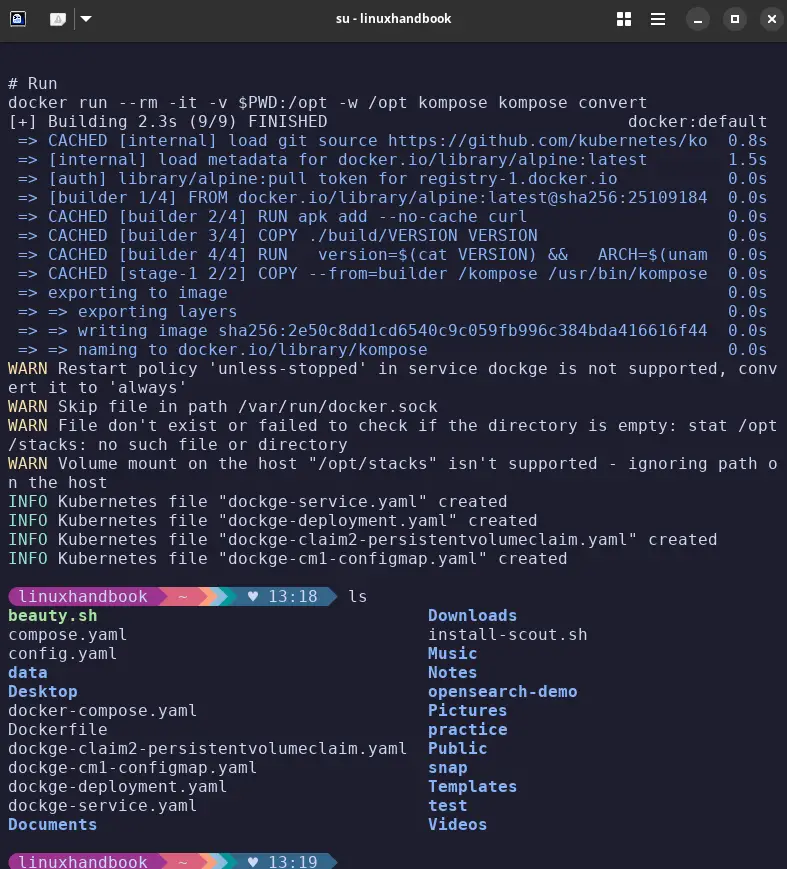
You can see the configmap, deployment and the service yaml files created after running the kompose.
- Turns compose files into K8s manifests in one command
- Official Kubernetes project, actively maintained, not a side project
- Handles volumes, env vars, ports, and basic service dependencies
- Multiple output formats: YAML, JSON, and basic Helm chart output
- Output requires review before using in production
- No StatefulSets, HPA, or RBAC, you add those yourself
- Some compose features drop silently with no warning
- No reverse direction (Kubernetes → Compose)
Verdict: The fastest way to get a working starting point for a Kubernetes migration. Run it, spend 20 minutes cleaning the output instead of 3+ hours writing everything manually.
Docker Slim - For Docker image size reduction
Docker Slim (now SlimToolkit) automatically reduces Docker image sizes by running your container, observing exactly which files and libraries it uses at runtime, then rebuilding a new image containing only those things, resulting in size reductions of 10 to 30x without modifying your Dockerfile or application code.
Who it's best for: Developers shipping large Docker images to production who want dramatically smaller images for faster CI, faster deploys, and a meaningfully reduced attack surface, especially those using fat base images like Ubuntu, Debian, or full Python/node.
Quick Setup:
# Download
curl -sL https://raw.githubusercontent.com/slimtoolkit/slim/master/scripts/install-slim.sh | sudo -E bash -

# Run command
docker-slim build --target <image_name> --http-probe=false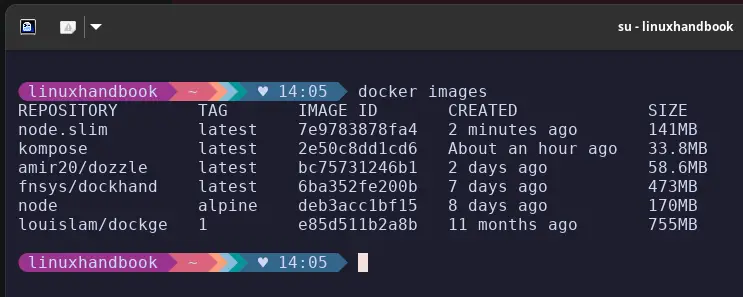
Here you can see the difference between the node:alpine and the node.slim image size after using the docker-slim.
- 10-30x size reduction is realistic and documented across many languages/frameworks
- Generates Seccomp and AppArmor security profiles as a bonus side effect
- Non-destructive, the original image is always preserved untouched
- Works with any base image, any language
- Image quality depends on probe quality; incomplete probing = missing files at runtime
- Doesn't work cleanly with stateful apps without carefully designed custom probes
- Longer build times as it instruments and runs your container during analysis
- Dynamic languages (Python, Ruby, Node.js) need more thorough probing than compiled ones
Verdict: If you're shipping 500MB+ images, Docker Slim should be your next step. Faster CI, faster deploys, smaller attack surface, it pays for the setup time almost immediately.
Docker Autoheal - For auto-restarting your unhealthy containers
Docker Autoheal monitors running containers for failing health checks and automatically restarts them, filling a gap in Docker's native behavior where containers fail their HEALTHCHECK but Docker leaves them running in an unhealthy state indefinitely rather than restarting them.
Who it's best for: Anyone running Docker containers with HEALTHCHECK defined who wants automatic recovery from unhealthy states without setting up Kubernetes or writing their own cron-based monitoring script.
Quick Setup:
docker run -d \
    --name autoheal \
    --restart=always \
    -e AUTOHEAL_CONTAINER_LABEL=all \
    -v /var/run/docker.sock:/var/run/docker.sock \
    willfarrell/autoheal
sample compose file:
services:
  autoheal:
    image: willfarrell/autoheal:latest
    restart: always
    volumes:
      - /var/run/docker.sock:/var/run/docker.sock
    environment:
      - AUTOHEAL_CONTAINER_LABEL=autoheal
      - AUTOHEAL_INTERVAL=5

  my-app:
    image: nginx:alpine
    container_name: demo-app
    labels:
      - "autoheal=true"
    healthcheck:
      # Curl fails if the default Nginx page is missing
      test: ["CMD", "curl", "-f", "http://localhost/"]
      interval: 5s     # Check frequently for the demo
      timeout: 3s
      retries: 2       # Fail quickly
      start_period: 2s
And now if there is any container in unhealthy status, it will restart that container withing the time interval mentioned in our case 5s.
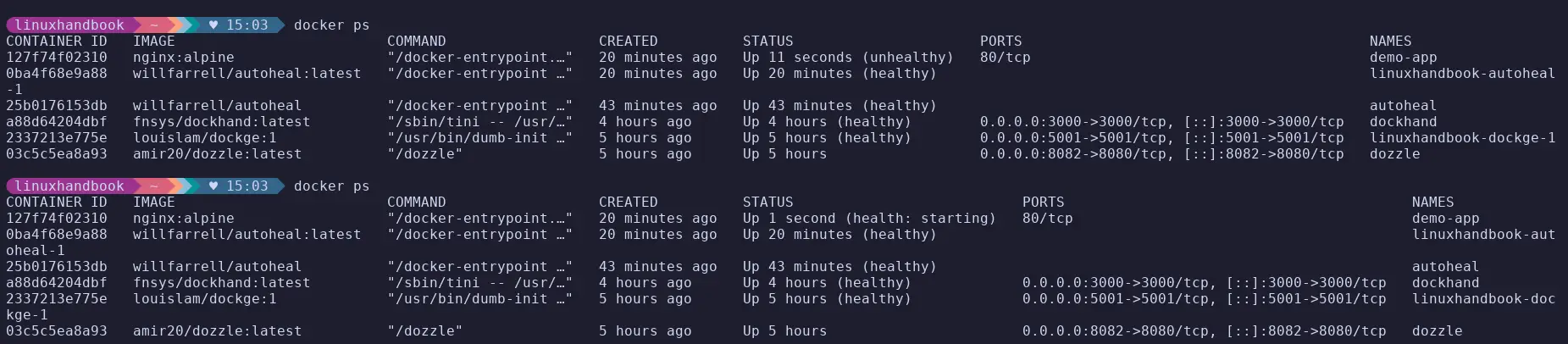
Here it restarted the nginx container when it was showing unhealthy status and after some time its again started with status healthy.
- Label-based opt-in keeps you explicitly in control of what gets healed
- Supports webhook notifications on restart events
- Lightweight, it's a bash script in a container, fully auditable
- Does nothing if containers don't have
HEALTHCHECK defined- Treats the symptom (crashes), not the cause; you still need to investigate root issues
- No circuit breaker, will keep restarting a broken container indefinitely
Verdict: Small, unassuming, and genuinely useful. If your services have healthchecks and uptime matters, add Autoheal to your compose stack and stop worrying about containers quietly dying overnight.
Cup - For checking image updates without rate limit issues
Cup is an image update checker that tells you which running containers have newer versions available in the registry, using minimal, lightweight API calls against image manifests instead of pulling images, so it never burns through Docker Hub's pull rate limits.
Who it's best for: Users who want to stay aware of available image updates but are hitting Docker Hub rate limits with other tools, or who want a fast, lightweight checker that doesn't pollute their image cache.
Quick Setup:
# Pull image
docker pull ghcr.io/sergi0g/cup

# Run the image
docker run -tv /var/run/docker.sock:/var/run/docker.sock ghcr.io/sergi0g/cup check <image_name>
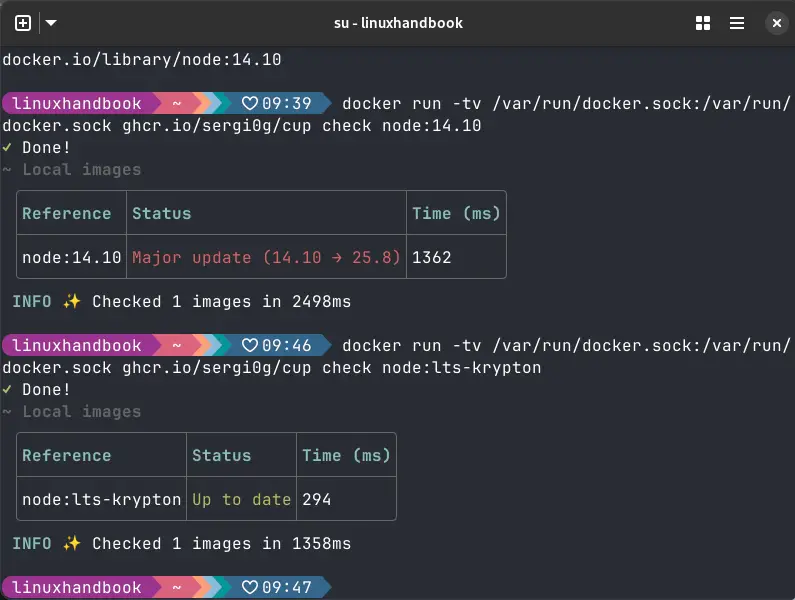
Here you can see the node image having 14.10 tag showing there is a major update available, while when we checked with the lts-krypton its Up to date.
- Checked 58 images in 3.7 seconds on a Raspberry Pi 5
- Designed from the ground up to not burn Docker Hub rate limits
- JSON API for Grafana, Home Assistant, or custom webhook integration
- The binary is 5.7MB, genuinely tiny
- Notify-only by design, won't update containers for you
- No built-in alerting, use the JSON API + a webhook consumer for notifications
- Treats containers individually, no compose-stack grouping
Verdict: The fastest, most rate-limit-friendly way to know which images need updating. Keep it running in server mode with the dashboard bookmarked, one less thing to chase manually.
ctop - Real-time resource monitor for Docker containers
ctop is a top like terminal UI that displays real-time resource usage for all running Docker containers, CPU, memory, network I/O, and block I/O in a constantly updating, sortable, color-coded table, making it the fastest way to answer "what is my Docker host actually doing right now?"
Who it's best for: Any Docker user who wants an instant, always-accurate view of container resource consumption, especially useful for debugging performance issues, chasing memory leaks, or just understanding what's happening on a new server.
Quick Setup:
sudo curl -Lo /usr/local/bin/ctop https://github.com/bcicen/ctop/releases/download/v0.7.7/ctop-0.7.7-linux-amd64

sudo chmod +x /usr/local/bin/ctop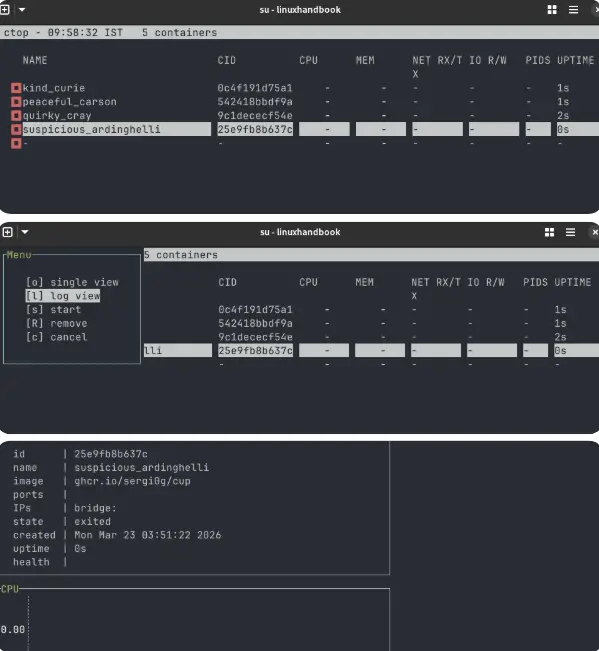
After installing, you can run the command ctop and can view this terminal UI where there are containers. If you press the right arrow, you can see the CPU, memory, I/O, Environment variables, etc. If you click on any container, you get options to view logs, start, remove, single view, etc.
- Sortable by CPU, memory, network I/O, block I/O
- Drill into any container for detailed graphs without leaving ctop
- Groups containers by their Compose project
- Single static binary, drops neatly into
/usr/local/bin- Terminal-only, remote access requires SSH
- No historical data, current state only
- Not actively maintained (but the Docker stats API it uses doesn't change)
- No alerting, shows data, doesn't act on it
Verdict: The first tool I install on any new Docker host. It answers "what's going on?" in two seconds, without opening a browser. If you pick exactly one tool from this list, make it this one.
FAQ
I know you will have some questions so let me answer them, well, at least some of them.
Do I need all 11 of these tools?
No. Most people will get immediate value from 2-3. Start with ctop and Dozzle; those solve universal problems. Add the others based on the specific pain points you're hitting: image size, security scanning, compose management, and so on.
Are these tools safe to run on a production server?
Most of them mount /var/run/docker.sock, which gives them root-equivalent access to your Docker daemon. Never expose Dockge, Dozzle, Dockhand, or Lazydocker directly to the public internet without authentication. Use Tailscale, a VPN, or, at a minimum, HTTPS + basic auth in front of them.
Do any of these replace Portainer?
Dockge is the closest in terms of compose management experience and is arguably better for solo homelab use. But it lacks Portainer's multi-user RBAC, Swarm support, and Kubernetes integration. For teams or larger production environments, Portainer CE or Portainer Business still makes sense. Dockhand replaces Portainer's paid SSO feature for free.
Will Docker Slim break my application?
It can, if the probe doesn't exercise all of your app's code paths. Always test `.slim` images thoroughly before deploying to production. Start with a non-critical service, validate the output image completely, then expand from there.
Do any of these tools work with Podman?
Kompose: Yes, works with any compose file, runtime-agnostic
Dive: Partial, can analyze OCI-compliant images directly
Dockge, Lazydocker, Oxker, ctop, Dozzle, Dockhand: Docker socket only
Docker Slim: Primarily Docker; SlimToolkit is expanding broader runtime support gradually
Is ctop still actively maintained?
Not with frequent releases, no. But the Docker stats API it uses is stable and doesn't change often, so ctop just keeps working. I've run it without issues for years.
Final recommendation
Terminal users - Lazydocker or Oxker give you full management without leaving the terminal.
Browser-first access - Dockge (compose management) + Dozzle (logs) together cover most daily needs.
Images too big - Run Dive first to diagnose, then Docker Slim to fix. Security concerns - Dockhand scans before it deploys; add it if you care about CVEs reaching your server.
Moving to Kubernetes - Kompose is your first step in the migration
Use these tools together as they don't conflict. Lazydocker + ctop + Dozzle handles daily monitoring. Dive + Docker Slim handles image hygiene. Docker Autoheal + Cup handles reliability and update awareness.
If you know more such tools that could help enhance the Docker experience, feel free to drop them in the comments!