I spent several days putting NoteDiscovery through its paces - importing my real Obsidian vault, testing exports and many more and now I am sharing my experience.
What is NoteDiscovery?
NoteDiscovery is a lightweight, self-hosted knowledge base application. Think of it as a self-hosted alternative to Notion or Obsidian Sync, but with a crucial difference: everything runs on your machine (or server), and your notes are just .md files sitting in a folder. It's 100% free under the MIT License, deploys in a single Docker command. Whether you're a developer maintaining a personal wiki, a student building a "second brain," or someone who simply doesn't trust cloud note apps with their private thoughts, NoteDiscovery is worth your attention.
The key selling point here isn't just privacy - it's ownership. Your notes live as plain text markdown files in a directory you control. Want to switch apps tomorrow? Just take your files. Want to version control your notes? Initialize a git repo in the data folder. Want to grep through your entire knowledge base? It's just files in a folder.
I used Docker to deploy it
Getting NoteDiscovery running takes about two minutes. Here's the approach that worked best for me - Docker Compose for a persistent setup you can tweak later. I have my custom docker-compose.yml file where all things are configured, like the timezone and prebuilt NoteDiscovery image. You just need to follow the steps as follows:
services:
  notediscovery:
    image: ghcr.io/gamosoft/notediscovery:latest
    container_name: notediscovery
    ports:
      - "8000:8000"
    volumes:
      - ./data:/app/data
    restart: unless-stopped
    environment:
      - TZ=Asia/Kolkata
    healthcheck:
      test: ["CMD", "python", "-c", "import urllib.request; urllib.request.urlopen('http://localhost:8000/health')"]
      interval: 60s
      timeout: 3s
      retries: 3
      start_period: 5s
Save this as docker-compose.yml, create the data directory, and bring it up:
mkdir -p notediscovery/data && cd notediscovery
# save the compose file above
docker-compose up -d
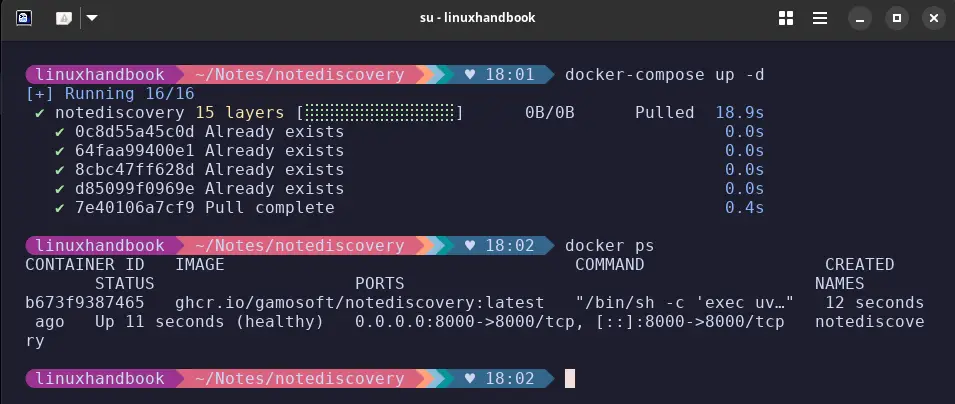
That's it. The container pulls, starts, and within seconds, NoteDiscovery is live at localhost:8000. No database to configure, no environment variables to wrestle with, no .env file with 47 entries. Just a Docker image and a data folder.
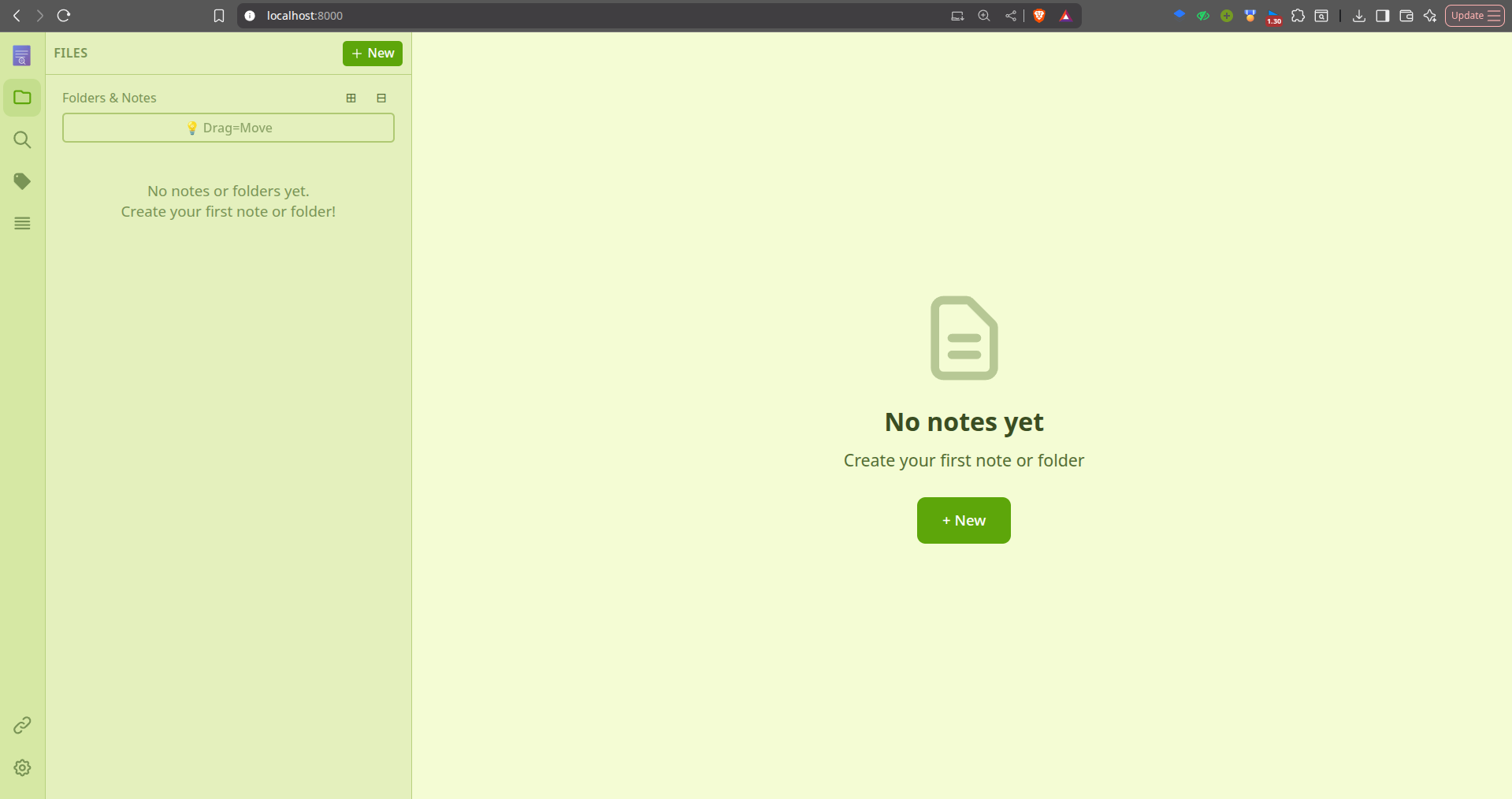
The official repo also provides a quick setup guide.
Note taking experience
When you first open NoteDiscovery, you'll see a clean, split-pane editor: markdown source on the left, live-rendered preview on the right. As you type, the preview updates in real time with no perceptible lag.
Creating test notes with headers, nested lists, bold and italic text, tables, code blocks with syntax highlighting, and even LaTeX math equations - everything renders correctly in the preview. The syntax highlighting covers multiple languages, code blocks get a one-click copy button on hover, and math notation is powered by MathJax. If you write technical notes with equations, you'll appreciate this.
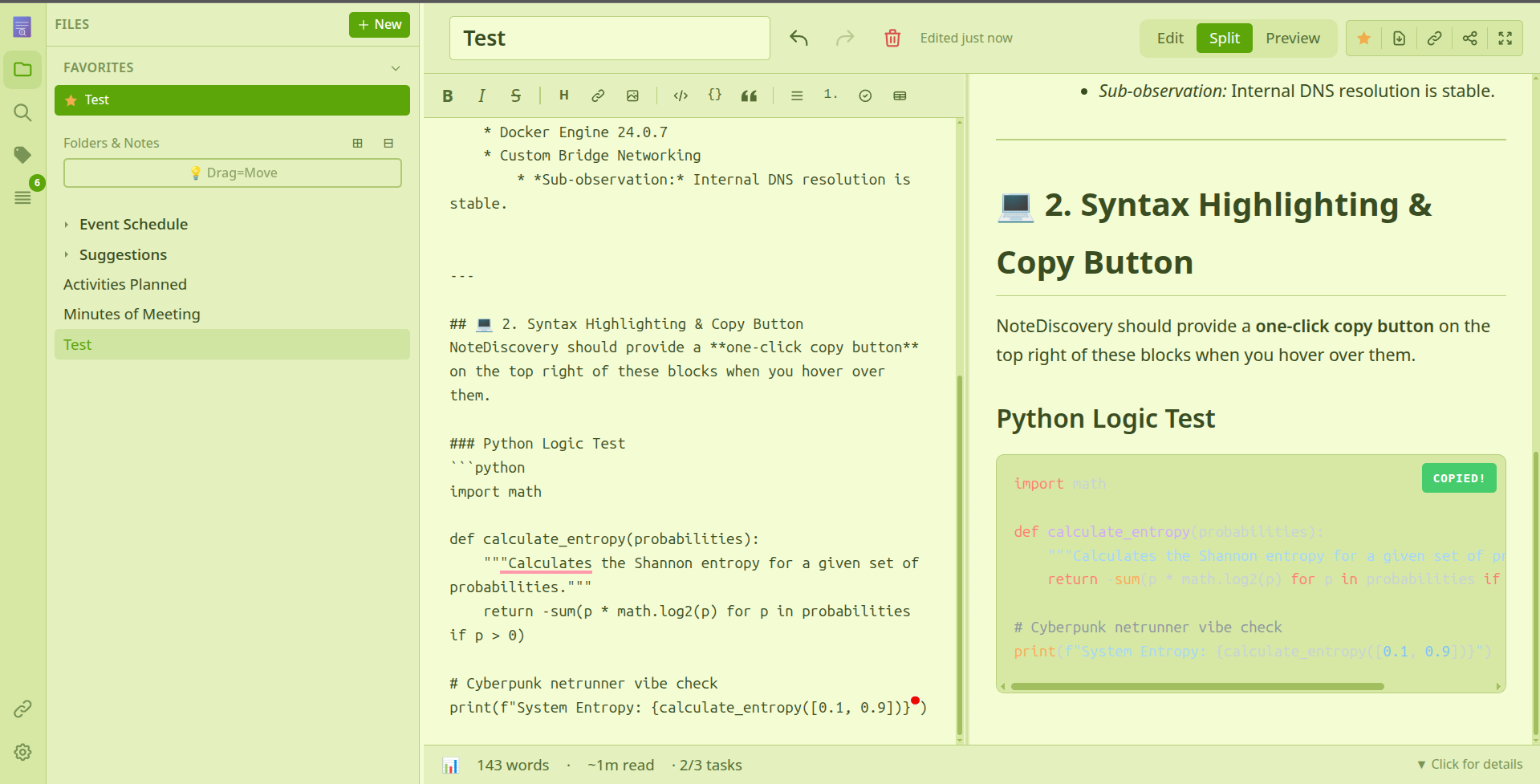
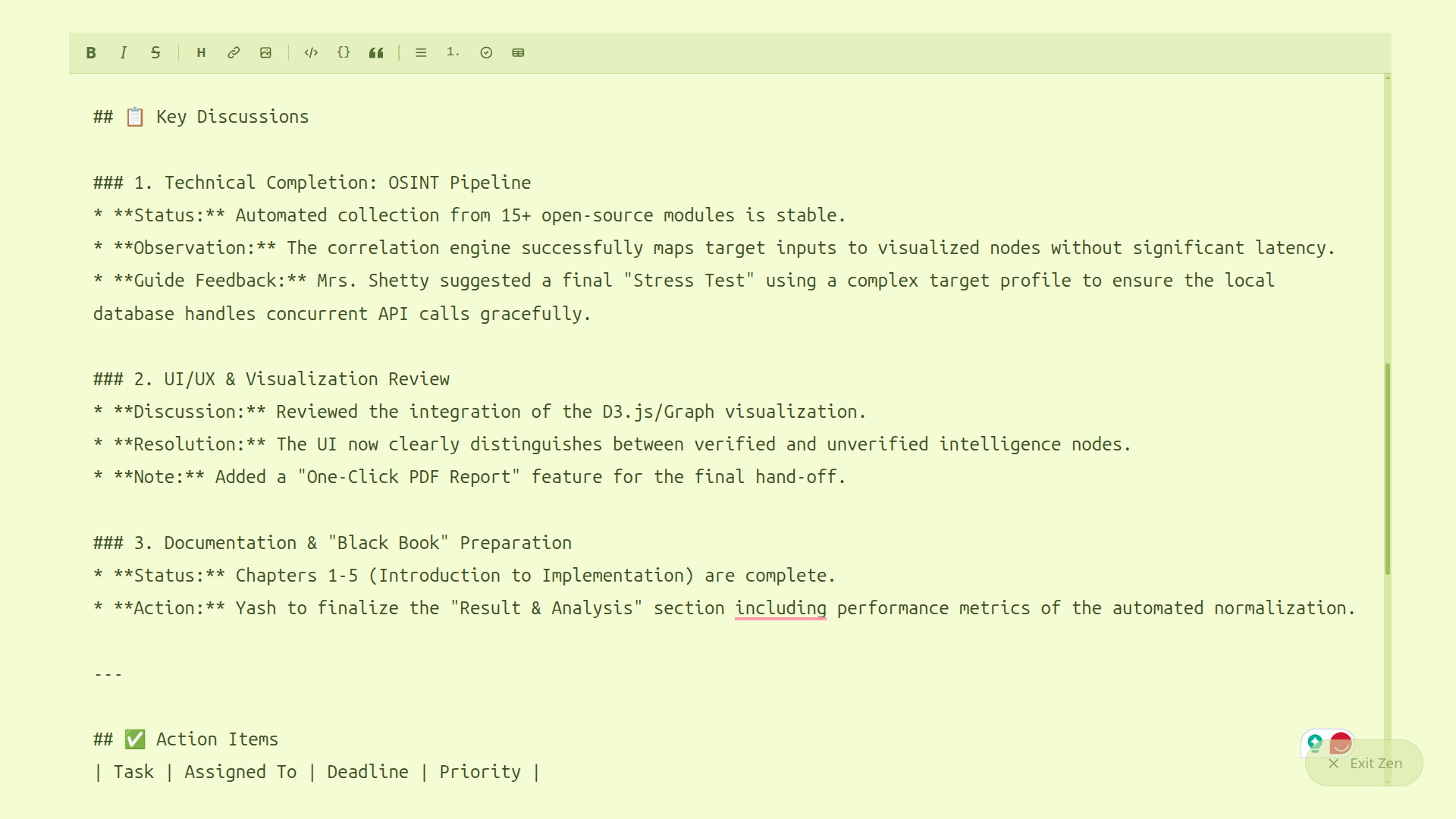
The editor supports three view modes: pure edit mode (just the markdown), split mode (editor + preview side by side), and a full preview mode. There's even a "Zen Mode" that goes full-screen with larger text and hidden UI for distraction-free writing. Which I liked the most. You can also undo the recent changes by clicking on the arrows at the top.
Themes and visual polish
NoteDiscovery ships with multiple built-in themes, and switching between them is instant, no page reload needed. The default Light theme is clean and professional, Gruvbox Dark uses warm tones that are genuinely easy on the eyes for long writing sessions, Cobalt has a deep blue programmer aesthetic, and Vue High Contrast is great for accessibility.
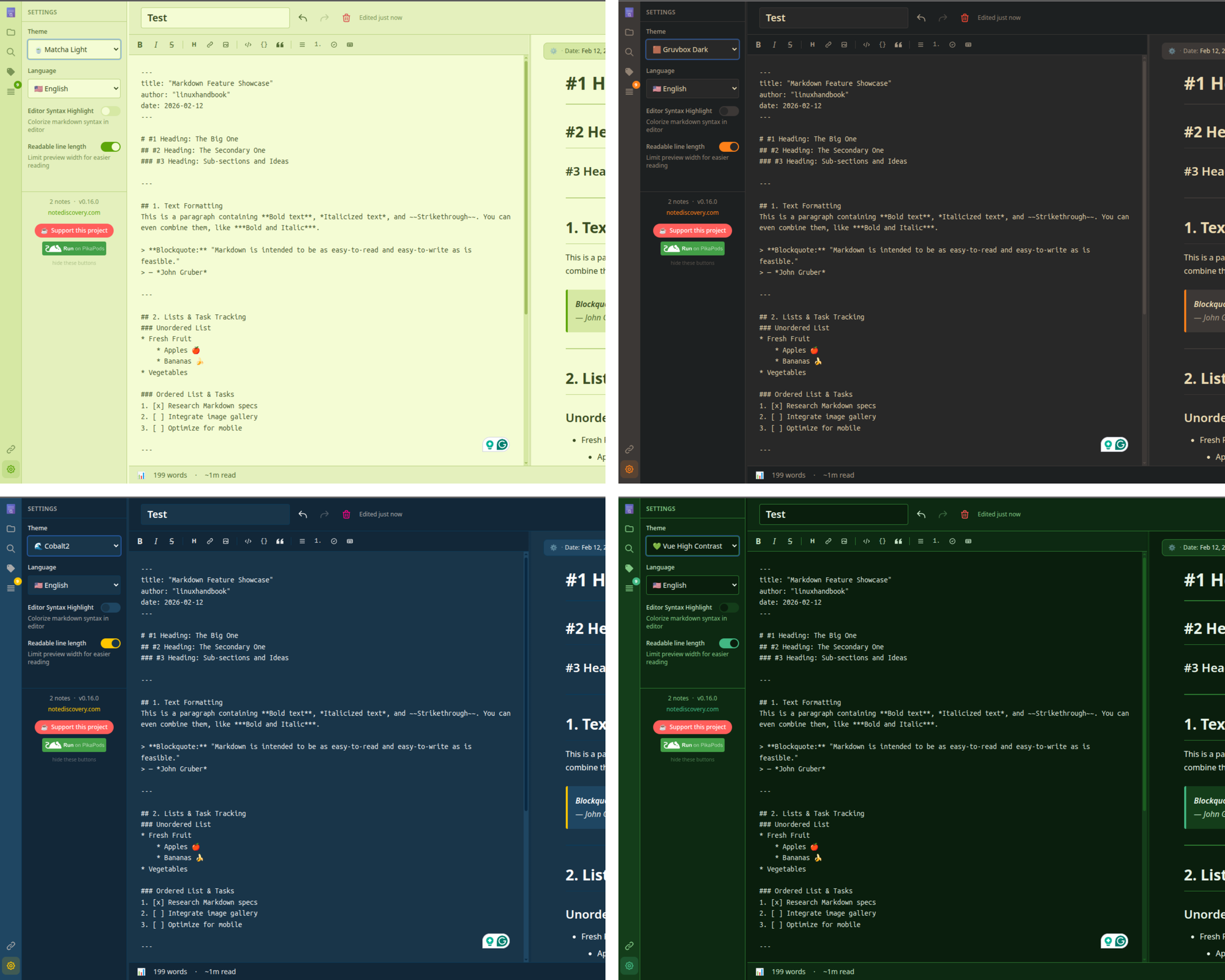
The dark themes deserve special mention. Many open-source apps treat dark mode as an afterthought, just inverting the colors and calling it a day. NoteDiscovery's dark themes feel intentionally designed, with proper contrast ratios and colors that won't strain your eyes during extended use. Gruvbox Dark strikes the best balance between aesthetics and readability.
You can also create your own CSS themes and drop them in the themes/ directory if the built-in options aren't your style.
Importing existing notes
Here's where things get interesting. Testing NoteDiscovery with fresh notes is one thing, seeing how it handles an existing knowledge base is another. I was recently using Obsidian and had some notes there. I copied over a real Obsidian vault into NoteDiscovery's data directory to see what would break and test if it can handle the same markdown files after import.
docker stop notediscovery
cp -r ~/path_to_Notes/* ./data/
docker start notediscovery
Just stop the container, then copy your current notes vault/directory to the current data folder, where all your notes are stored for the NoteDiscovery.
Now I tested some points that need to be properly handled while importing the files to NoteDiscovery.
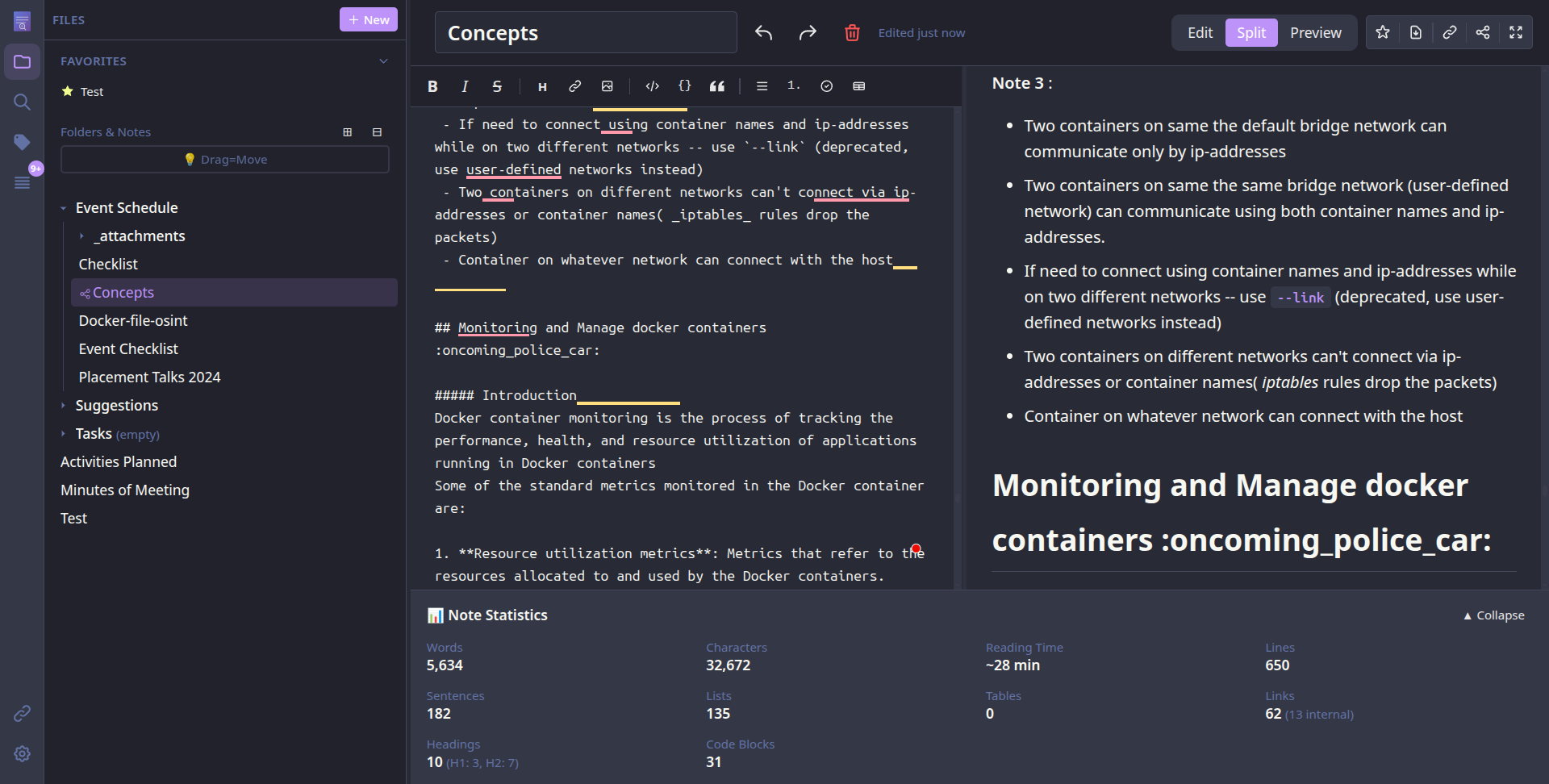
Folder Structure: NoteDiscovery picked up the entire directory tree without any issues. Nested folders with subfolders like Event Planning and Suggestions showed up exactly as expected in the sidebar. The visual folder tree is collapsible and expandable, making navigation intuitive.
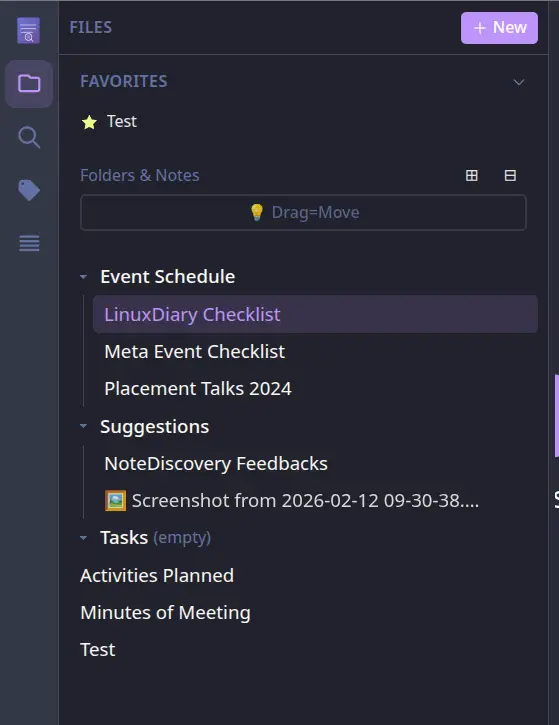
Wikilinks: This was the crucial compatibility test.
The Obsidian notes tested [[wikilinks]] to connect related notes. NoteDiscovery supports the exact same syntax, and every single inter-note link worked perfectly. Clicking a wikilink navigates to that note immediately, and the graph view (more on that below) shows all the connections visually. You can see that the Activities are linked with two events and shown properly in the graph visualization.
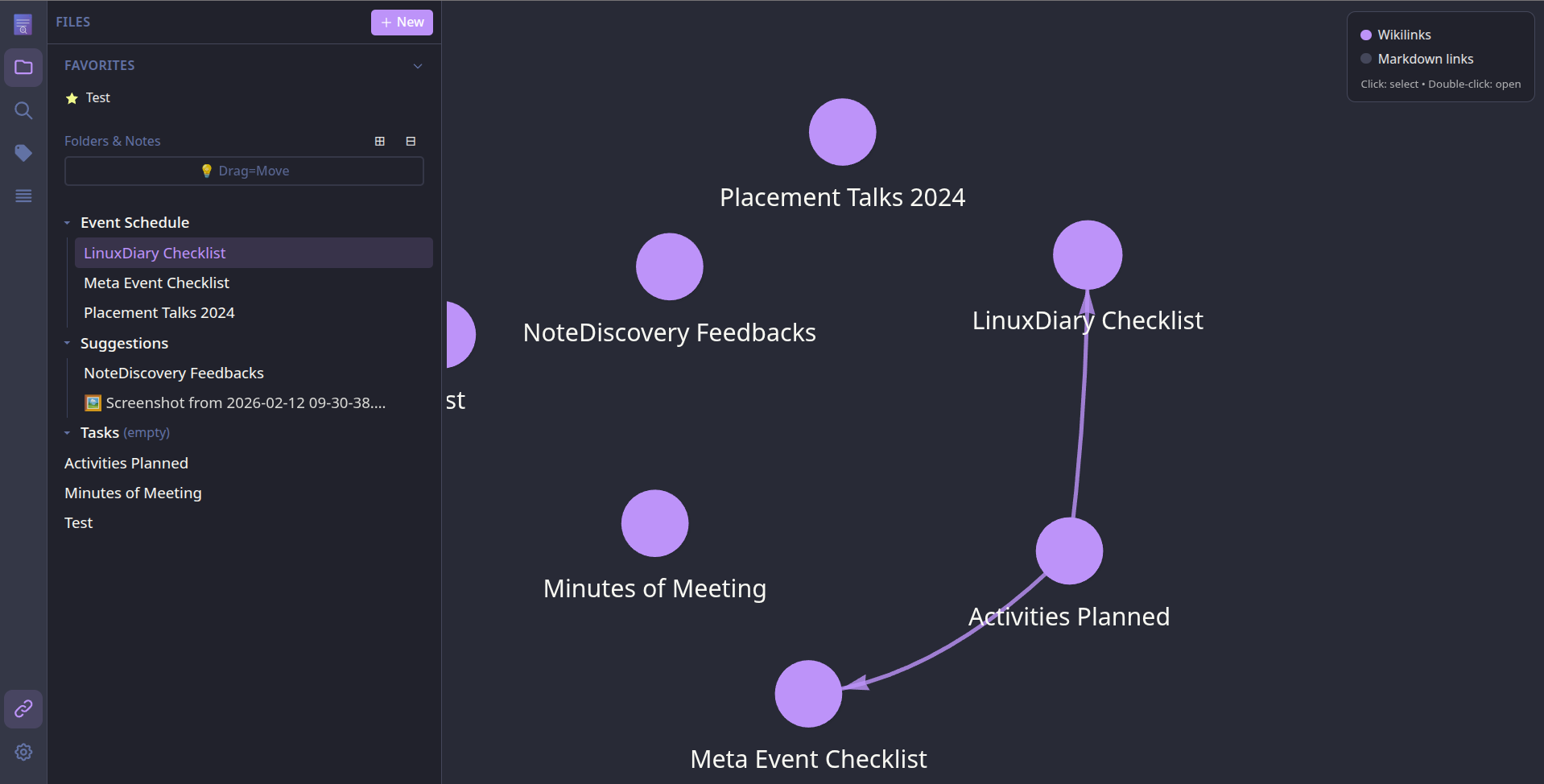
YAML Frontmatter: Notes with YAML frontmatter parsed correctly. Tags defined as tags: [project, meeting] appeared in the tag filter panel, and metadata like dates and authors showed up in a collapsible properties panel at the top of the preview.
Images: Here's where NoteDiscovery does something interesting. When you paste an image from your clipboard (Ctrl+V), it uploads the image and inserts it using Obsidian-style syntax: ![[pasted-image-20260212113243.png]]. This is not the standard markdown  format, but it works seamlessly. The fact that NoteDiscovery uses Obsidian's convention here is a thoughtful touch that makes migration even smoother.
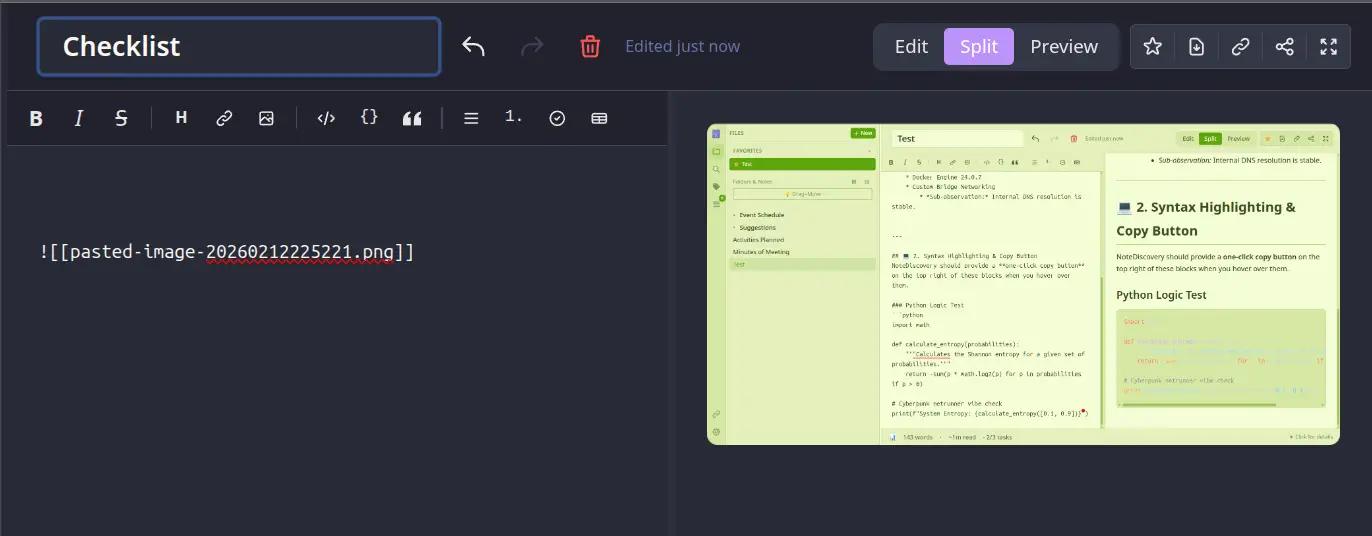
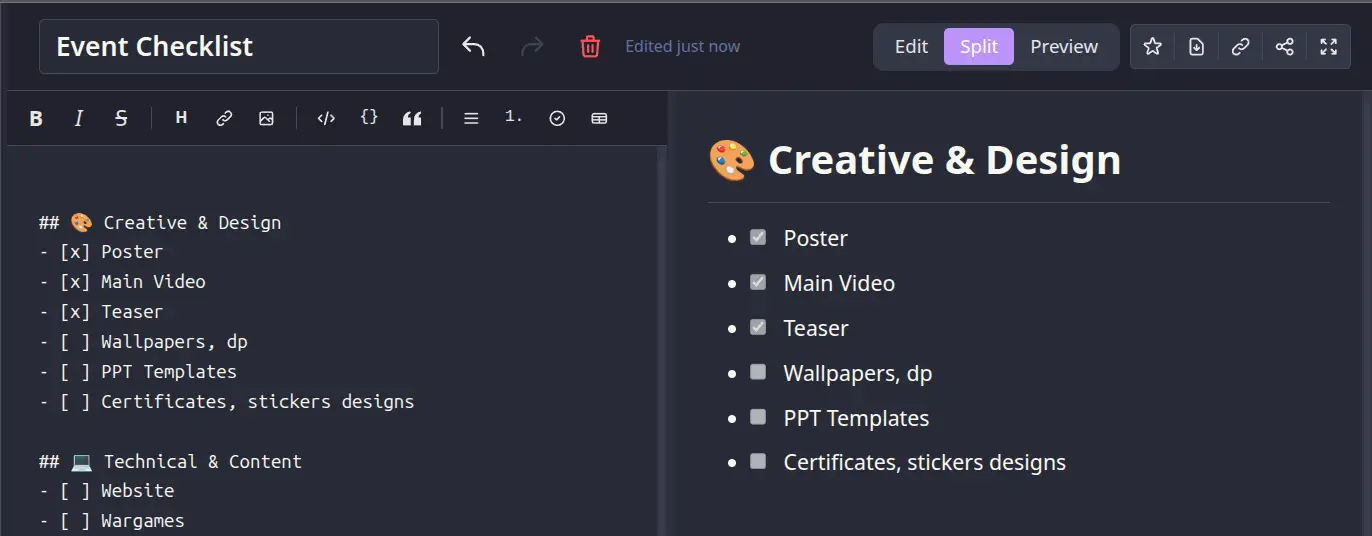
One functional caveat: Interactive checkboxes. Task lists with markdown checkbox syntax (- [ ] task and - [x] completed) render as checkboxes in the preview, but you can't click them to toggle their state. They're purely visual. You have to manually edit the markdown source to change [ ] to [x]. This isn't a dealbreaker, but it's worth noting if task management is a core part of your workflow, as it prefers code first approach.
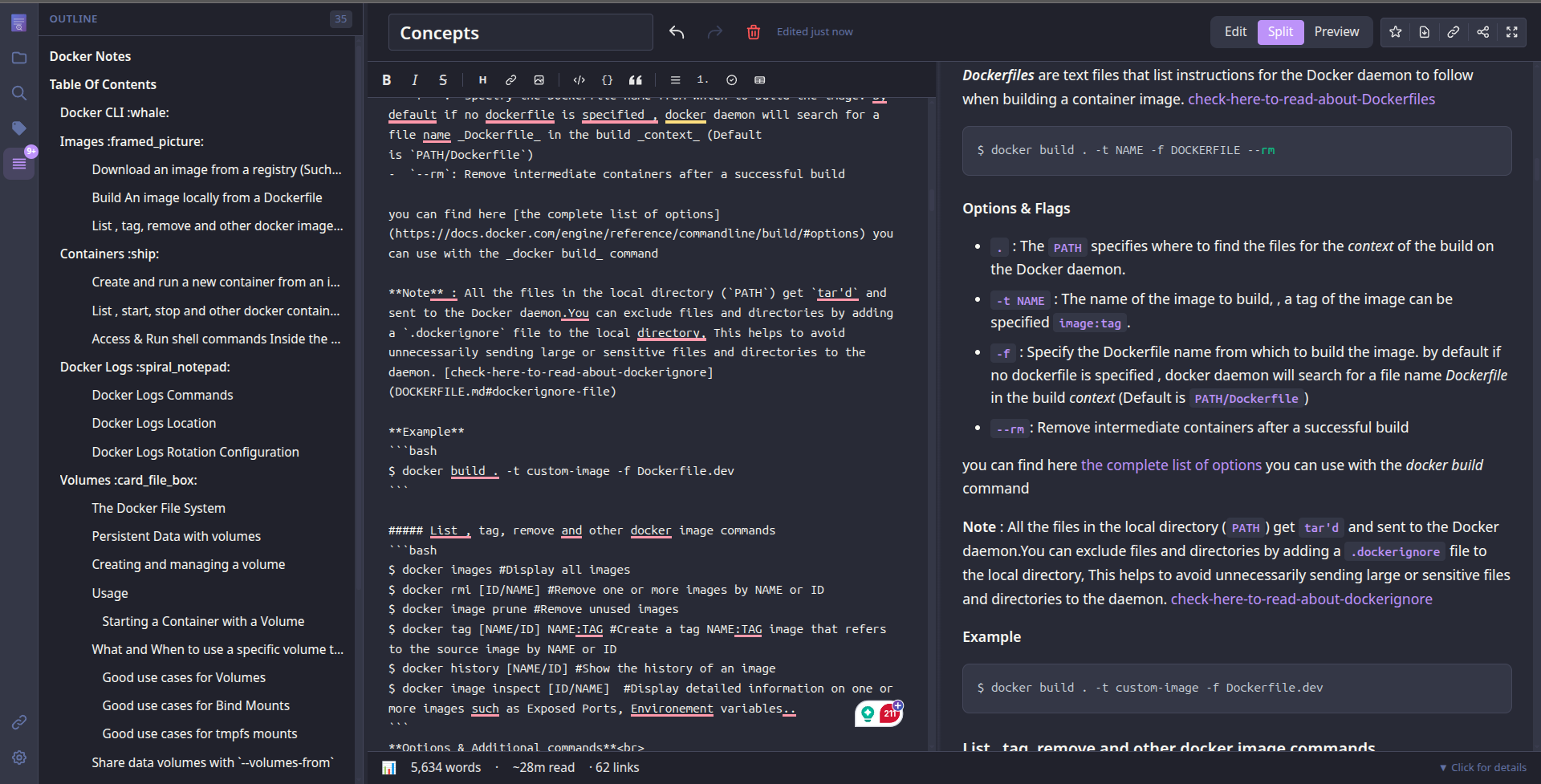
There's also an Outline Panel that auto-generates a table of contents from your headings, with click-to-jump navigation. For longer documents, this is invaluable.
Plugins: The actual documentation involves very vague information about using plugins, as it provides a pre-plug-in named notes stat, but there was no config JSON file for enabling the plugins after making that file, I was able to get the plugin results from curl as well as the GUI.
Overall, the import experience was remarkably smooth. If you're migrating from some other note-making tool, NoteDiscovery respects your existing structure and conventions in a way that makes the transition painless.
Exporting and sharing
NoteDiscovery can export individual notes as standalone HTML files. Testing this with a complex note that had headers, code blocks, a table, bold and italic formatting, and embedded images showed impressive results.
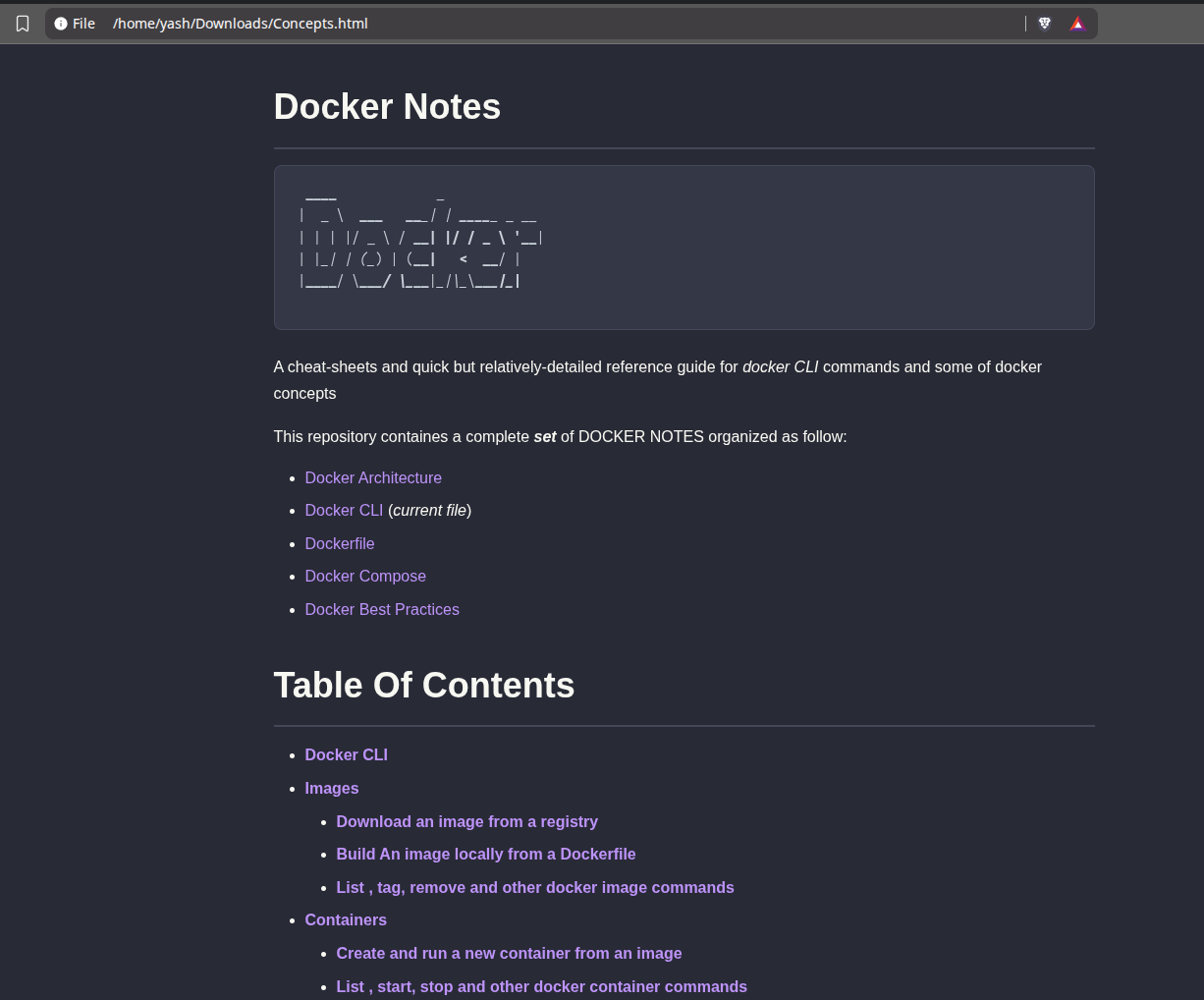
The exported HTML was clean. Code syntax highlighting was preserved, formatting was intact, images were embedded (not broken links), and the result was a fully readable standalone file you could email to someone or host on a static server. The export genuinely looks like the preview — there's no degradation or loss of formatting.
The one thing I noticed is that the relative hyperlinks are still clickable in the HTML format even if they don't redirect to a webpage, on the other side the, Obsidian exports the note to PDF format, which does not provide clickable links to the relative linking.
There's also a share feature that generates a unique token-based link and even a QR code for mobile access. This is handy if you want to share a specific note with someone without giving them access to your entire NoteDiscovery instance. The shared links aren't guessable, so there's a basic level of security built in.
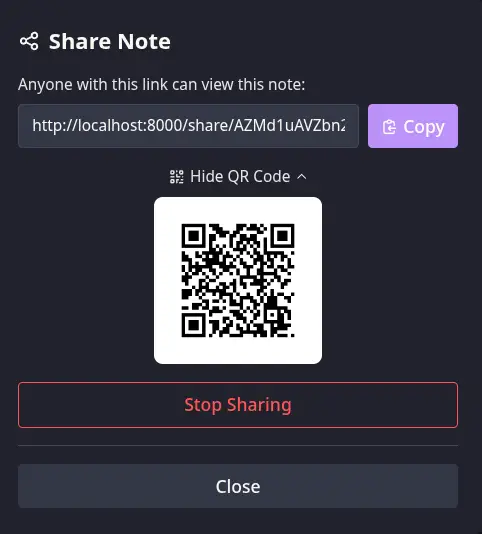
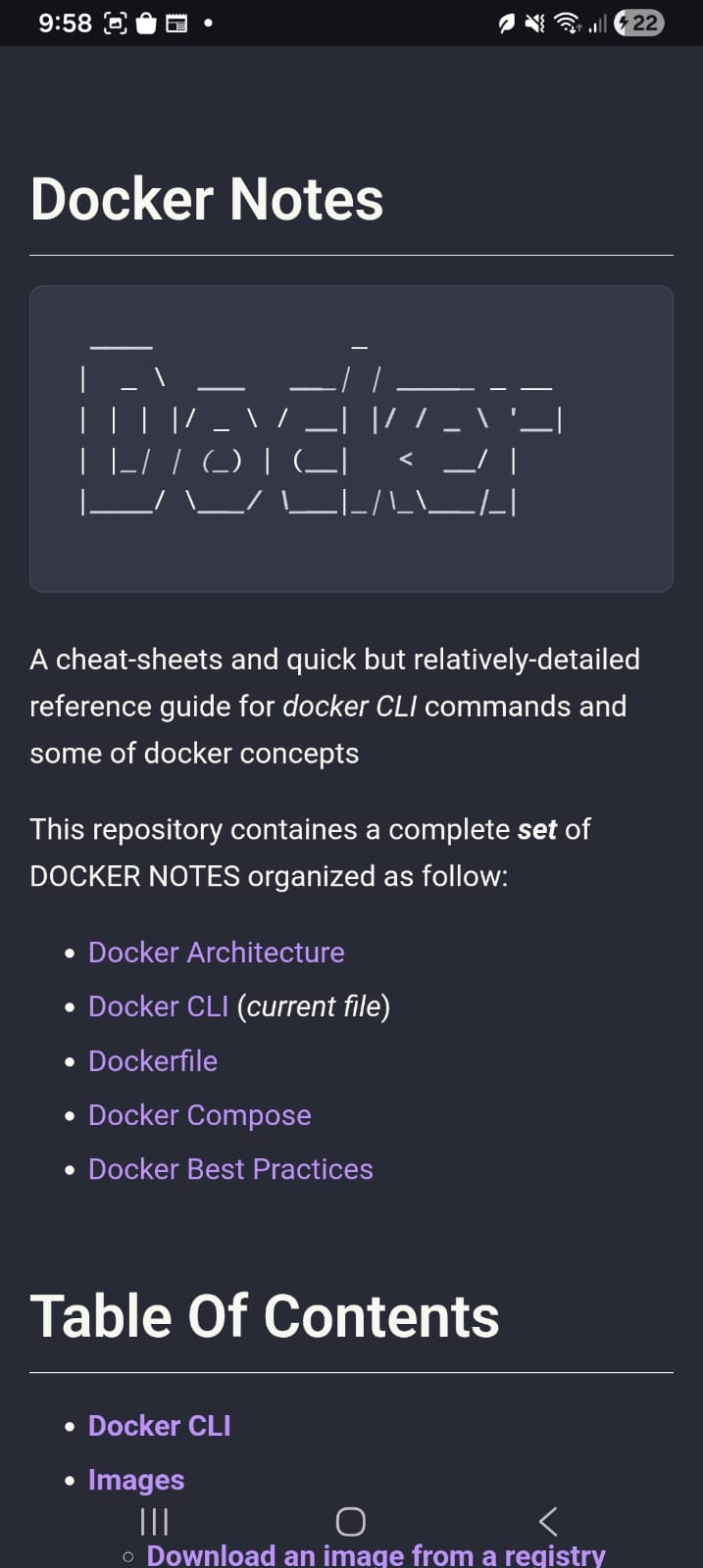
You can replace the localhost with your actual public IP as http://<Public_IP>/share/ and share the link with anyone you want to give access to. I tried opening it on my mobile; the structure was intact, hyperlinks that were not relative were working.
What works really well in NoteDiscovery
Your notes are plain .md files in a folder. Want to back up? cp -r data/ backup/. Want to switch to another app? Just take your files. Want to grep through all your notes? grep -r "search term" data/. There's no proprietary database, no SQLite blob, no export-and-pray workflow. NoteDiscovery delivers on it completely. Which give you true sence of data ownership.
Everything happens instantly. Search results appear as you type, notes render without delay, switching between notes is immediate. There's no "syncing" indicator, no loading spinner, no waiting for a cloud roundtrip. It feels the way desktop apps used to feel before everything moved to the cloud, giving strong sense of performance.
The [[wikilink]] support, graph view, Obsidian-style image syntax, and YAML frontmatter parsing make it a legitimate alternative if you want a web-based, self-hosted experience rather than a desktop app, you can easily migrate from any note-making tool. For an open-source, self-hosted project, the UI is genuinely impressive. The typography is clean, the themes are well thought out, the split-pane editor feels polished. It doesn't look like a proof-of-concept, it looks like a product.
The HTML export preserves formatting beautifully and creates genuinely shareable, readable, standalone files as well as preserving the structure, syntax and hyperlinks of the note.
Where NoteDiscovery falls short
No tool is perfect, and NoteDiscovery has some limitations you should know about upfront.
No interactive checkboxes. Markdown task lists render visually but aren't clickable. If you rely heavily on task management with checkboxes, you'll have to edit the markdown source every time to toggle states. This is a common pain point mentioned in user discussions.
The full-screen mode is half-baked. When you hit the Zen Mode / full-screen button in split-view mode, only the editor pane expands. The preview stays at its original size. This defeats the purpose if you want a distraction-free experience with both panes visible. You essentially have to choose between full-screen editing or seeing your preview - not both.
No collaboration or multi-user support. There's basic password protection (disabled by default, with a default password of "admin"), but no user accounts, no concurrent editing, no granular sharing permissions. This is fine for personal use but means teams can't really collaborate meaningfully on a shared instance.
Search only covers content, not filenames. The search function looks through note contents, which is useful, but it doesn't search file or folder names. If you remember what you called a note but not what's in it, you'll have to scroll through the sidebar manually - or use the Quick Switcher (Ctrl+Alt+P), which does let you jump to notes by name.
No WYSIWYG mode. NoteDiscovery is pure markdown with a split-pane preview. If you're coming from a what-you-see-is-what-you-get editor like Notion or Google Docs, there's a learning curve. That said, the live preview helps bridge the gap.
Conclusion
NoteDiscovery does exactly what a self-hosted note app should do: it gets out of your way and lets you own your data. The deployment is dead simple, the interface is surprisingly polished, and the fact that your notes are just markdown files means you're never locked in.
Is it a full Notion replacement? No, it lacks databases, rich collaboration features, and the kind of block-based editing that makes Notion powerful. But if you need a private, web-accessible place to write and organize markdown notes with wikilinks and a graph view, NoteDiscovery nails it.
Though there are some rough places and areas to improve, it manages to deliver what it promises. If you value privacy, simplicity, and actual ownership of your knowledge base, NoteDiscovery deserves a spot on your self-hosting stack.